Monster Hunter Rise feature

Here is Monster Hunter Rise in 8K on NVIDIA RTX 3090 with Reshade Ray Tracing

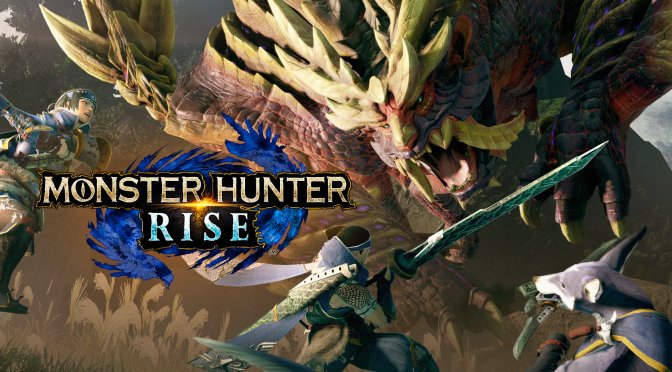
Capcom has just released Monster Hunter Rise on PC, and Digital Dreams shared a video showcasing the game running in 8K with Reshade Ray Tracing.

In order to capture this gameplay footage, Digital Dreams used an NVIDIA GeForce RTX 3090. The YouTuber also used an AMD Ryzen 9 3900X CPU with 32GB of RAM.

Monster Hunter Rise was initially released on Nintendo Switch. As such, the game does not look as good as Monster Hunter World. Still, and with Reshade Ray Tracing, it can at least look better than its vanilla version.

As we’ve mentioned, Marty McFly’s post-process RT solution is only using depth information available in screen space in order to provide these “path tracing” effects. As such, these Ray Tracing effects are not as accurate as the native RT effects that some games support. Nevertheless, this RT workaround can further enhance a game’s Global Illumination and Ambient Occlusion effects.

Speaking of 8K videos, here are Just Cause 3GTA 5 and Crysis 3 running in 8K. You can also find Assassin’s Creed ValhallaAssassin’s Creed Origins and Skyrim in 8K. Oh, and we have also shared 8K videos for Red Dead Redemption 2Batman Arkham Knight, Battlefield 1 & Metal Gear Solid 5, as well as Diablo 3, Battlefield Bad Company 2, COD: Modern WarfareRIDE 4Halo RemasterForza Horizon 5The Witcher 3, Final Fantasy 7 Remake and Horizon Zero Dawn.

Enjoy!

[8K] Monster Hunter Rise | RTX 3090 - RAYTRACING - Beyond all Limits - Max Settings

15 thoughts on “Here is Monster Hunter Rise in 8K on NVIDIA RTX 3090 with Reshade Ray Tracing”

    1. No. There are enough videos online where tests show that people can’t tell the difference between 4k and 1080p either.

      The difference from 1024*768 and DVD (480p) to 1080p was noticeable.

      But anything above 1080p is very hard to notice. Many people claim they can easily spot the difference, but the moment someone tests them, they fail to identify which screen is 4k.

      1. If they’re watching the videos in 1080p or 720p, then that would make sense. I have a 1440p (2K) monitor and a 1080p monitor, and trust me when I say there’s a noticeable difference between the two. Even if all you have is a 1080p monitor, a game will render more detail if the resolution is set to 3840×2160 (4K), and the visuals will look better (unless there are just so many blur effects that you can’t see the detail).

        1. I have a 1440p (2K) monitor and a 1080p monitor, and trust me when I say there’s a noticeable difference between the two

          You generally can’t test this at home, because you need the exact same monitor tech in a different resolution.

          Lowering resolution on the same monitor does not work, because the content at lower resolution will be dithered.

          You also can’t tell at home if content is 4:2:0 or 4:4:4.

          In controlled tests where they can test the exact same monitor with the exact same tech, exact same calibration, and native content at 4:4:4, people can’t tell the difference between 4k and 1080p, not from any normal distance.

          1. Anyone with an NVIDIA video card can use NVIDIA DSR to render games above their monitor’s resolution, and the GPU will handle scaling it to the screen output. There’s a “DSR Smoothness” (aka. blur) setting which can be disabled (set to zero) when using a resolution of 3840×2160 since it doesn’t require any sort of filters to get a good rescale to 1920×1080, and literally has the same effect as setting the resolution scale in a game to 200% (or 2.0 in a game that has a range from 1.0 to 2.0 rather than 100 to 200).

          2. It’s hard to tell if content is 4:2:0 or 4:4:4 in games, I certainly have no idea, because game engines often do switches between color spaces when lowering resolution.

            The most honest method is using DirectWrite to render text, and testing text. Testing moving images is fraught with problems.

          3. Color gamut (sRGB, Adobe RGB) has nothing to do with if an image is 4:2:0 or 4:4:4.

            Color gamut is a pool of colors represented by bits and bytes.

            4:2:0 is a subsampling technique to save bandwidth.

            The subsampling is a color compression, subsampling is what JPEG uses, it’s what games use for textures. But the color gamut remains the same.

            You can have a 4:2:0 sRGB image, and a 4:4:4 sRGB image, they’re independent things.

            Games didn’t used to subsample, in the 90s they used giant TARGA files. Now they use tons of subsampling, and they switch to different texture sets when they switch resolution and create different mipmaps, so you can’t compare them easily.

          4. Wikipedia says that 4:4:4 is another name for the RGB color space:
            https://en.wikipedia.org/wiki/4:4:4

            It also says it can refer to “Digital images or video in which all color components have the same sampling rate, thus not using chroma subsampling.”

            Normally I only hear things like 4:2:0/4:2:2/4:4:4 used to refer to colors in videos, and not in video games. Since video games are generally in sRGB, then I guess that means 4:4:4 if it really is another name for the RGB color space, however you can capture using an RGB color format instead of an “I444” color format in OBS Studio, so I have a feeling that sRGB and 4:4:4 aren’t exactly the same thing.

            Perhaps 4:4:4 would be the equivalent of RGB when using YUV color encoding? In their article on YUV Wikipedia does say “To convert from RGB to YUV or back, it is simplest to use RGB888 and YUV444. For YUV411, YUV422 and YUV420, the bytes need to be converted to YUV444 first.”

        2. It really depends on the pixel density, size of the screen and viewing distance.
          On my 4k 75 inch TV I can easily notice the difference between 4k and 1440p from a viewing distance of 7 feet.
          And I have compared TVs of the same size but different native resolutions like 1080p and 4k back when it was more likely for there to be 2 different versions.

          On my Samsung S20 Plus phone I opt for a lower resolution and higher refresh because I don’t notice any difference with a higher res.
          But take that phone screen and use it in a VR headset and I can instantly notice.

          For 8k you either need a larger screen like closer to 100 inch or you need to sit closer but eventually you end up with an issue where you sit so close that you can’t even get full view of the screen.

          There is also the case that in live action media it is harder to tell a difference between 4k and 1080p because real life recordings do not succumb to the same issues a native rendering like a game would show.
          Comparing a live action movie to a game would be like rendering a game at an insane resolution like 16k then downsampling it to 4k and 1080p and trying to tell the difference.

          For RGB full vs lower formats like 4:2:0 it is most noticeable in text which can appear blurry in lower sampling rates.
          RGB full can also solve issues with color banding and other issues especially banding issues in darker scenes.

      2. I went from a 27 inch 1080p monitor to a 27 inch 1440p monitor years ago and there was a very noticeable difference.

        I don’t think I could ever go back to 1080p.

  1. In order to play games in 8K on an RTX 3090, you need to use DLSS in Ultra Performance mode, which is rendering the game in 4K and upscaling it to 8K. You’d be better off to play the game in 4K on a good monitor, disable the TAA (Temporal Anti Aliasing), and use ReShade’s SMAA to get sharper visuals (if 4K even needs Anti-Aliasing at all) and you’d probably end up with better visuals than this simulated 8K.

  2. I’ve wanted to like these games…tried them through the years from the psp to pc….for the life of me I have no idea what the attraction is for these…it looks nice n fine, all that but about as much fun as bu**hole surgery.

Leave a Reply

Your email address will not be published. Required fields are marked *