
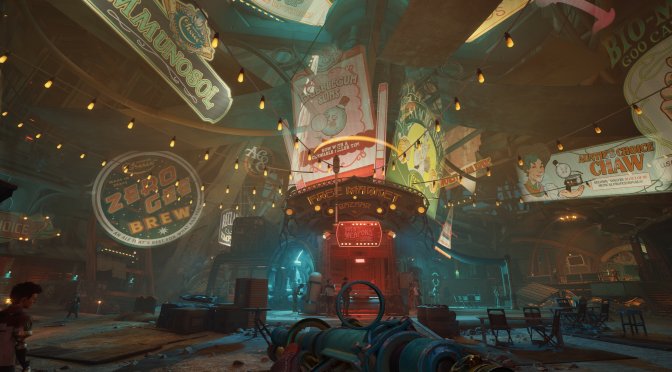
Last week, Microsoft released Obsidian’s The Outer Worlds 2. Powered by Unreal Engine 5, it’s time now to benchmark it and examine its performance on PC.
For our benchmarks, I used an AMD Ryzen 9 7950X3D, 32GB of DDR5 at 6000Mhz, AMD’s Radeon RX 6900XT, RX 7900XTX, RX 9070XT, as well as NVIDIA’s RTX 2080Ti, RTX 3080, RTX 4090, RTX 5080, and RTX 5090. I also used Windows 10 64-bit, the GeForce 581.57, and the Radeon Adrenalin Edition 25.9.2 drivers.
The Outer Worlds 2 does not have a built-in benchmark tool. So, for our benchmarks, I used the city area in Eden. This area appeared to be stressing both the CPU and the GPU. As such, it should give us a pretty good idea of how the rest of it runs.
In this article, we’ll focus on the non–Ray Tracing version. If you’re interested in Ray Tracing and DLSS 4 benchmarks, you can check out our previous article.
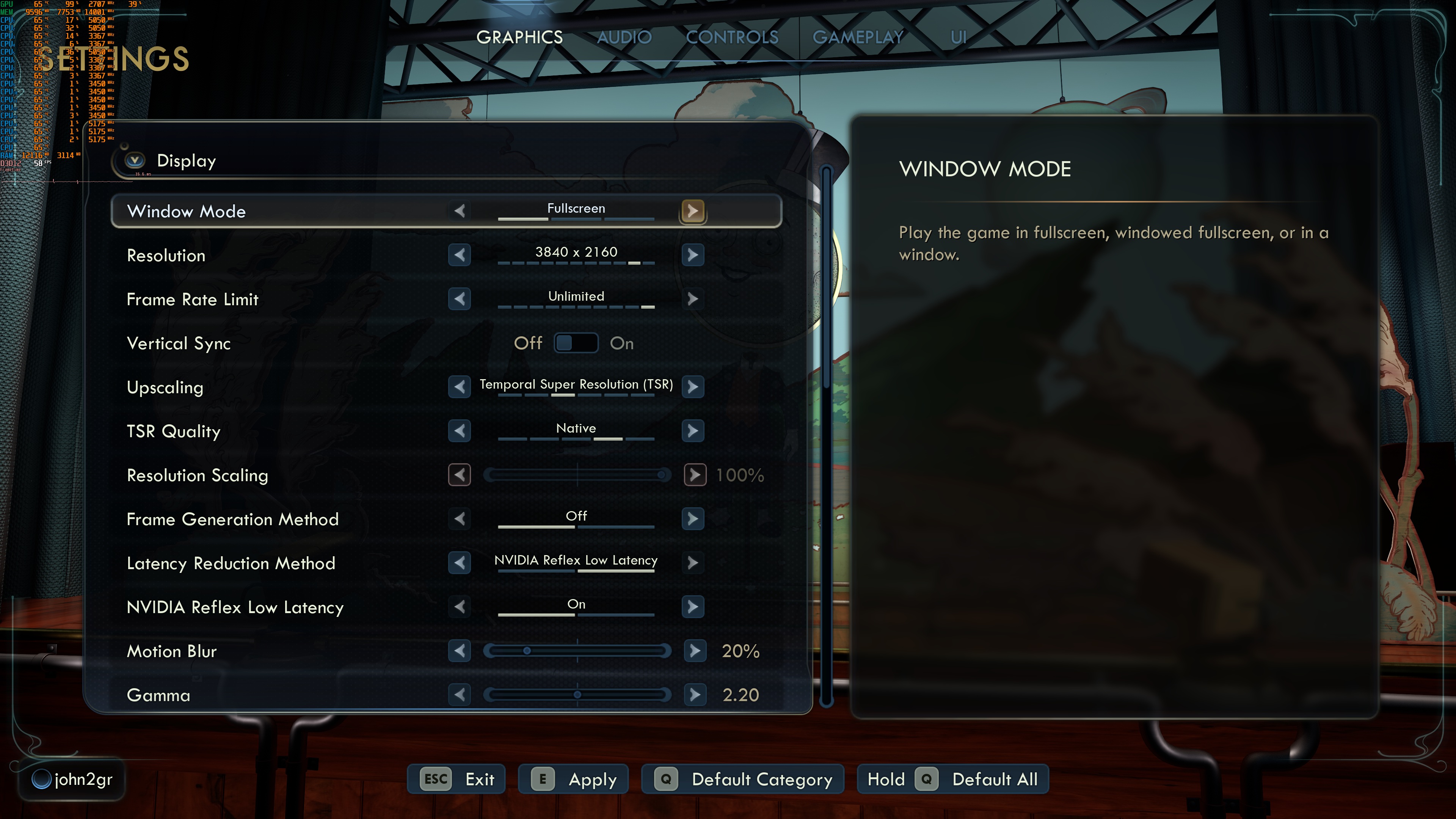
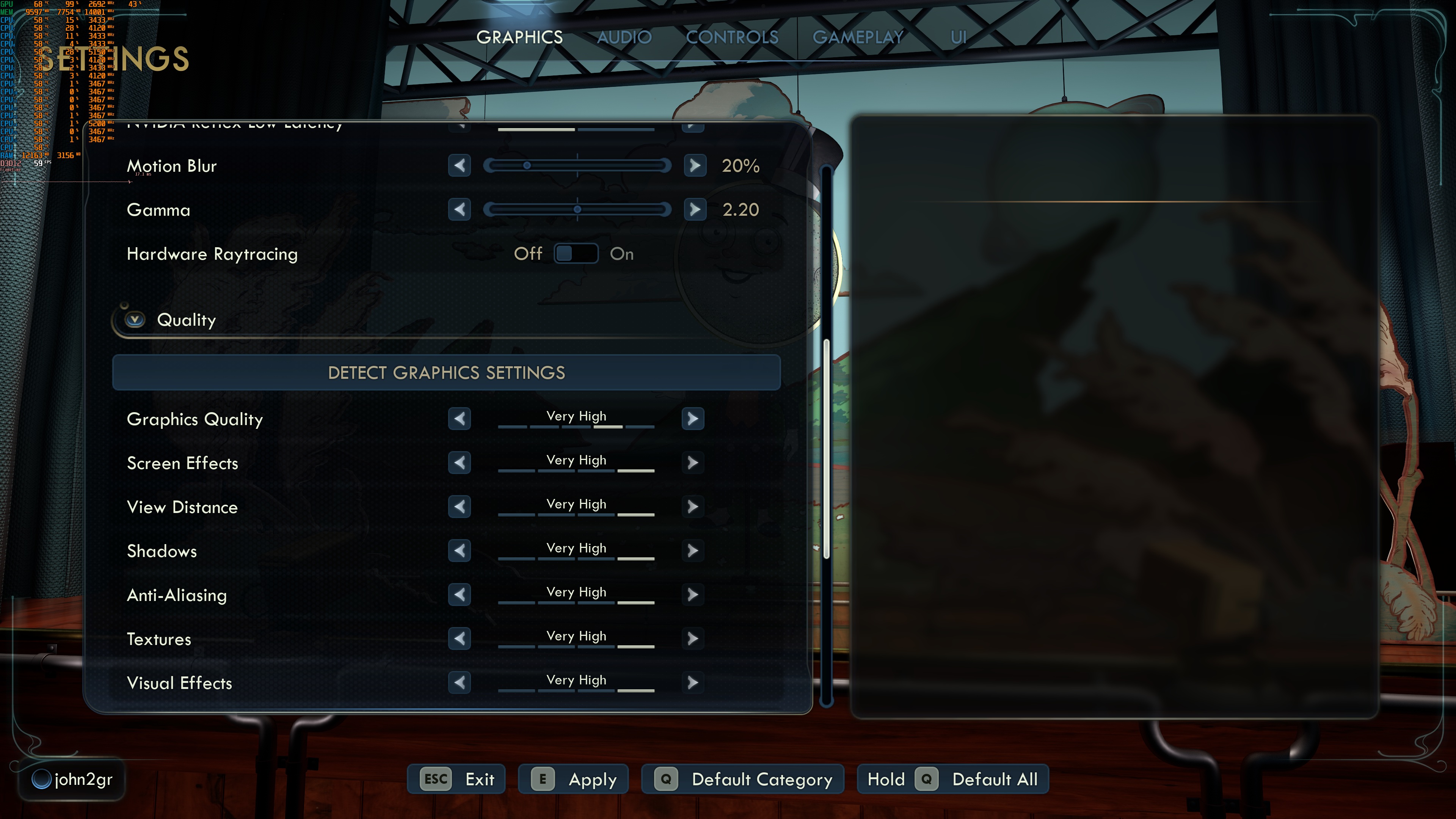
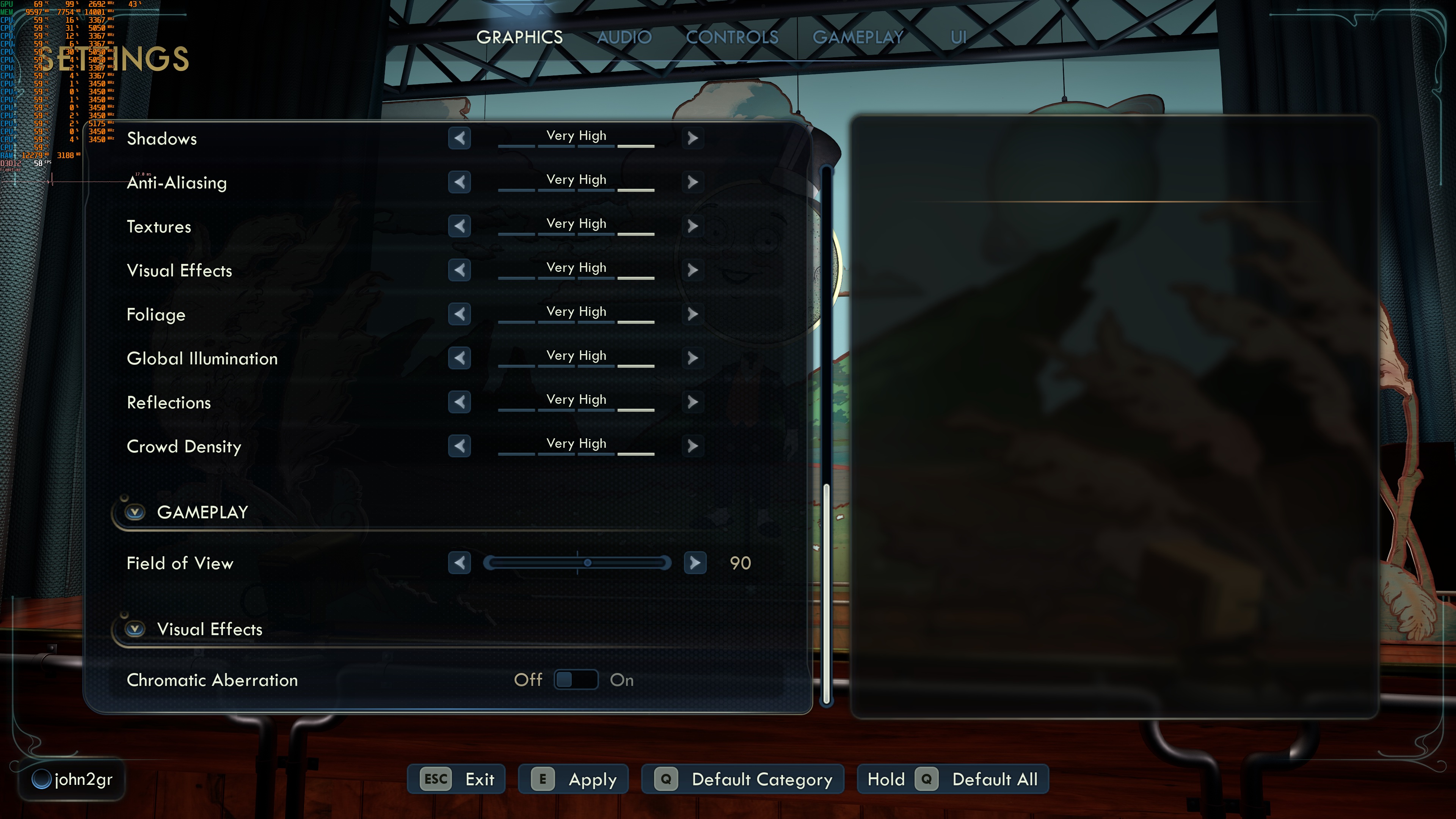
Obsidian has added a respectable number of graphics settings to tweak. PC gamers can adjust the quality of Textures, Global Illumination, Shadows, and more. The game also supports AMD FSR 4.0, NVIDIA DLSS 4, and Intel XeSS 2.0. There are also settings for Motion Blur and Chromatic Aberration. Plus, there is an FOV slider.
Without Ray Tracing, The Outer Worlds 2 is a GPU-bound title. At Native 1080 with Very High Settings, our NVIDIA RTX 5090 was used to its fullest. This is the exact opposite of what we saw when we had Ray Tracing. With RT On, we were CPU-limited, even at Native 4K.
The bad news here is that The Outer Worlds 2 seems to be only using 3-4 CPU cores. This is the reason why the game becomes so CPU-bound the moment you enable Ray Tracing. Moreover, owners of mid-tier or low-end CPUs may encounter some performance issues due to these CPU scalability issues.
I should also note that the Very High settings are the true Epic settings that Unreal Engine 5 supports. These are the same “true” Epic settings some other devs have hidden from their games. So, make sure to keep that in mind. These settings are only meant for high-end and future GPUs. If you are unhappy about their performance, you should not complain when other devs are hiding them.
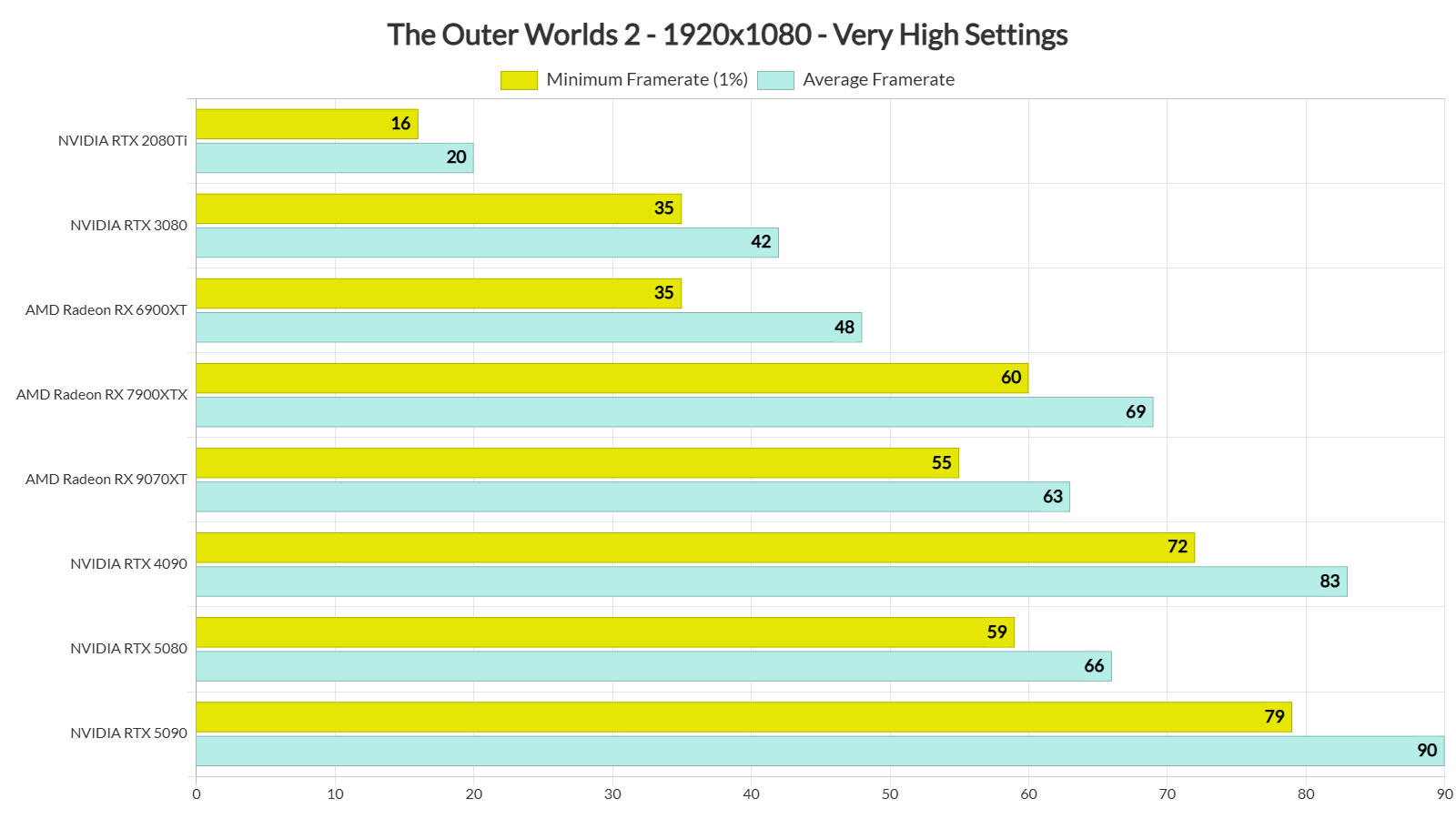
At Native 1080p with Very High Settings, the only GPUs that can push framerates over 60FPS are the AMD Radeon RX 7900XTX, the NVIDIA RTX 4090, RTX 5080, and RTX 5090. At 1080p, the AMD Radeon RX 7900XTX is able to compete with the NVIDIA RTX 5080. Pretty impressive for AMD’s GPUs. The AMD Radeon RX 9070XT can also provide a smooth gaming experience, provided you use a FreeSync monitor.
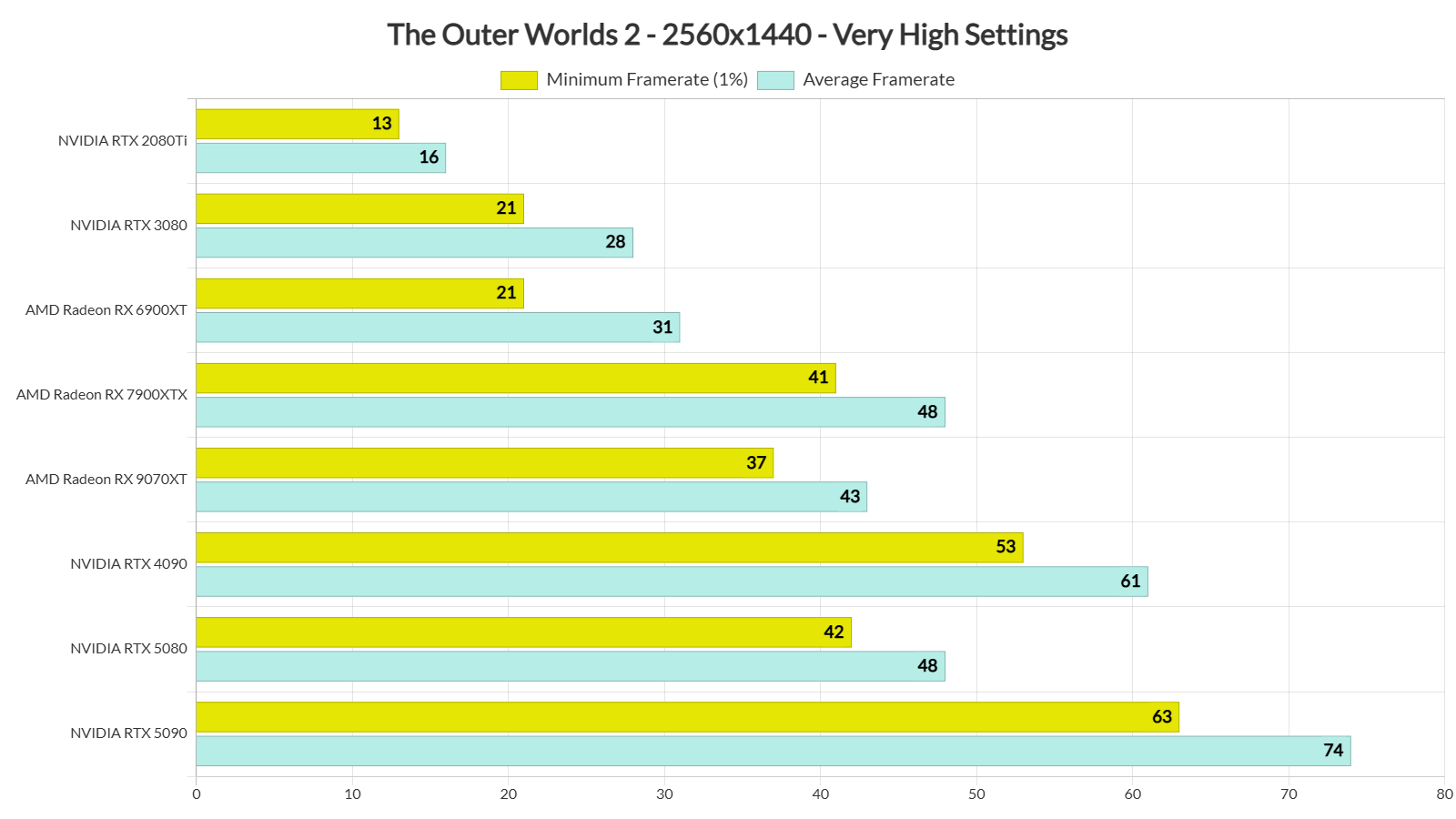
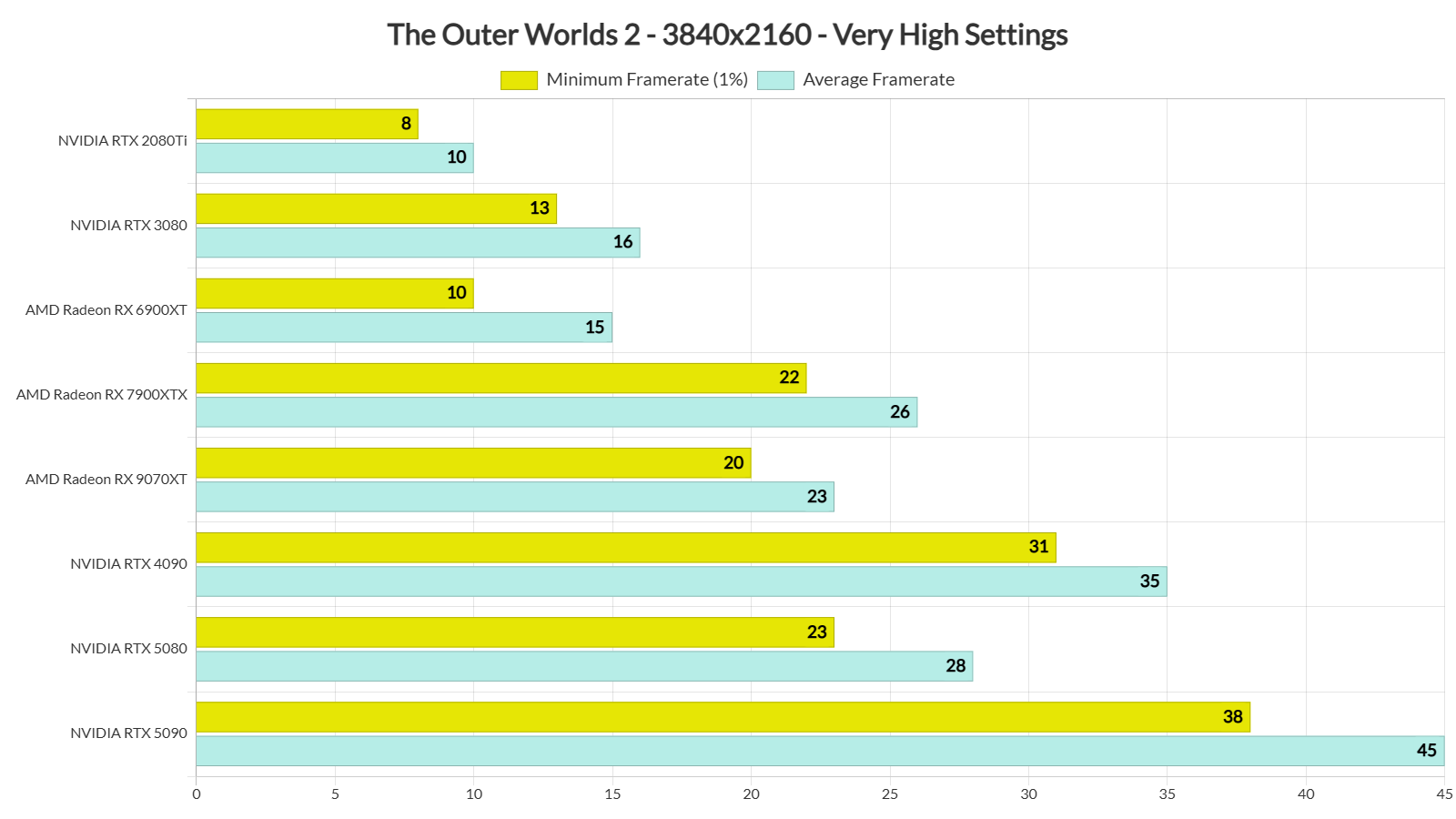
At Native 1440p with Very High Settings, the only GPU that can provide a 60FPS experience is the NVIDIA RTX 5090. As for Native 4K/Very High, there is no GPU that can provide a smooth gaming experience.
As I said, the Very High settings are too demanding. By dropping to High Settings, we were able to get over 60FPS at all times on the NVIDIA RTX 5090. By dropping to Medium and Low Settings, we got an additional performance boost. From what I could see, the game uses Lumen even on Low. There doesn’t seem to be a rasterized/non-Lumen solution on Low Settings. This is good and bad news. The good news is that the game can look consistent, even on Low Settings. The bad news is that there isn’t a big performance difference between Medium and Low Settings.

It’s also worth noting that the NVIDIA RTX 5080 can push over 65FPS at all times at 1440p/High. Similarly, the AMD Radeon RX 7900XTX can offer over 71FPS at 1440p/High. As for the AMD Radeon RX 6900XT, it can provide over 60FPS at 1080p/High.
In short, the game can be fully enjoyed on a wide range of GPUs on High Settings. That’s at native resolutions. Since the game supports AMD FSR 4.0 and NVIDIA DLSS 4, you can use them to further boost performance.
Graphics-wise, I wasn’t particularly impressed by The Outer Worlds 2. It does look great, especially in indoor areas. But I was not that impressed by how it looked at Eden (which performs way worse than the indoor areas). It’s not a bad-looking game. It just did not “wow” me with its graphics. I’ve seen other UE5 games that look better than this. At the same time, The Outer Worlds 2 has a more consistent visual image than most non-UE5 games. It also does not suffer from major pop-in issues.
Before we wrap up, it’s worth noting that the game has traversal stutters. These stutters get much worse when Ray Tracing is turned on. That’s because the game only uses 3 or 4 CPU cores. Since Ray Tracing adds extra CPU load, the game starts to stutter even more — even on powerful CPUs like the AMD Ryzen 9 7950X3D. Without Ray Tracing, there are still some stutters while exploring Eden, but they’re not as bad as in Oblivion Remastered or Bloodlines 2. Still, this is yet another Unreal Engine 5 game that struggles with traversal stutters on all platforms.
Overall, The Outer Worlds 2 runs well on many PCs if you use High Settings. The Very High Settings are meant for players with powerful GPUs who also use upscalers. In short, the High Settings here are similar to the Epic Settings in Silent Hill f and Bloodlines 2. So, don’t let your ego stop you from lowering your settings if needed. The game does have some stutters, but they’re not as bad as in other Unreal Engine 5 games. Overall, performance on PC is pretty good. It’s above average, provided you avoid its Very High or Ray Tracing settings.


John is the founder and Editor in Chief at DSOGaming. He is a PC gaming fan and highly supports the modding and indie communities. Before creating DSOGaming, John worked on numerous gaming websites. While he is a die-hard PC gamer, his gaming roots can be found on consoles. John loved – and still does – the 16-bit consoles, and considers SNES to be one of the best consoles. Still, the PC platform won him over consoles. That was mainly due to 3DFX and its iconic dedicated 3D accelerator graphics card, Voodoo 2. John has also written a higher degree thesis on the “The Evolution of PC graphics cards.”
Contact: Email