
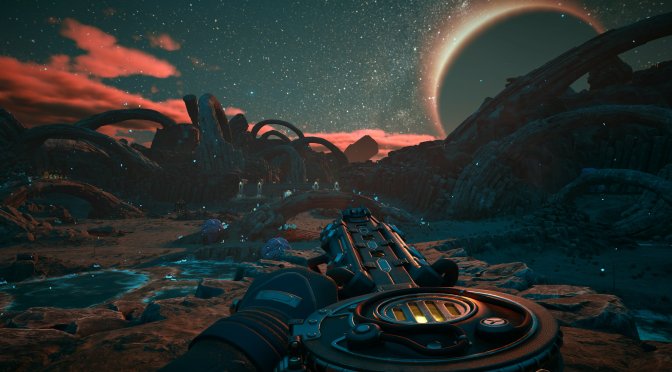
Microsoft has just released The Outer Worlds 2 on PC. The Outer Worlds 2 is powered by Unreal Engine 5, and supports NVIDIA DLSS 4 and Ray Tracing on PC. So, before publishing our PC Performance Analysis, I’ve decided to test these techs on the NVIDIA RTX 5090. So, let’s dive in.
For these early benchmarks, I used an AMD Ryzen 9 7950X3D, 32GB of DDR5 at 6000Mhz, and the NVIDIA GeForce RTX 5090. I also used Windows 10 64-bit, and the GeForce 581.57 driver.
Obsidian has used Ray Tracing to enhance the game’s lighting, reflections, and shadows. So, here are some comparison screenshots. On the left, you will find the shots with Ray Tracing On. On the right, you’ll find the shots without Ray Tracing.
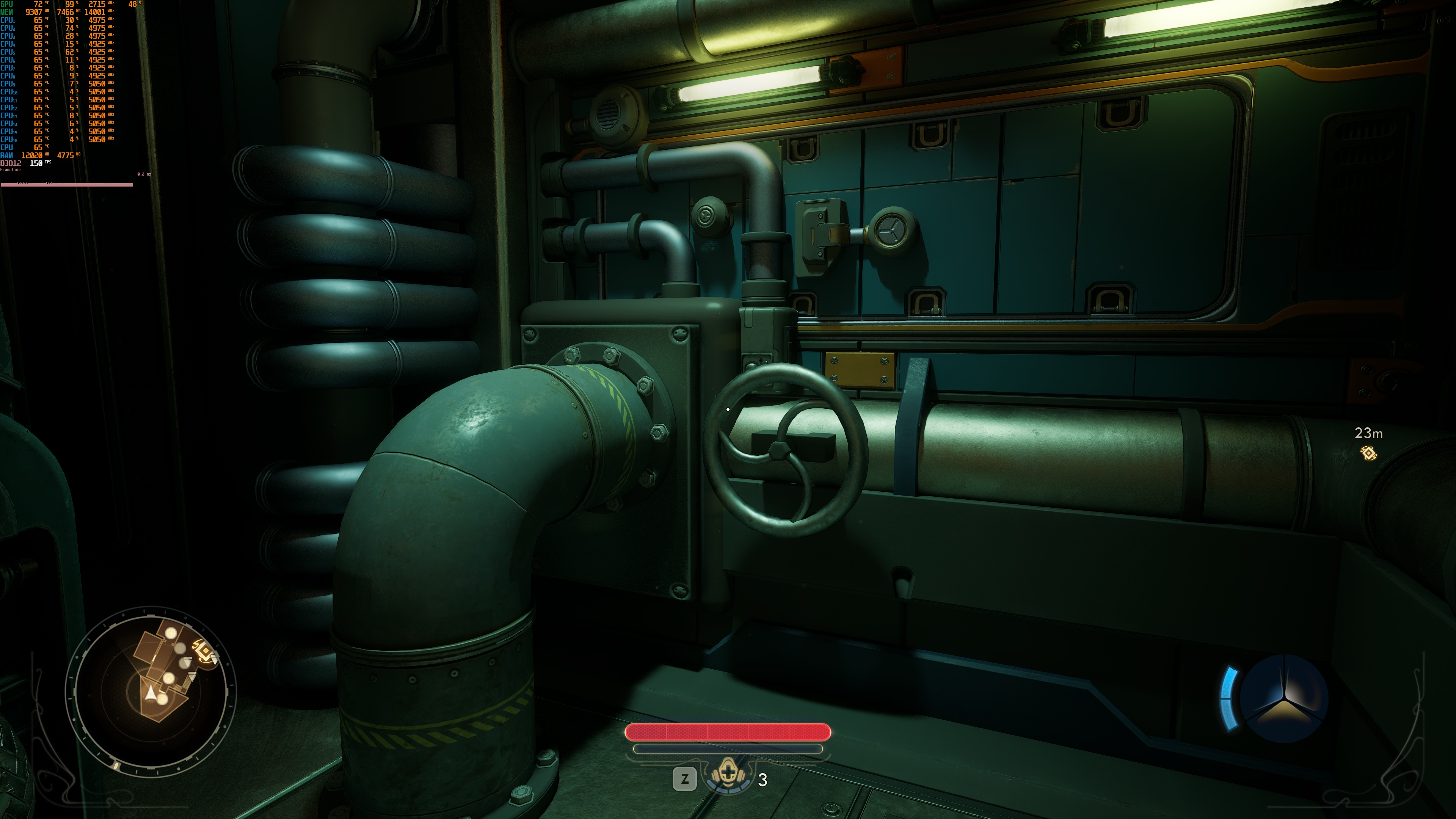
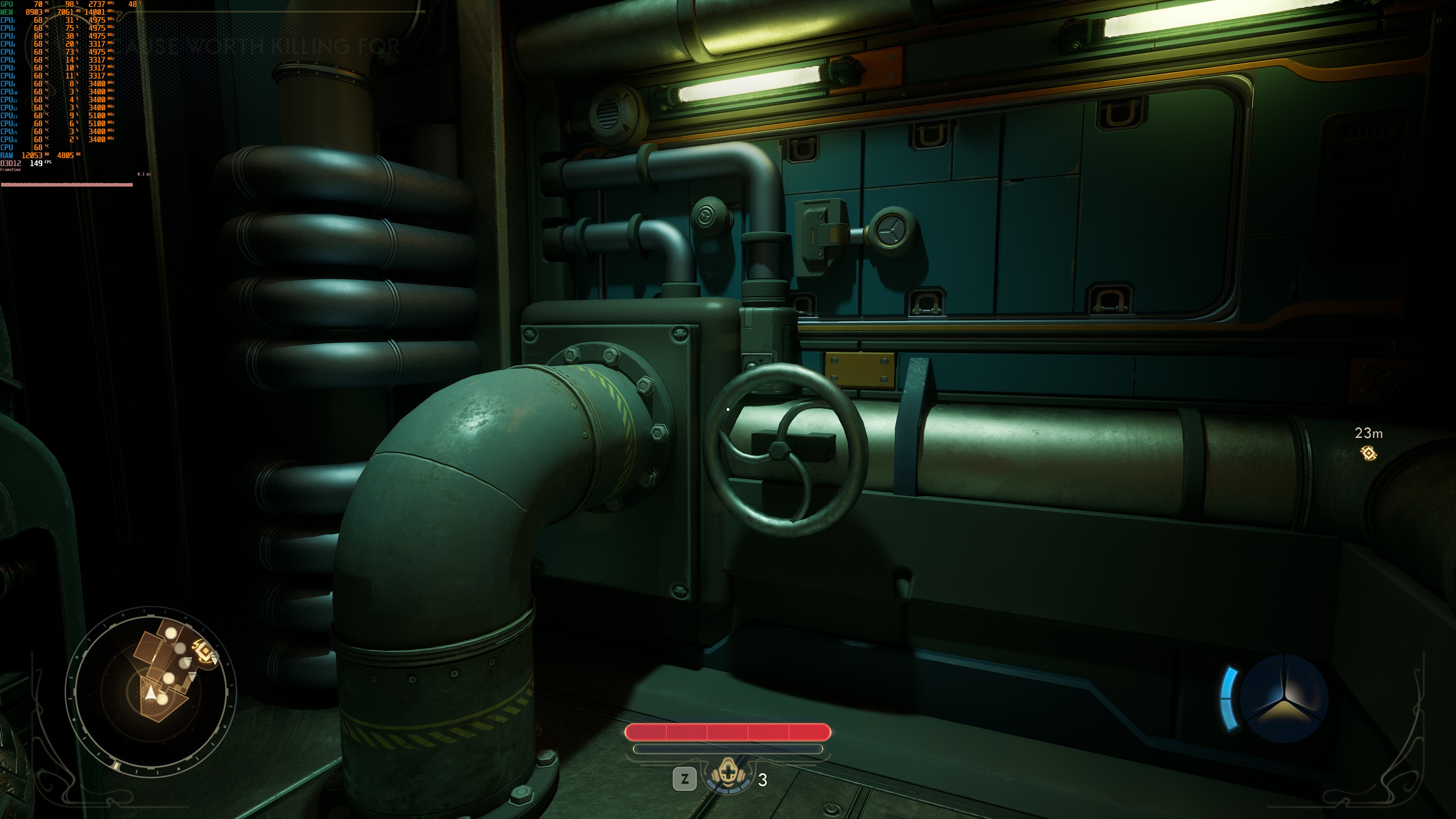
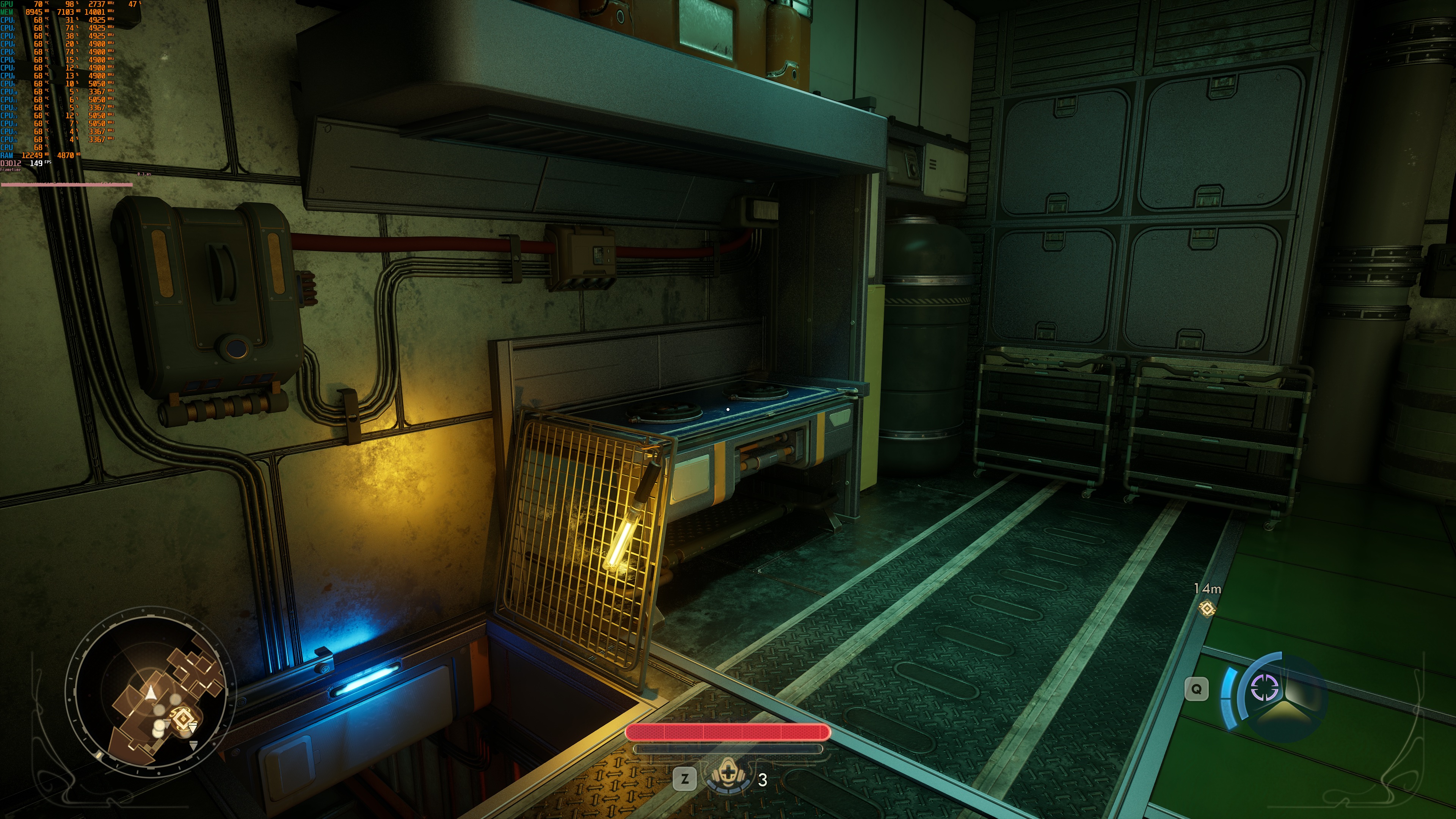
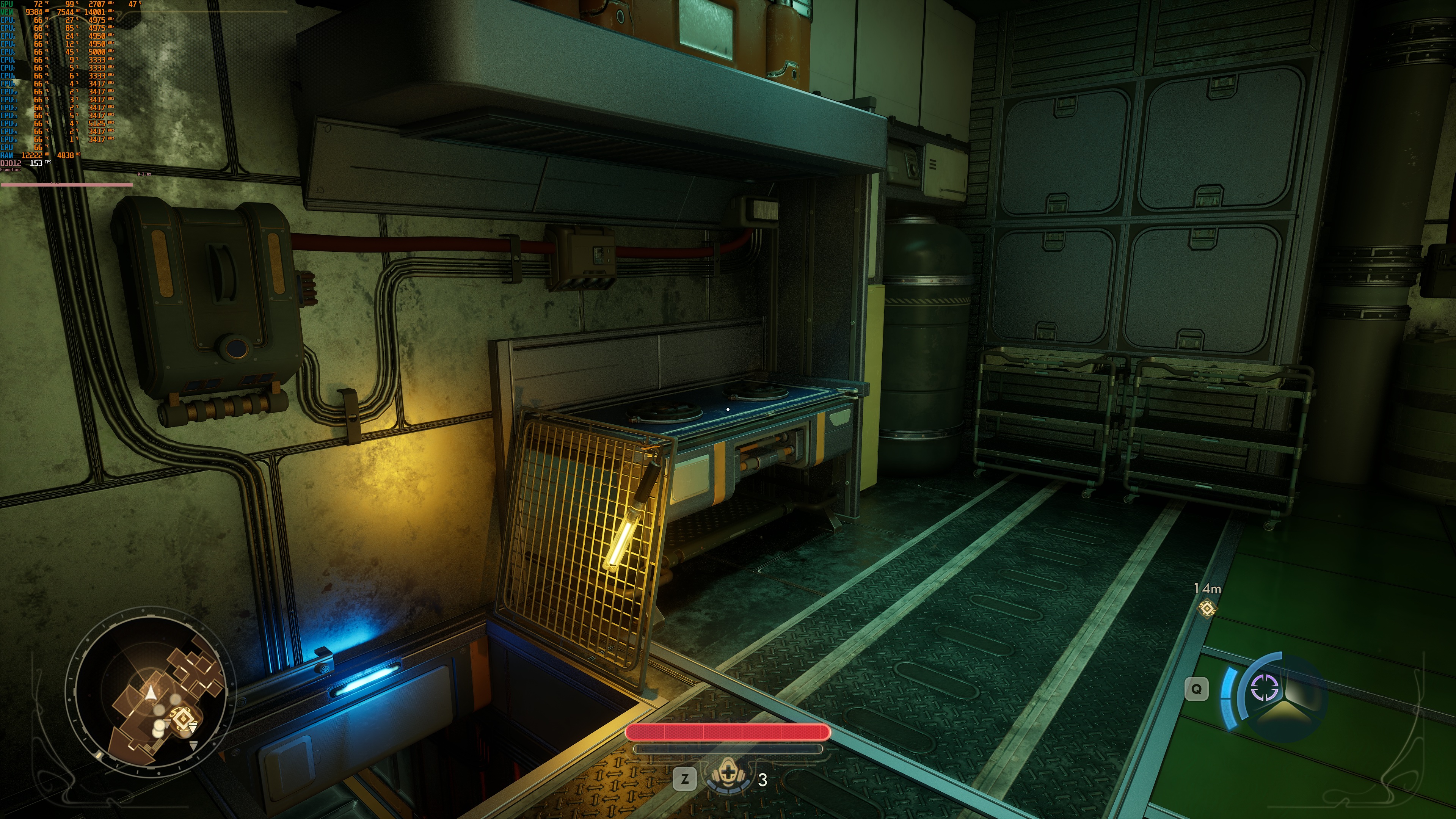
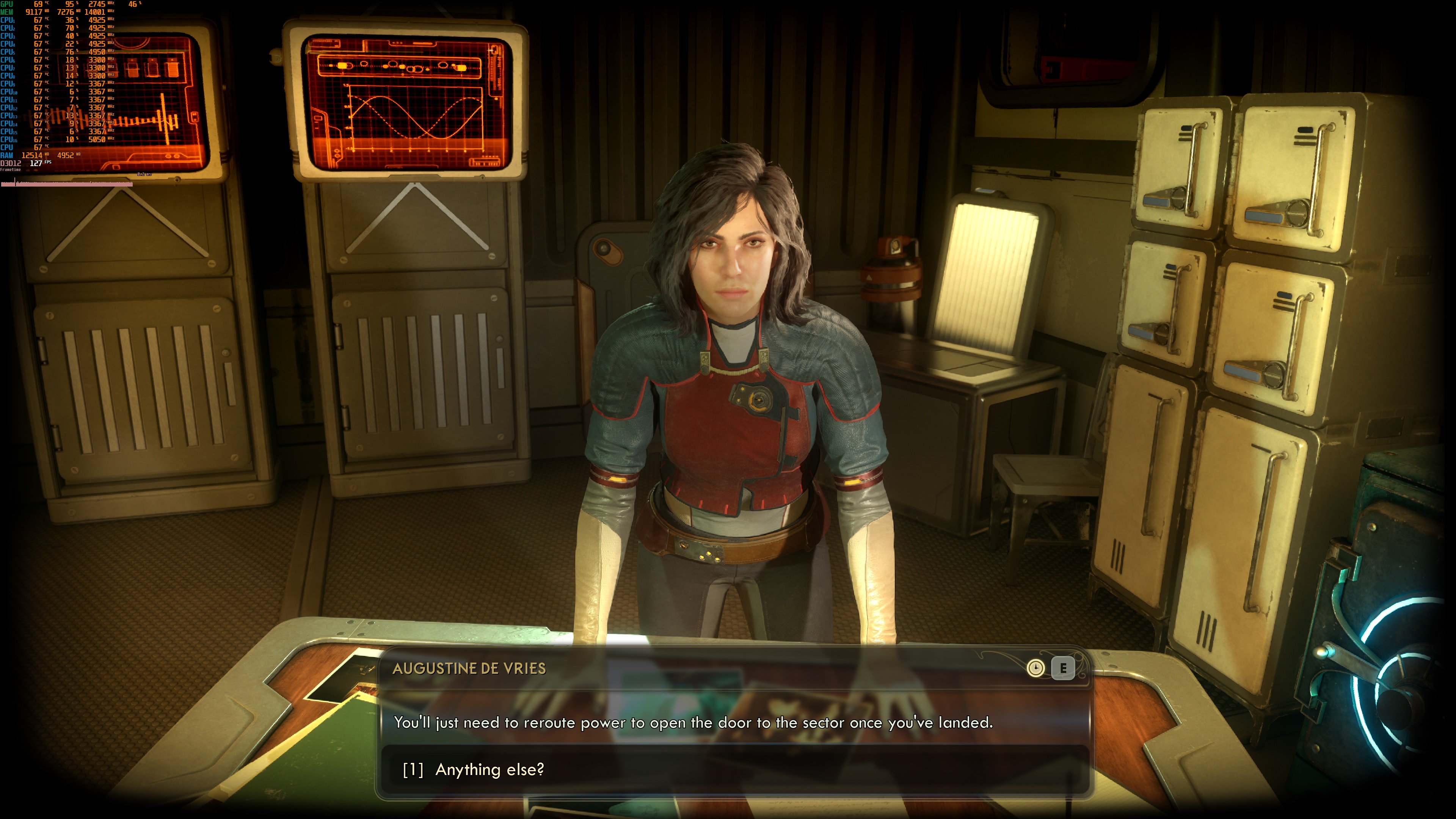
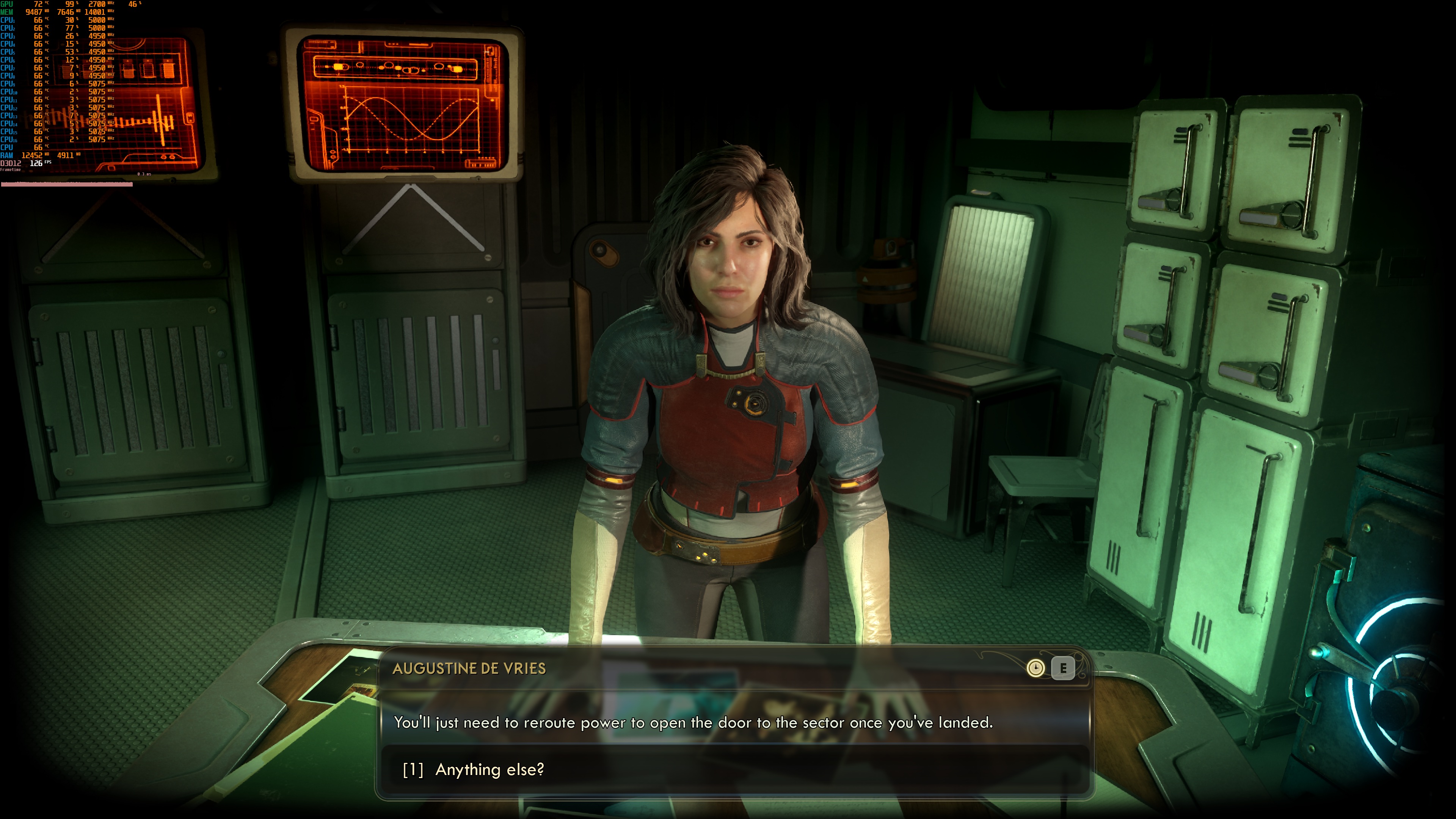
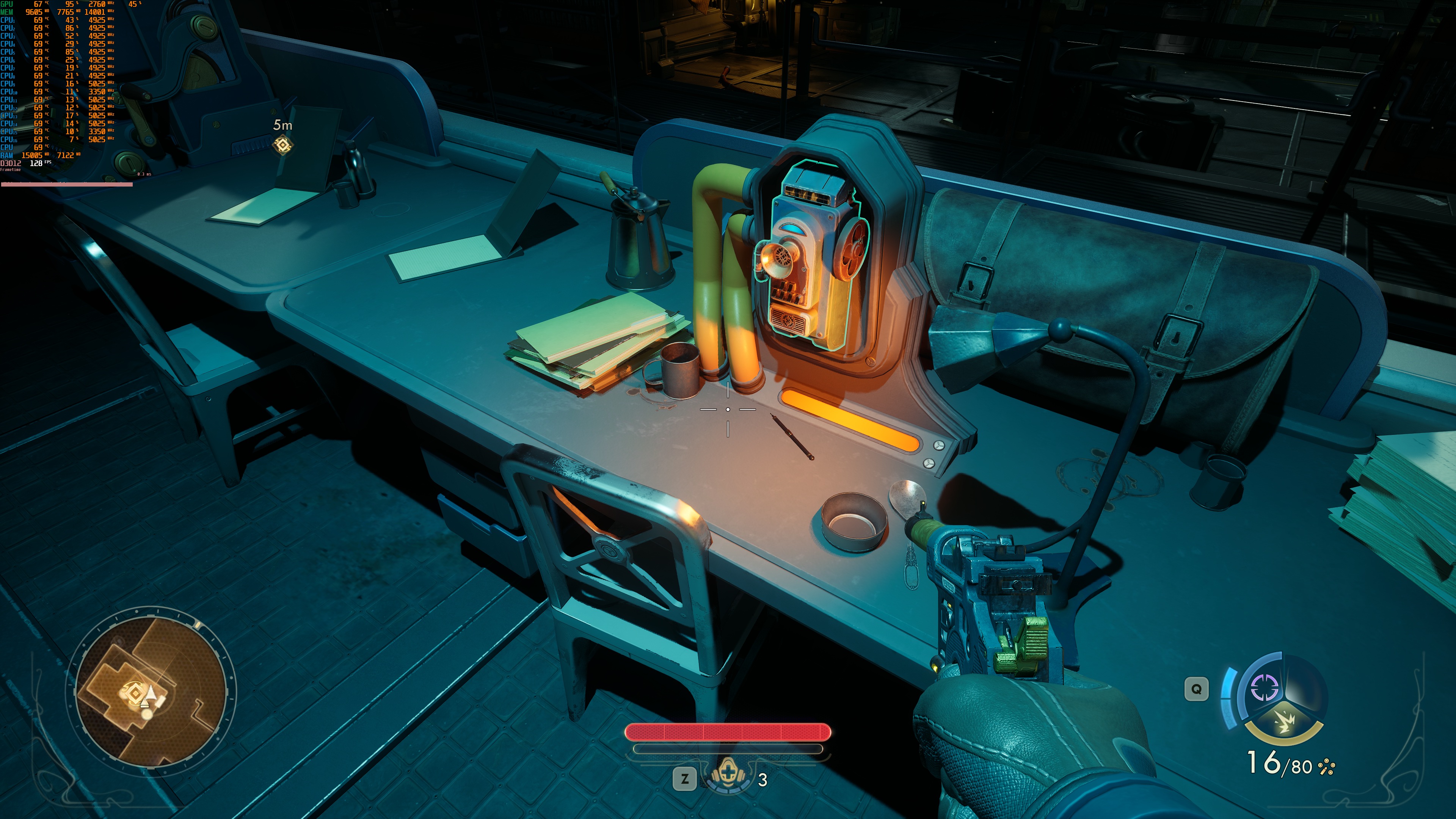
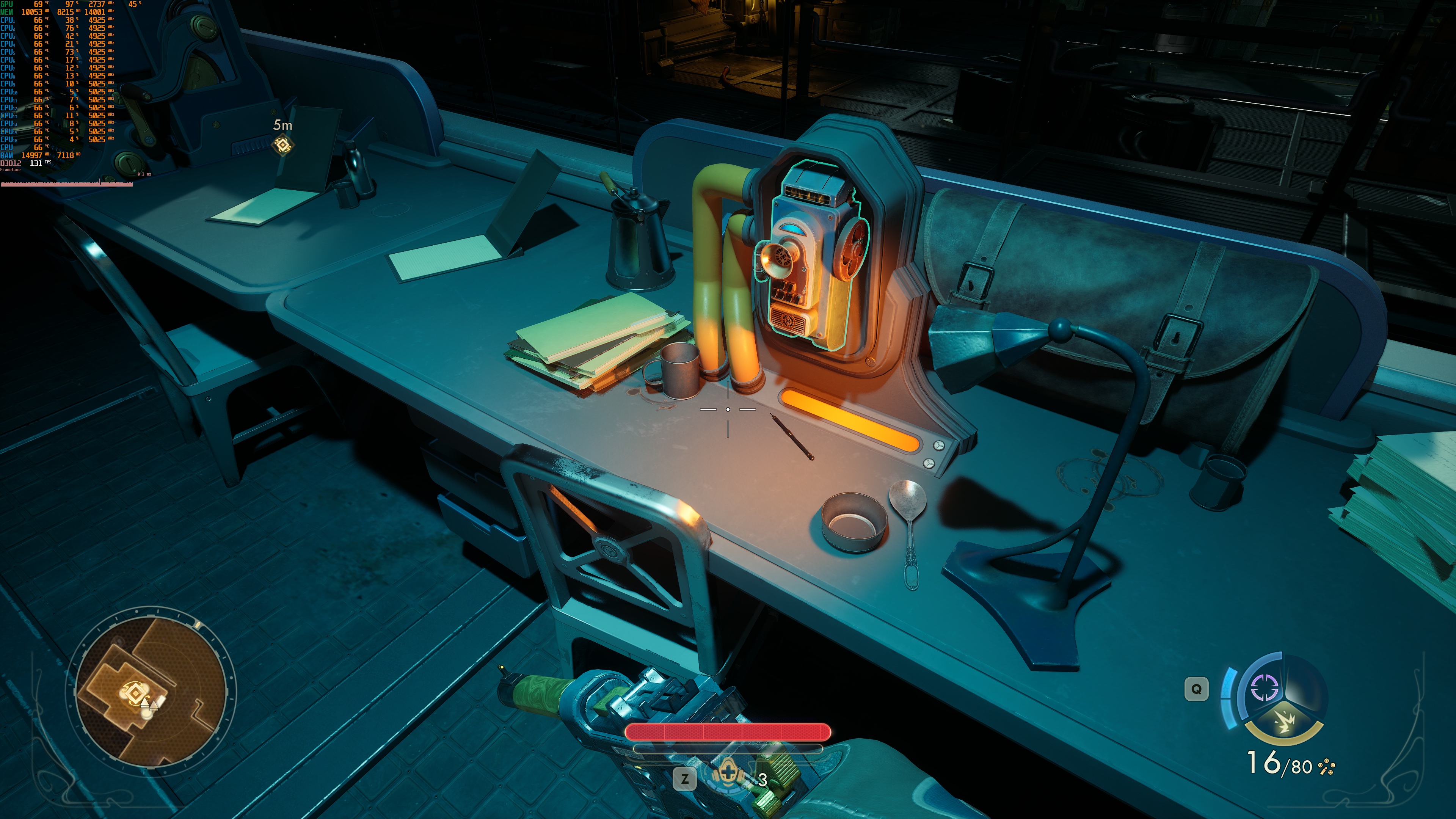
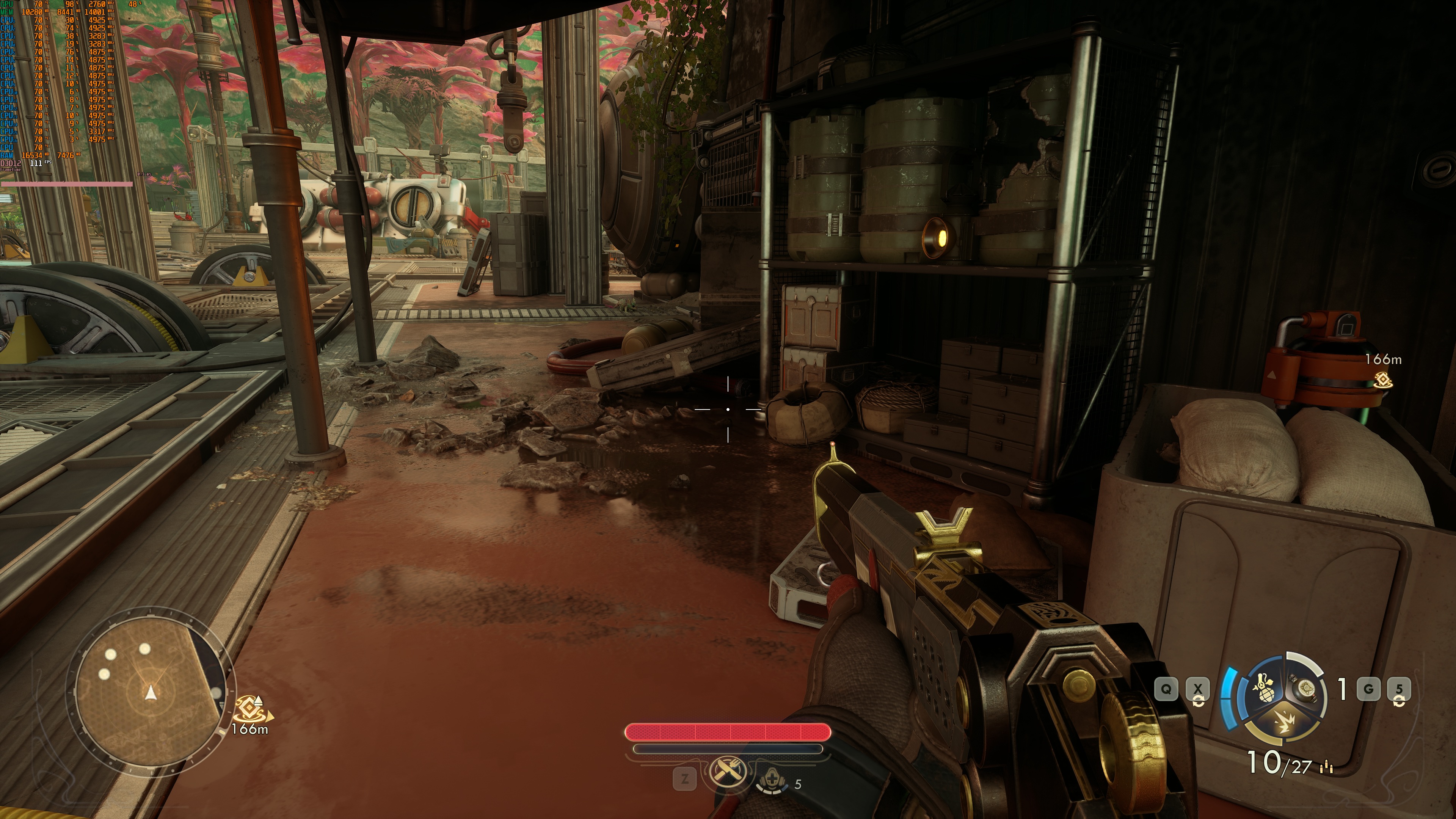
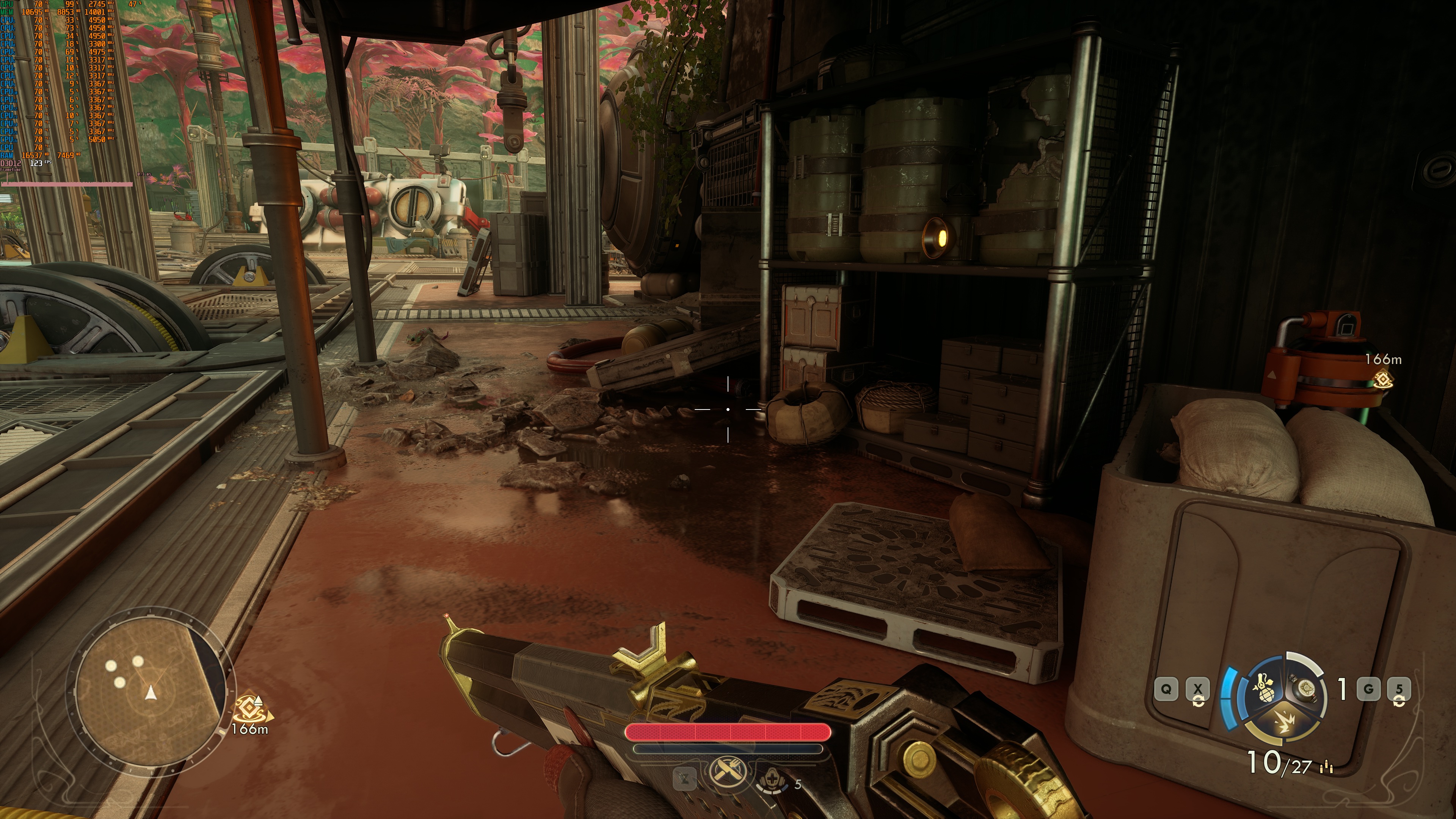
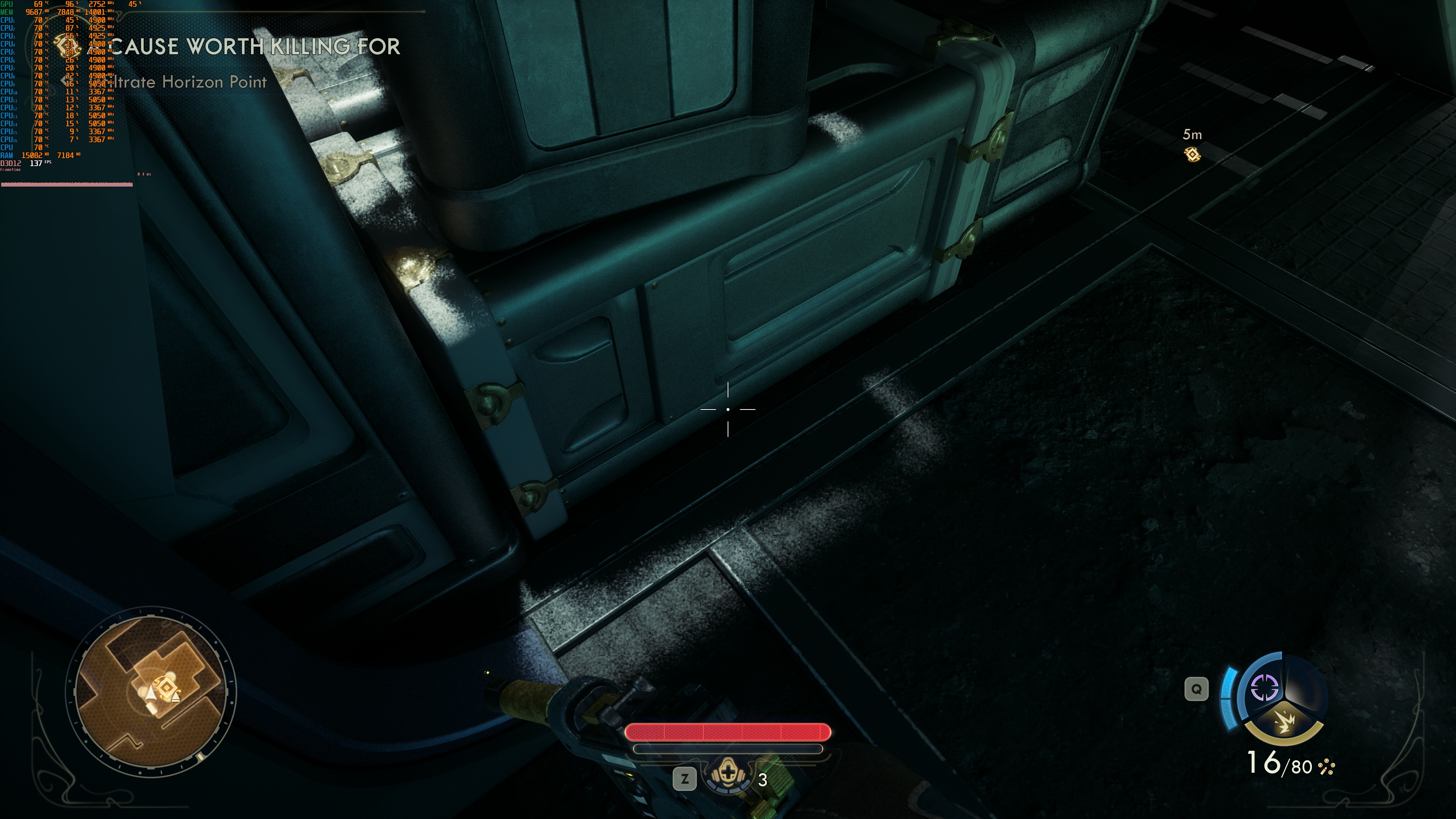
For the most part, The Outer Worlds 2 looks a bit better with Ray Tracing. That is, until you spot some really awful shadows that can appear while exploring the world. These noisy shadows are awful. In those places, the game can look better without RT. So, that’s a big bummer.
The Outer Worlds 2 does not have a built-in benchmark tool. So, for our benchmarks, I used the city area in Eden. This area appeared to be stressing both the CPU and the GPU. As such, it should give us a pretty good idea of how the rest of it runs.
The reason I chose the city of Eden is because is way more taxing than the prologue. The prologue was running with 60FPS on the NVIDIA RTX 5090. As soon as you go to Eden, though, things go downhill.
Ray Tracing brings an ENORMOUS performance hit on the CPU. Our AMD Ryzen 9 7950X3D was simply unable to provide a smooth gaming experience at 4K, even with DLSS 4 Quality (or Performance Mode). As you can see in this screenshot, the NVIDIA RTX 5090 was used at only 75%.
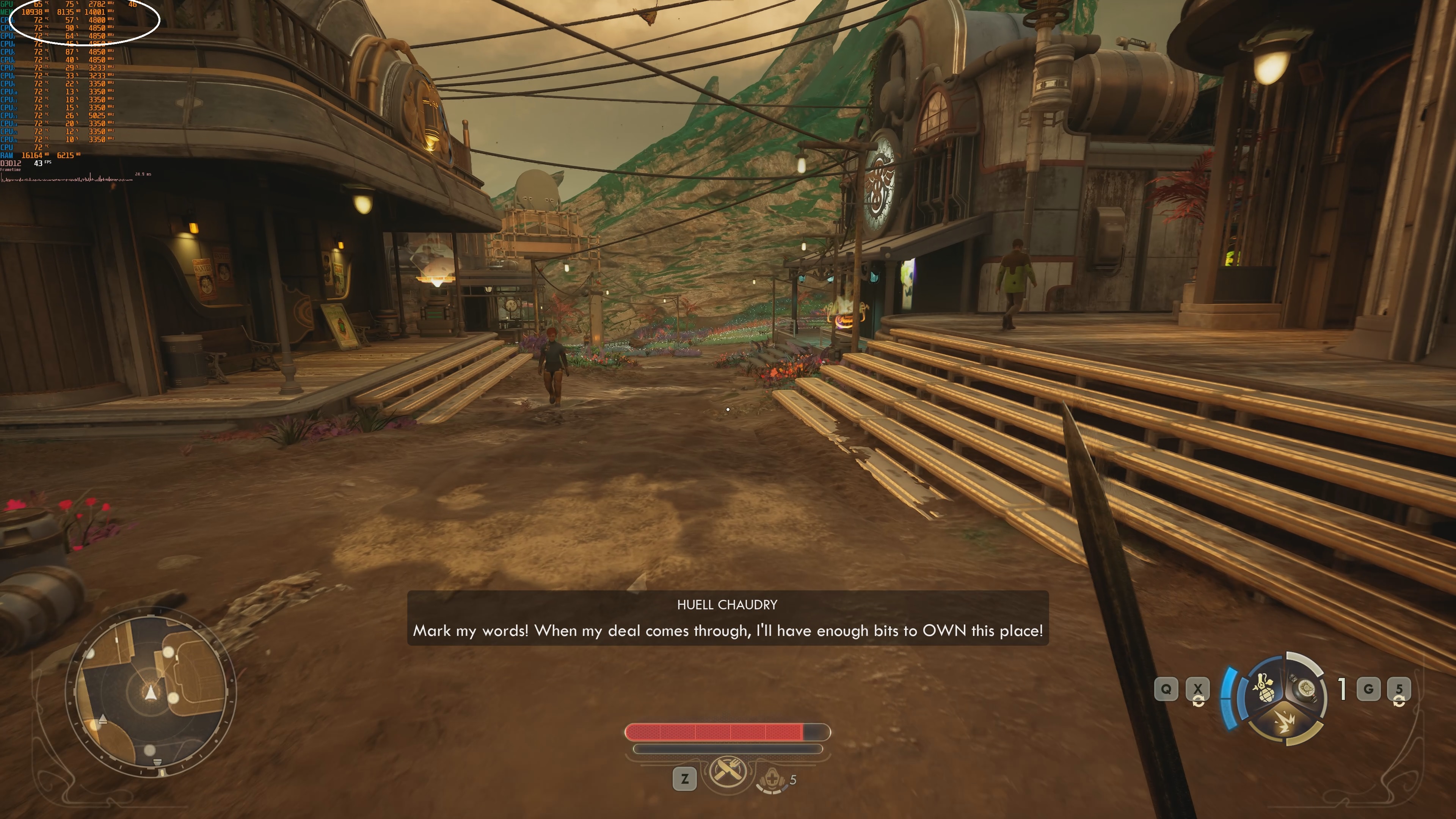
To get a playable experience on this high-end PC system, you’ll need to enable Frame Gen. With DLSS 4 Quality and Frame Gen, we were able to get at 80FPS. For what it’s worth, I did not experience any major input latency issues. Mouse movement felt fine. Then, with MFG X3 and X4, we were able to get to 120FPS and 160FPS, respectively.

Without Ray Tracing, The Outer Worlds 2 runs with a minimum of 39FPS and an average of 46FPS at Native 4K. By enabling DLSS 4 Quality, we were able to get close to a 60FPS experience. There were some drops to 57FPS here and there. The only way to get framerates over 70FPS at 4K/Very High Settings was by using DLSS 4 Performance Mode (without Frame Gen).
The DLSS 4 implementation is pretty good in The Outer Worlds 2. Here are some screenshots I took while moving the camera around quickly. Yes, there are a few visual glitches here and there. But, during normal gameplay, you won’t be moving the camera that wildly. Overall, the results are quite good. It may not be the best DLSS 4 implementation out there, but it’s definitely above average.
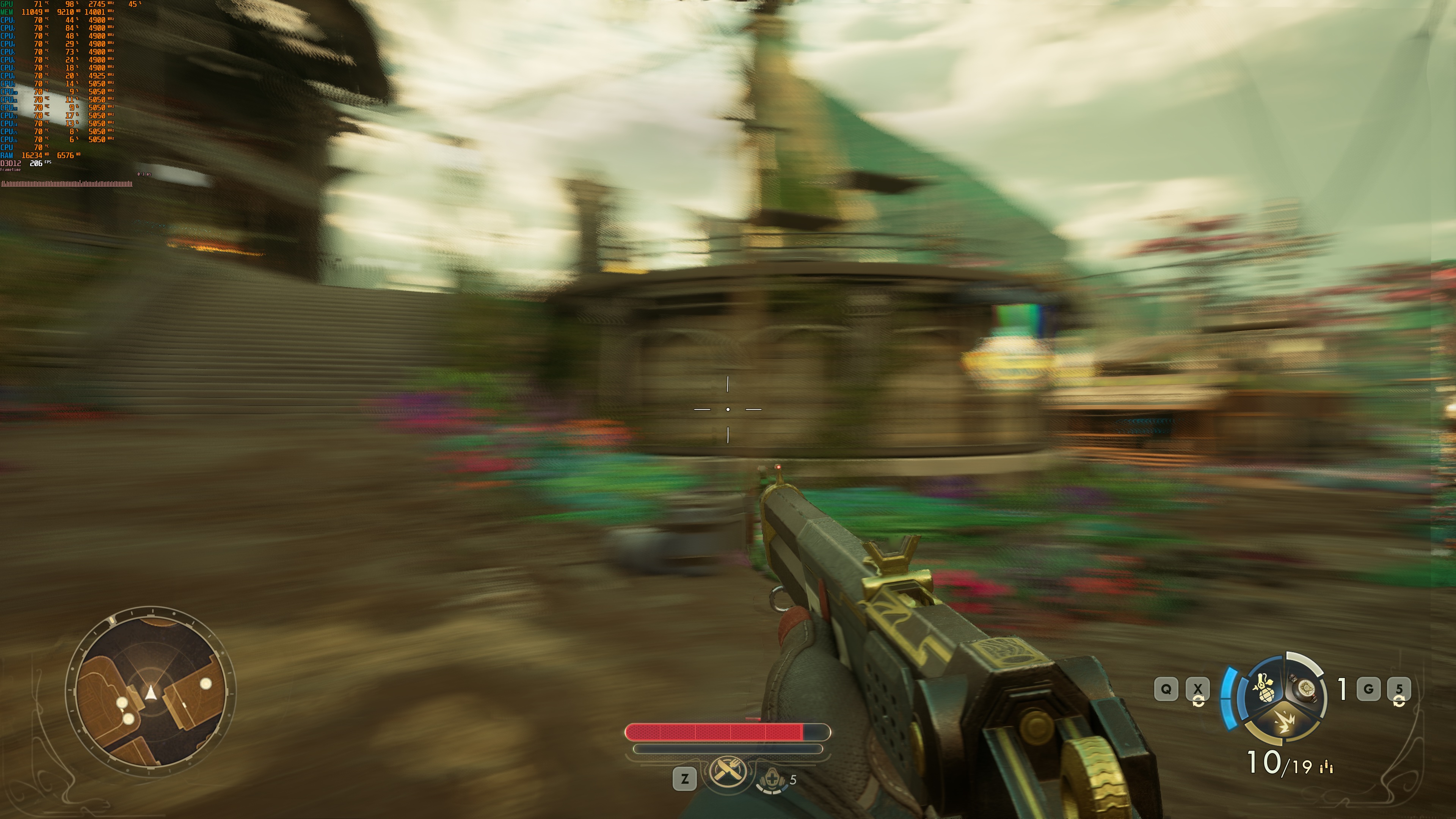
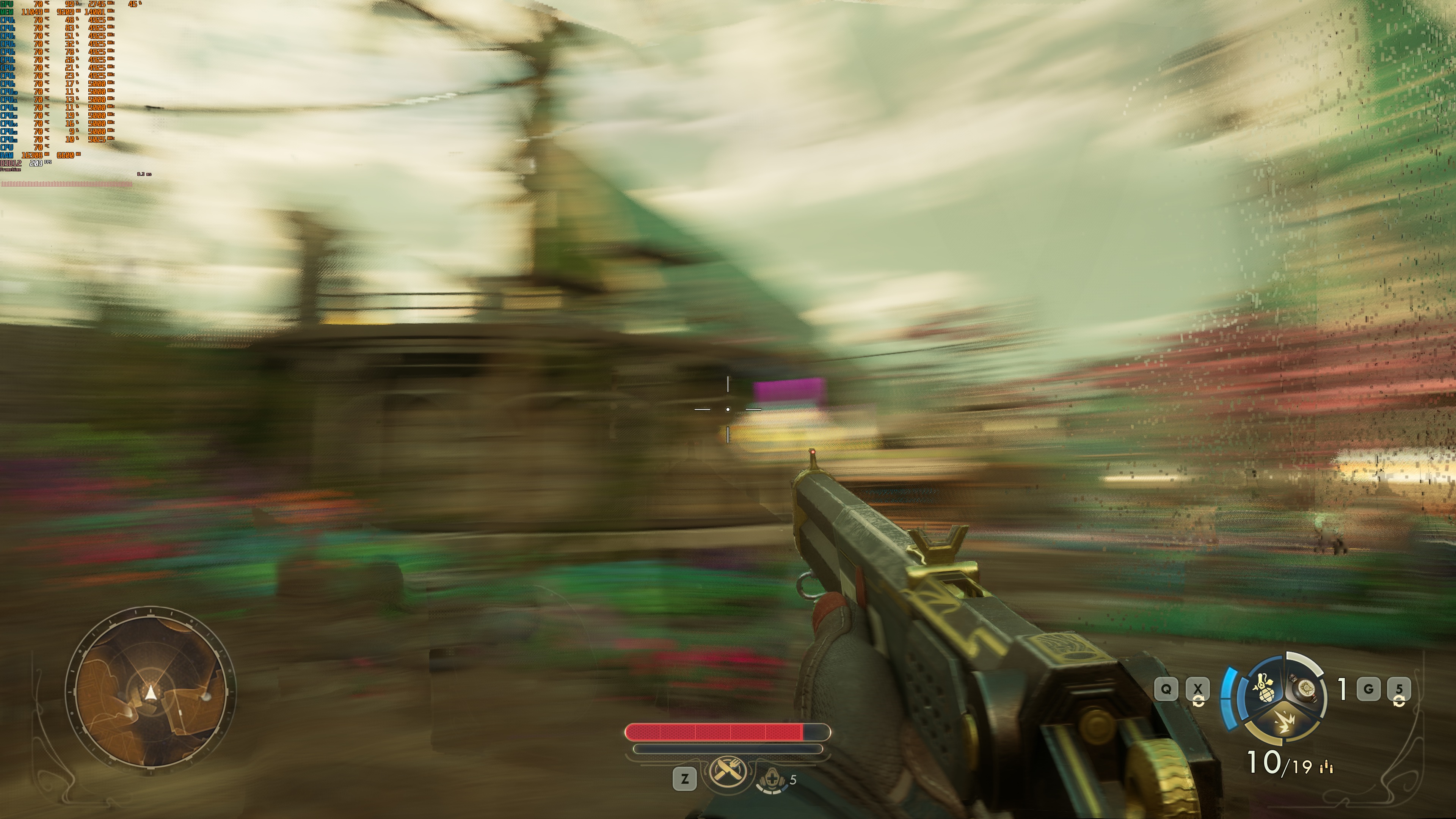
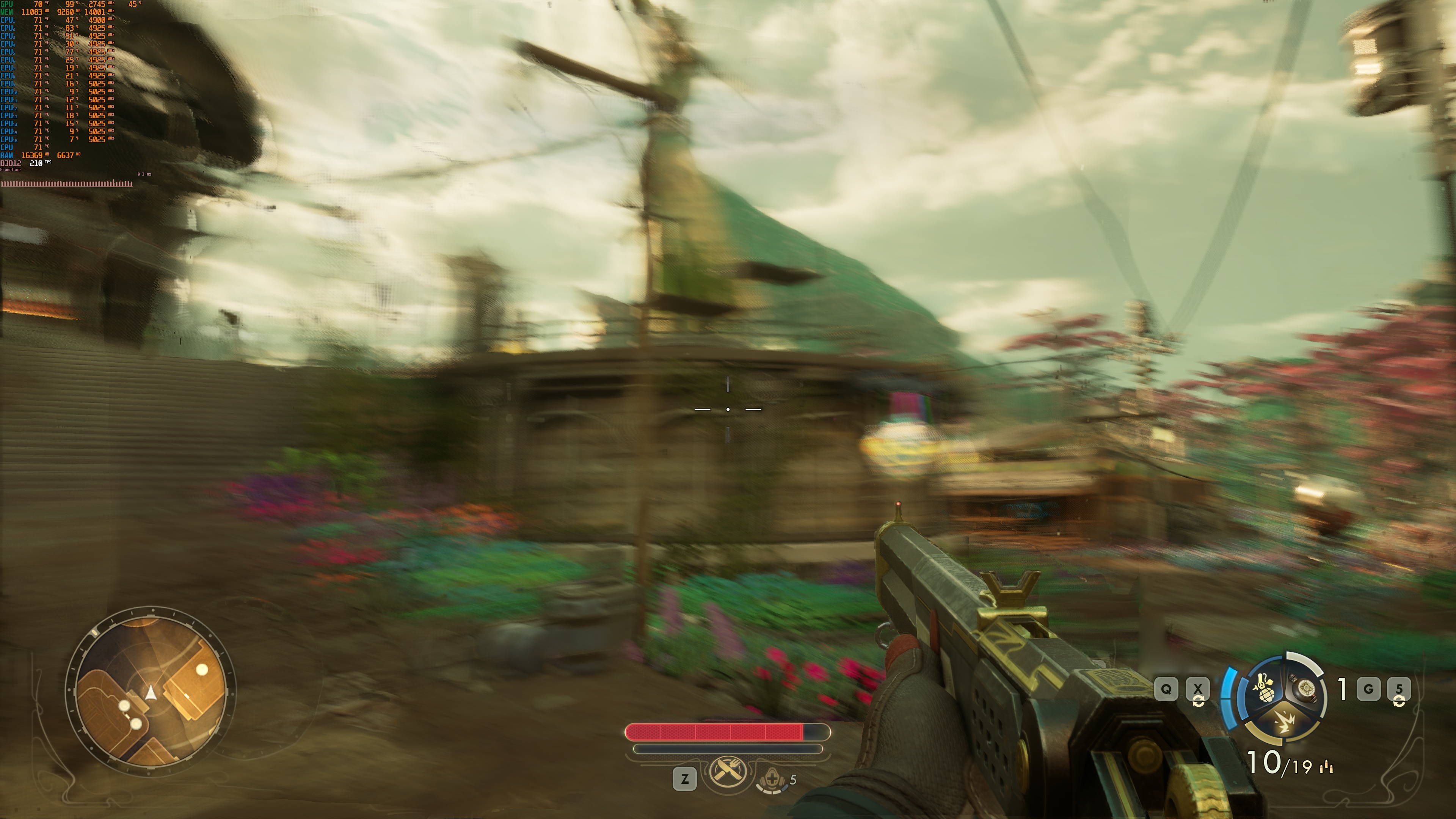
All in all, I do not recommend enabling the Ray Tracing effects for The Outer Worlds 2. While they can improve the game’s visuals, they also bring some truly noisy shadows. Moreover, you’ll need to enable DLSS 4 Frame Gen and Super Resolution. Otherwise, you won’t get an acceptable performance. Plus, I noticed some additional stutters with RT On.
Our PC Performance Analysis for The Outer Worlds 2 will go live later this weekend. So, stay tuned for more!


John is the founder and Editor in Chief at DSOGaming. He is a PC gaming fan and highly supports the modding and indie communities. Before creating DSOGaming, John worked on numerous gaming websites. While he is a die-hard PC gamer, his gaming roots can be found on consoles. John loved – and still does – the 16-bit consoles, and considers SNES to be one of the best consoles. Still, the PC platform won him over consoles. That was mainly due to 3DFX and its iconic dedicated 3D accelerator graphics card, Voodoo 2. John has also written a higher degree thesis on the “The Evolution of PC graphics cards.”
Contact: Email