Hellblade-Senuas-Sacrifice-feature-3

Hellblade: Senua’s Sacrifice – Ray Tracing, NVIDIA DLSS & AMD FSR Benchmarks

Ninja Theory released yesterday a new patch for Hellblade: Senua’s Sacrifice that adds support for Ray Tracing, NVIDIA DLSS and AMD FSR. As such, we’ve decided to benchmark them and share some comparison screenshots.

For these benchmarks, we used an Intel i9 9900K with 16GB of DDR4 at 3600Mhz and NVIDIA’s RTX 3080. We also used Windows 10 64-bit, the GeForce 496.84 driver.

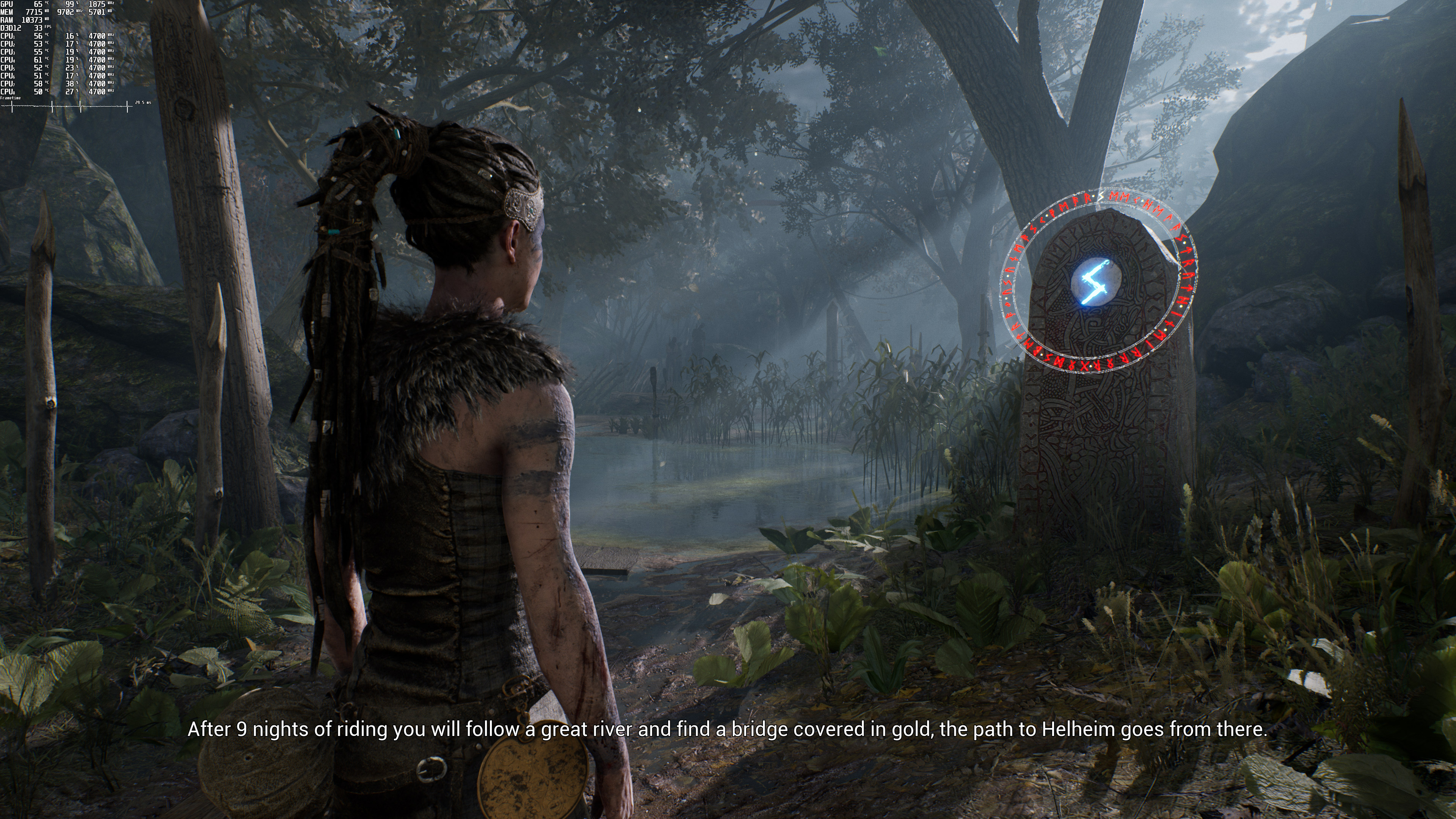
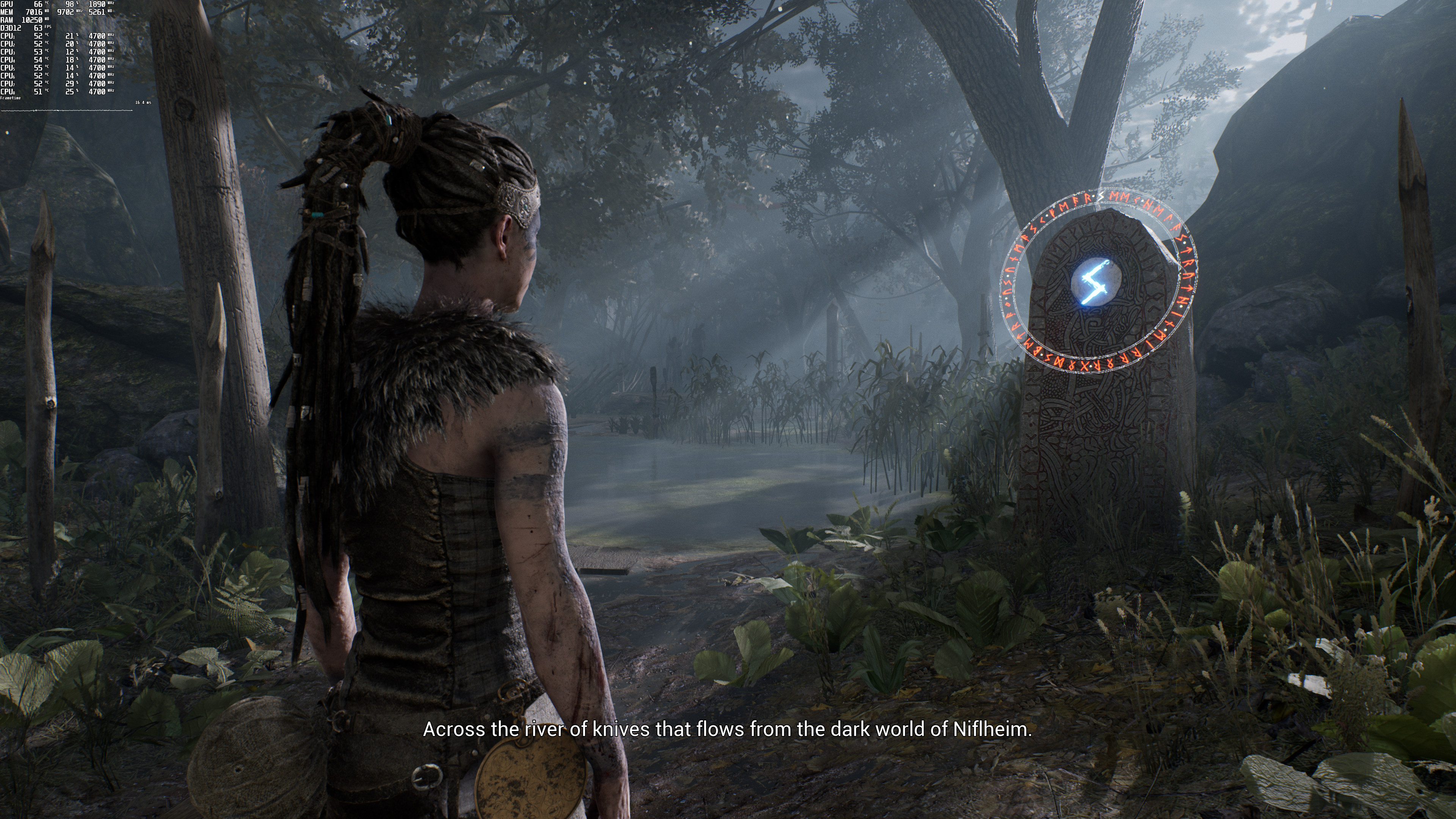
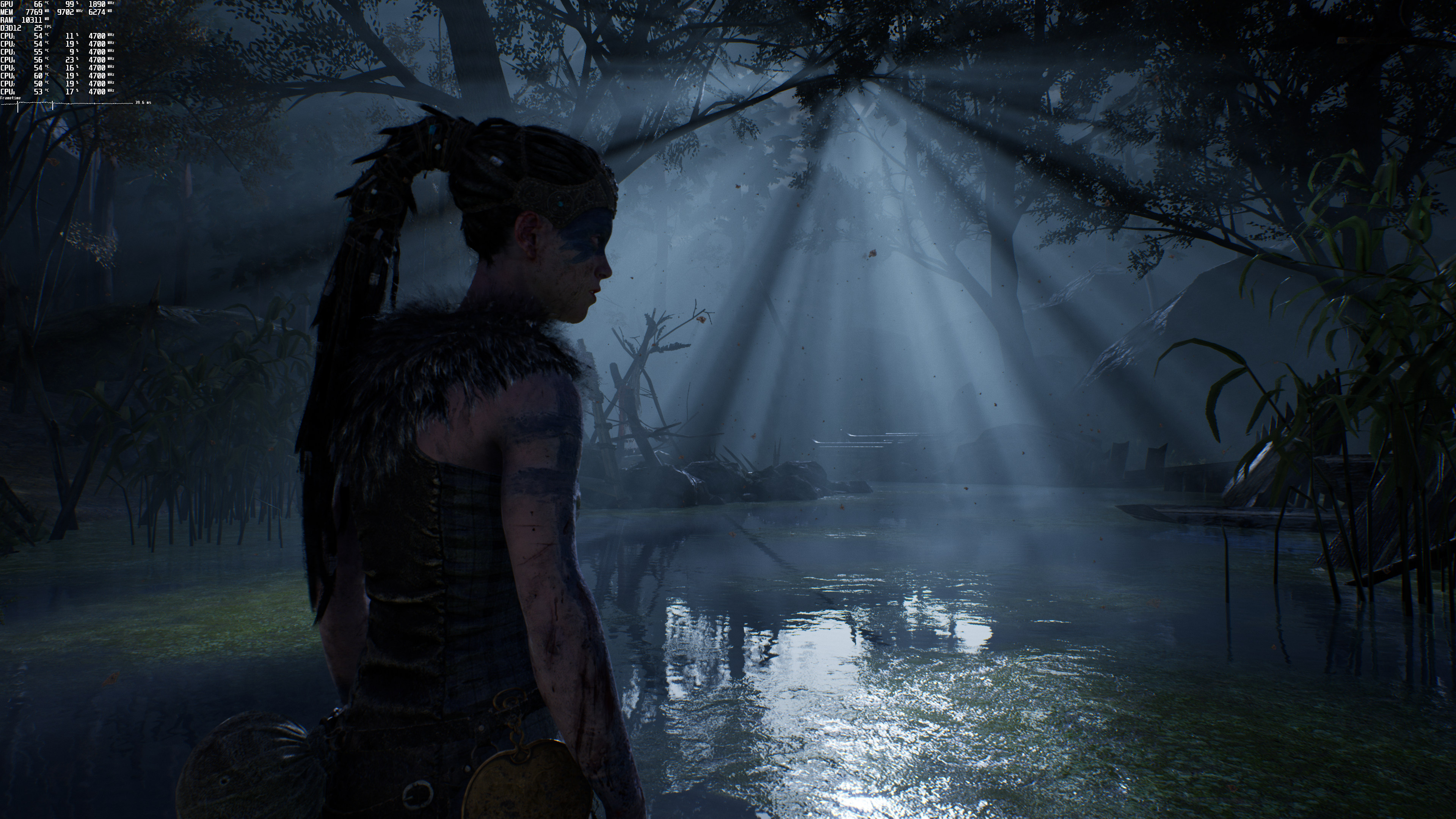
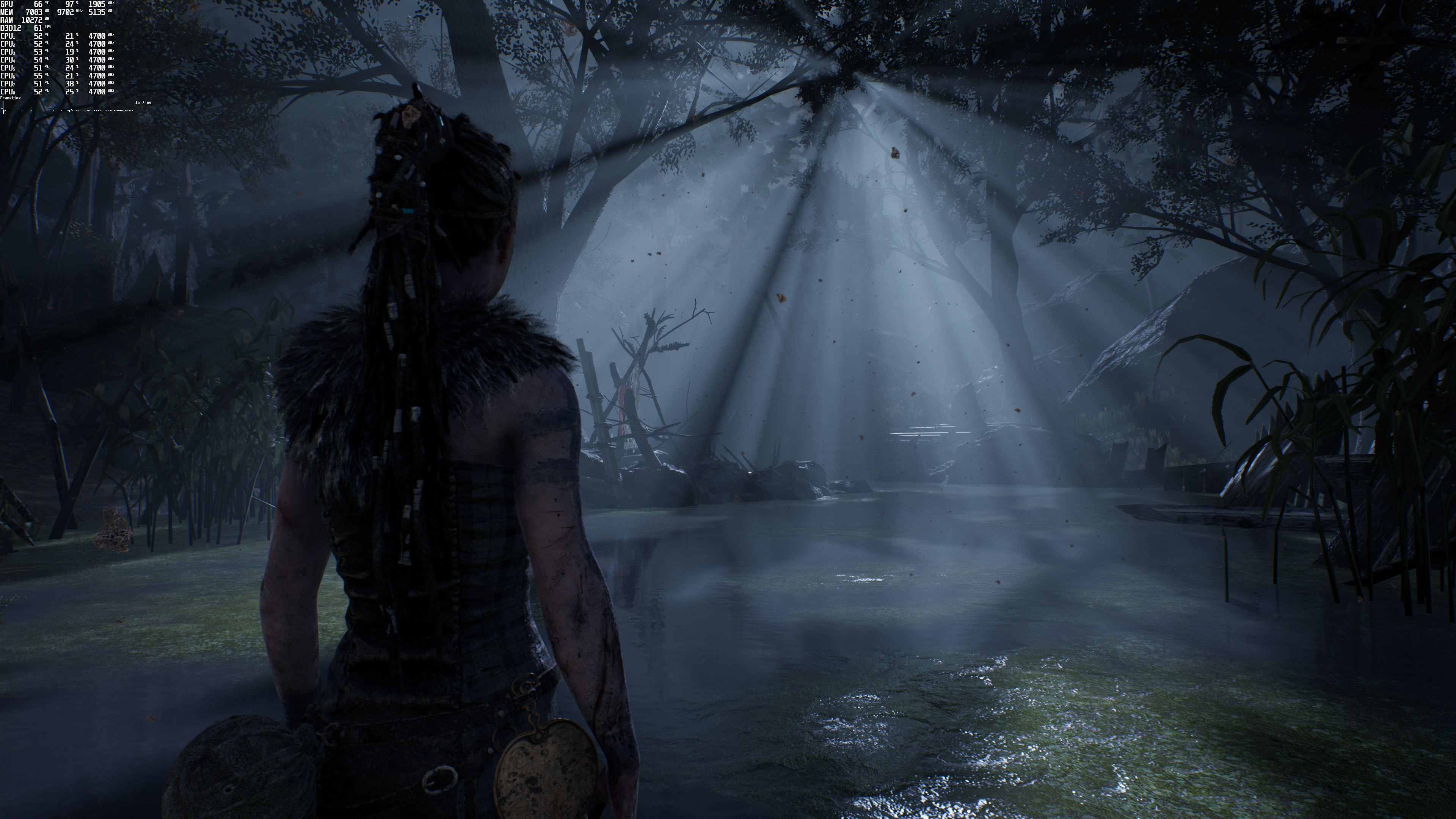
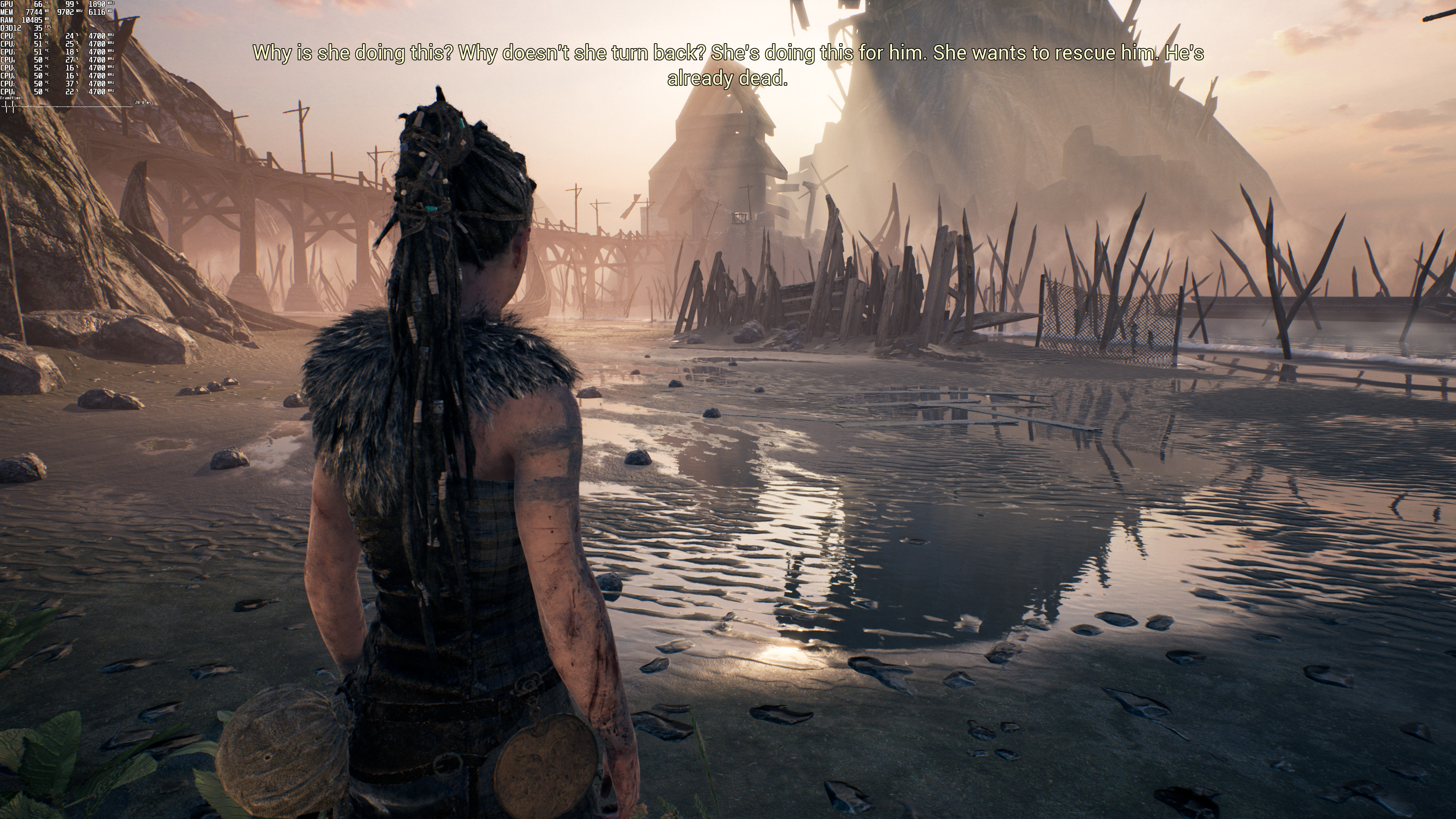
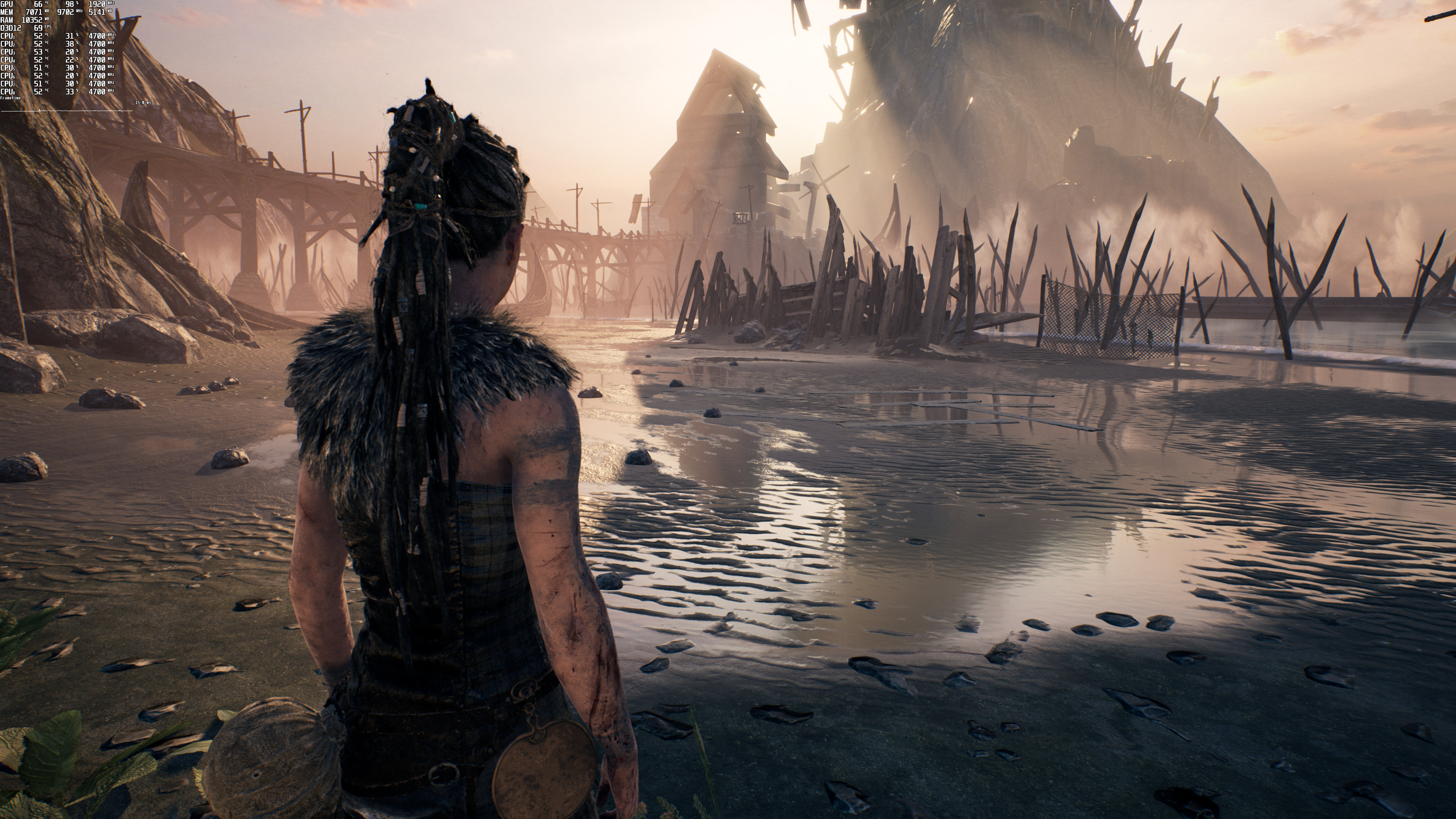
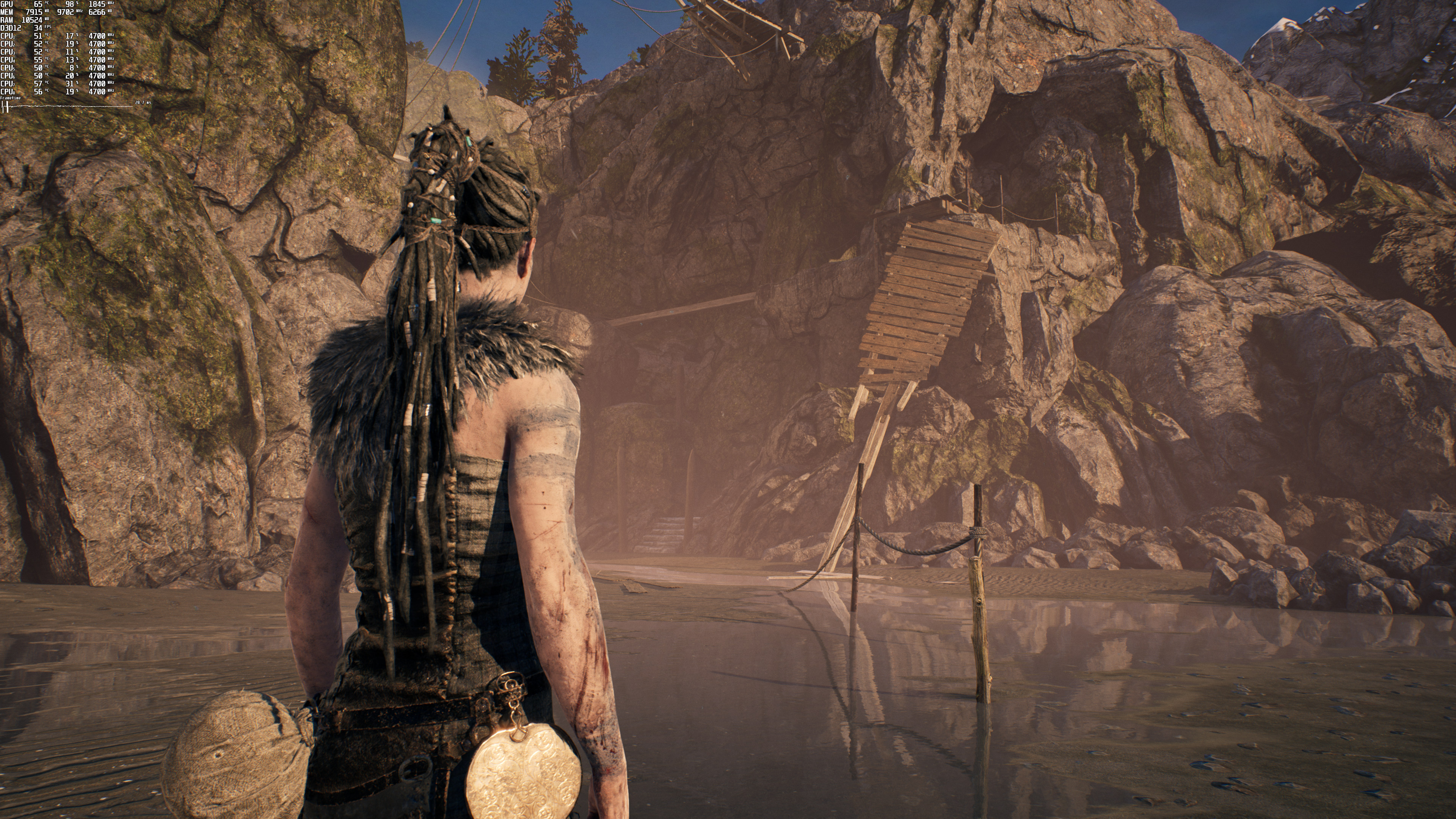
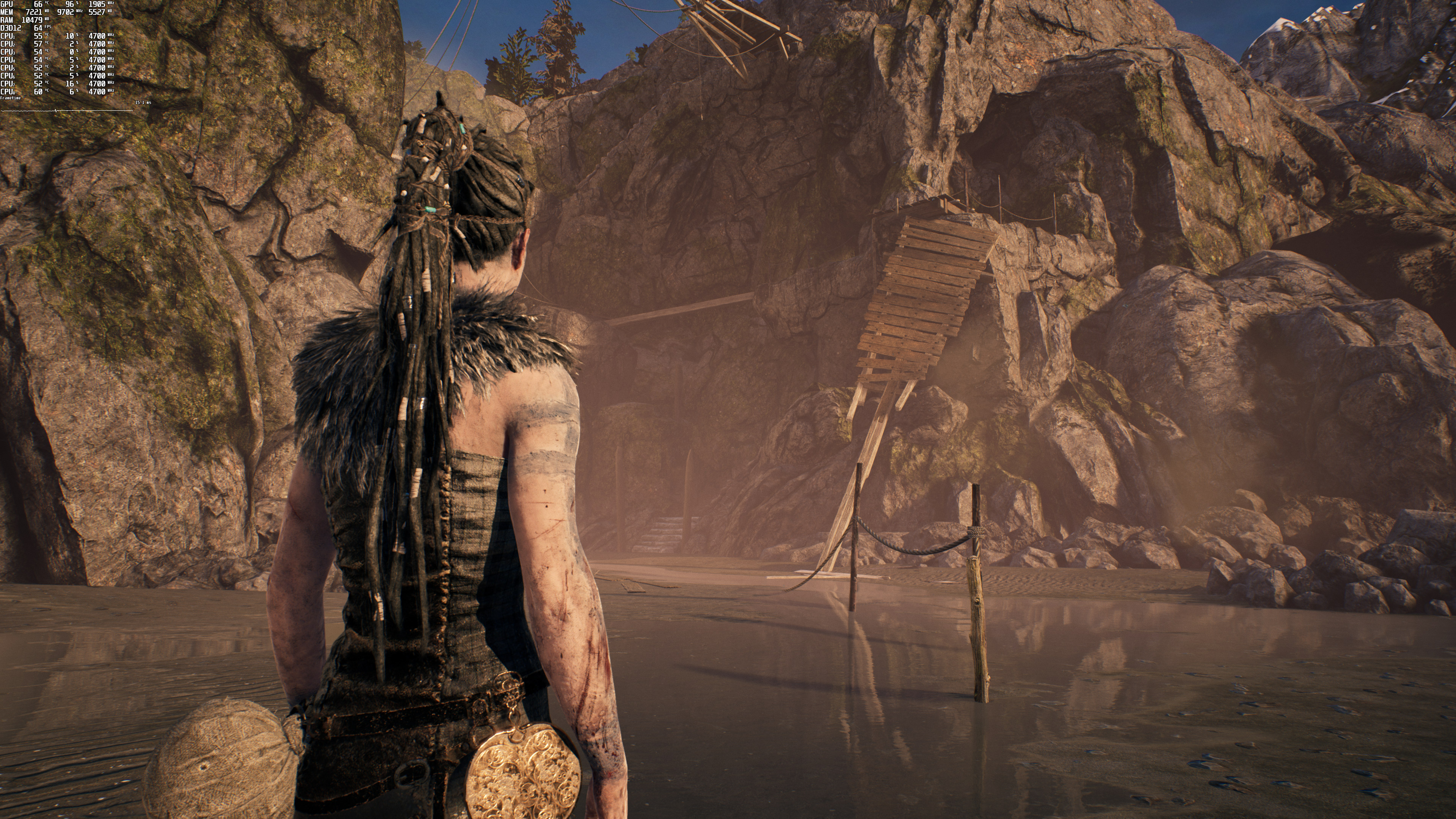
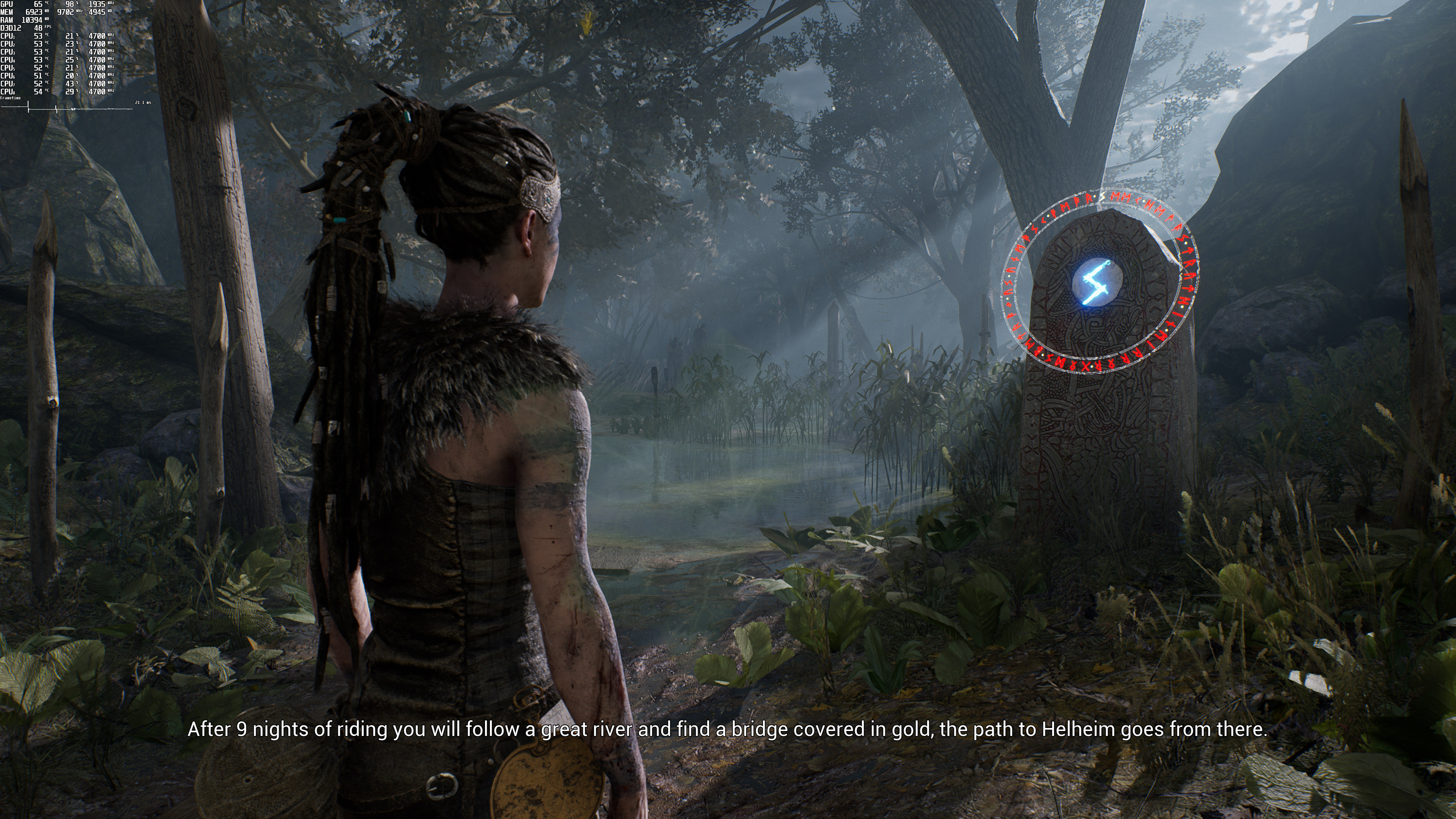
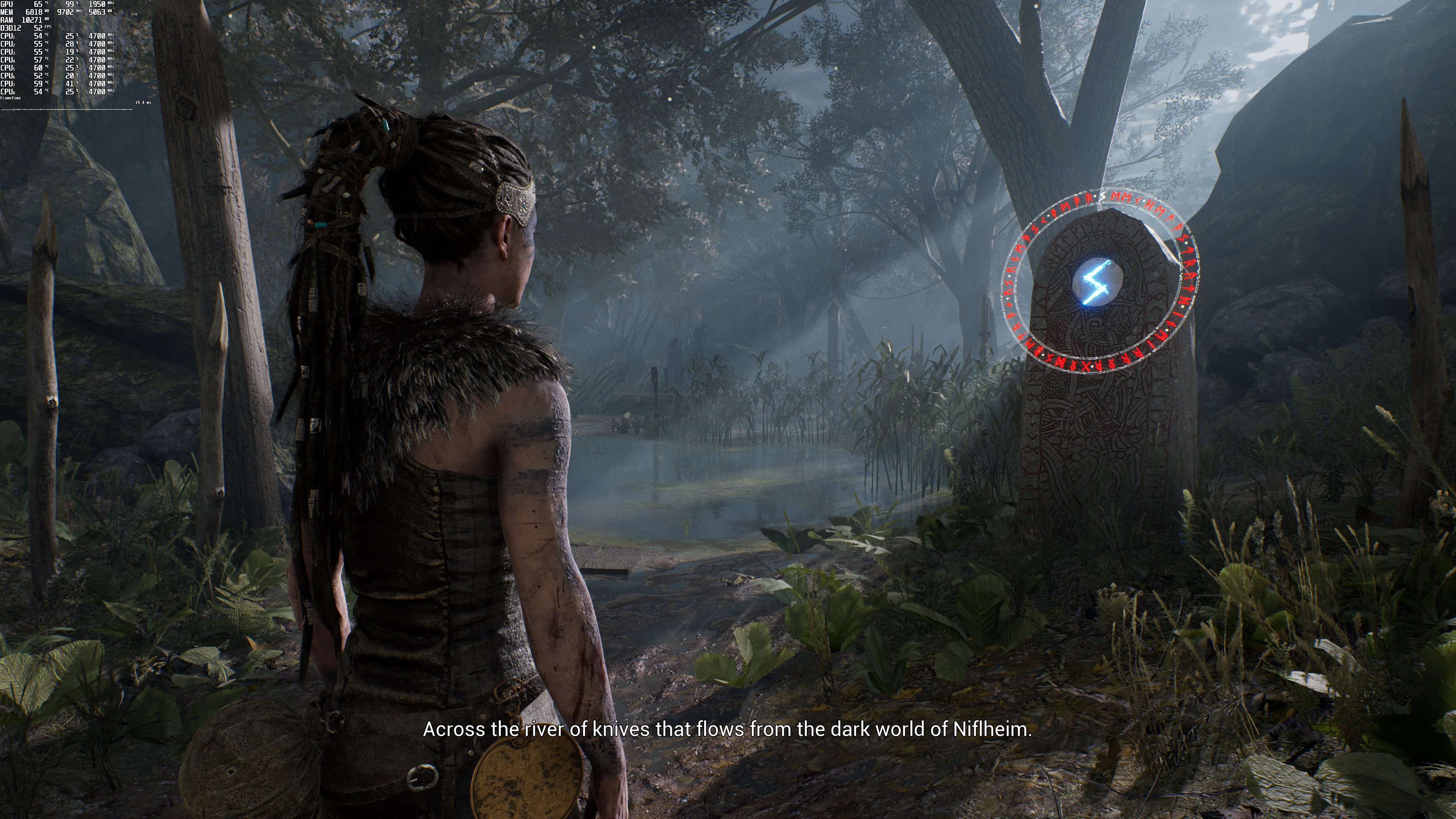
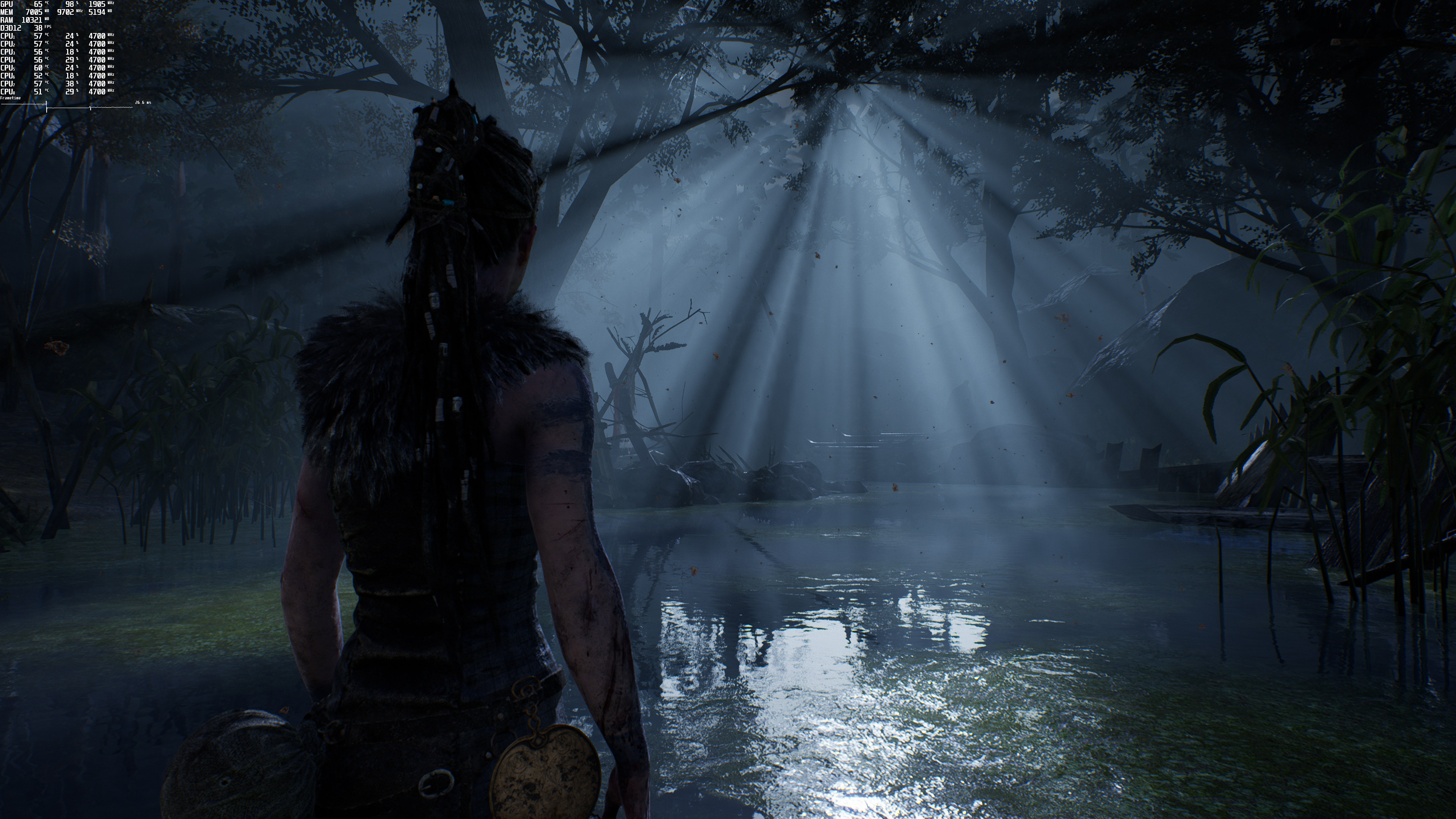
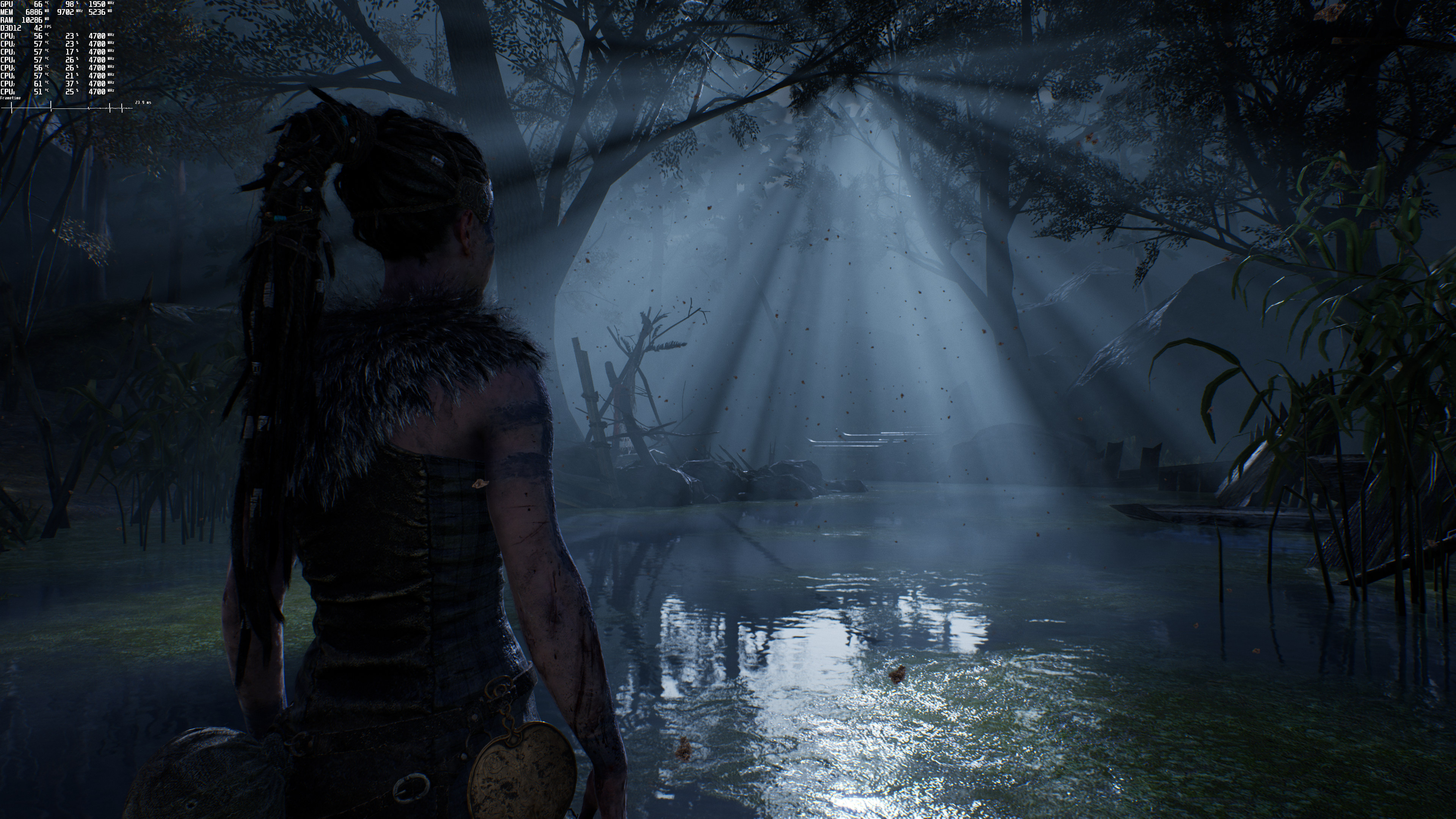
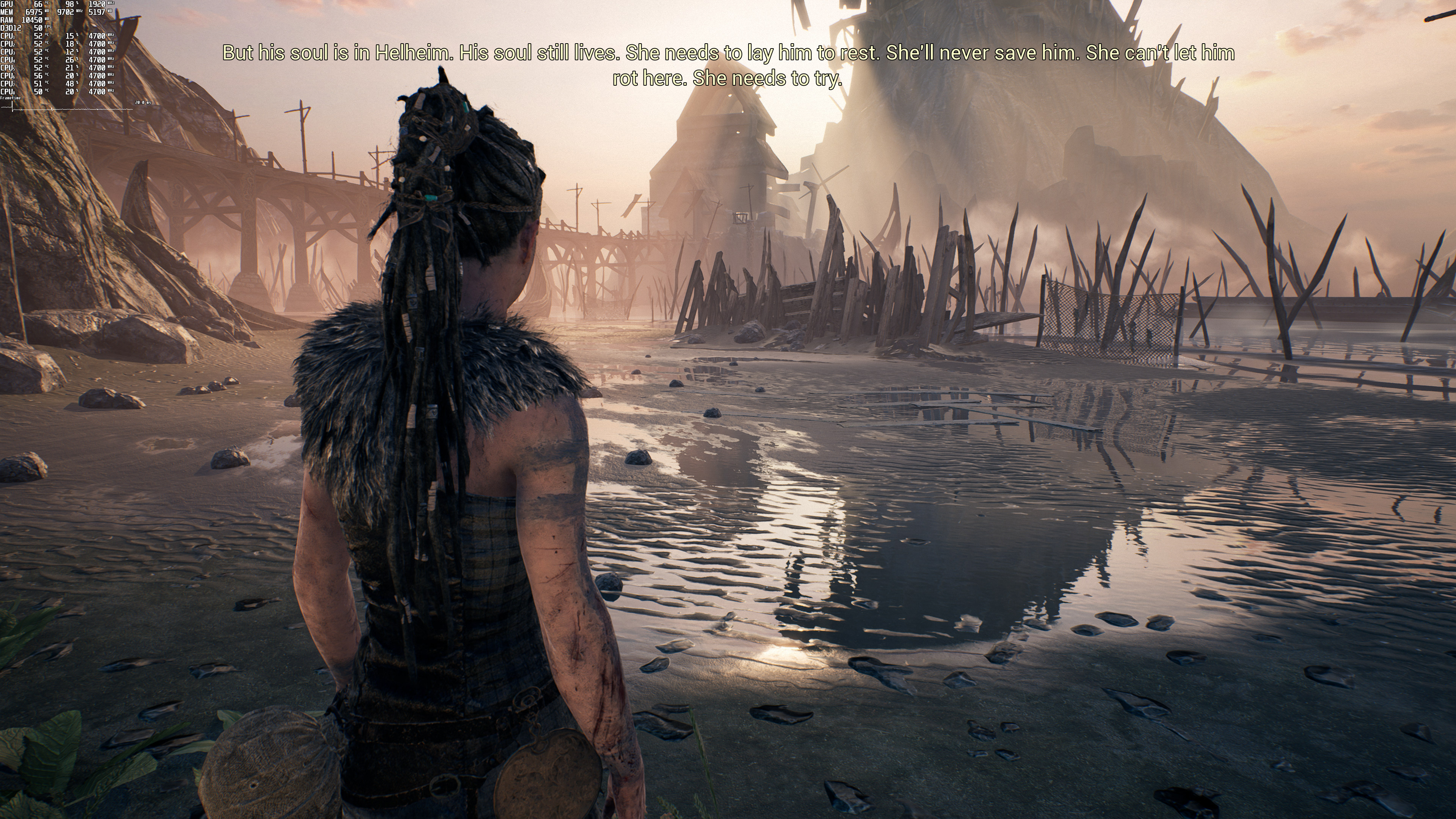
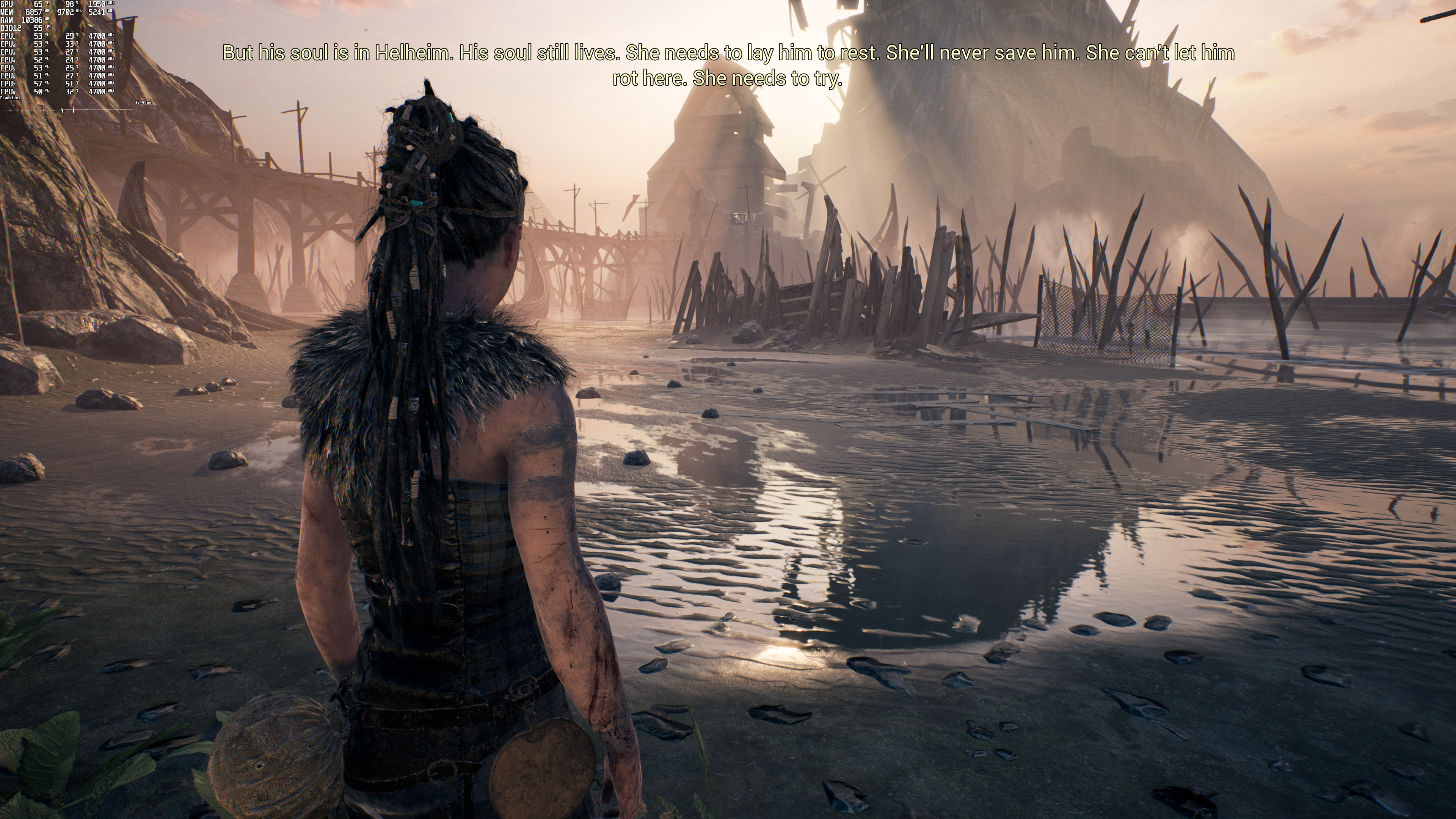
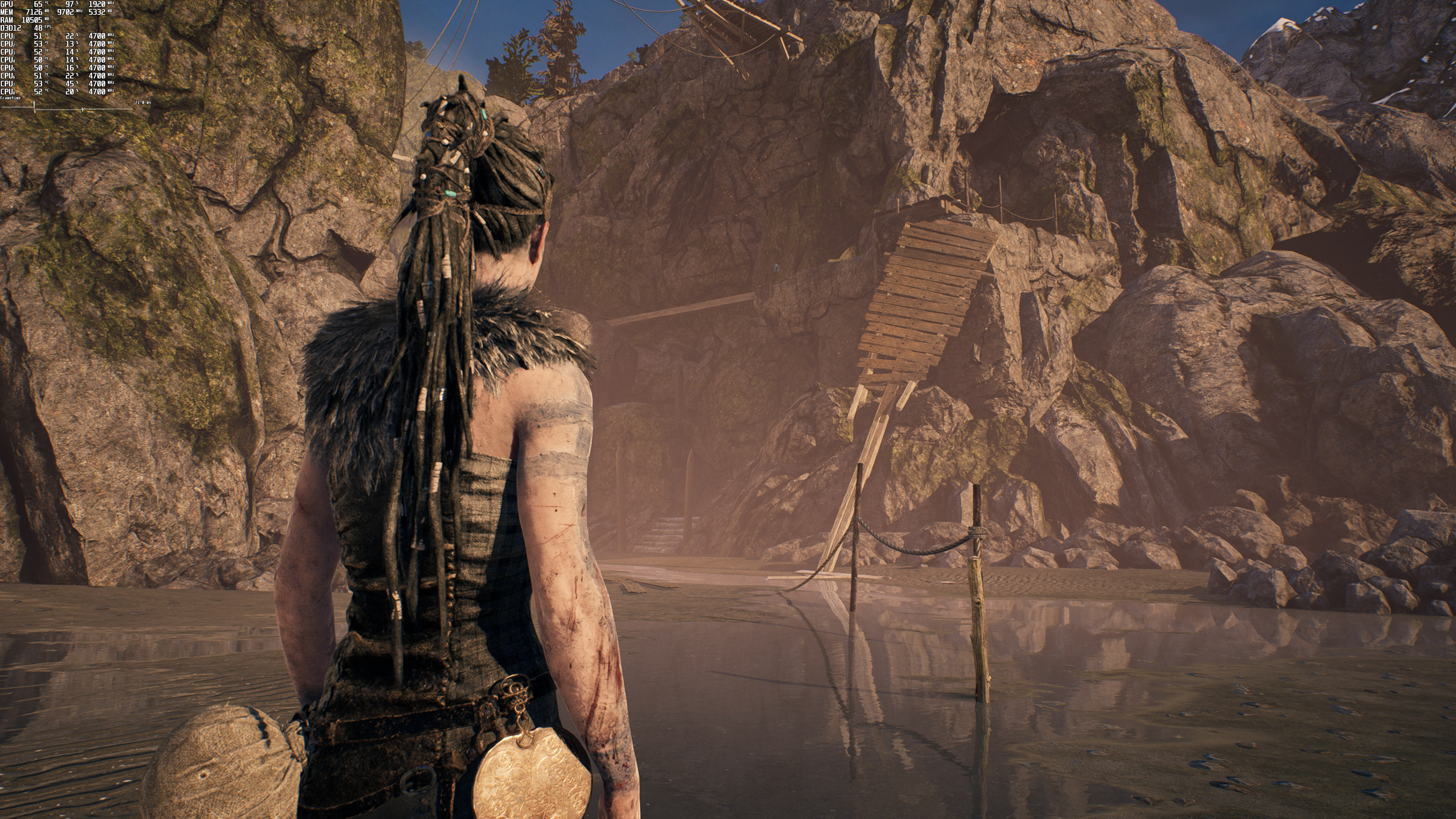
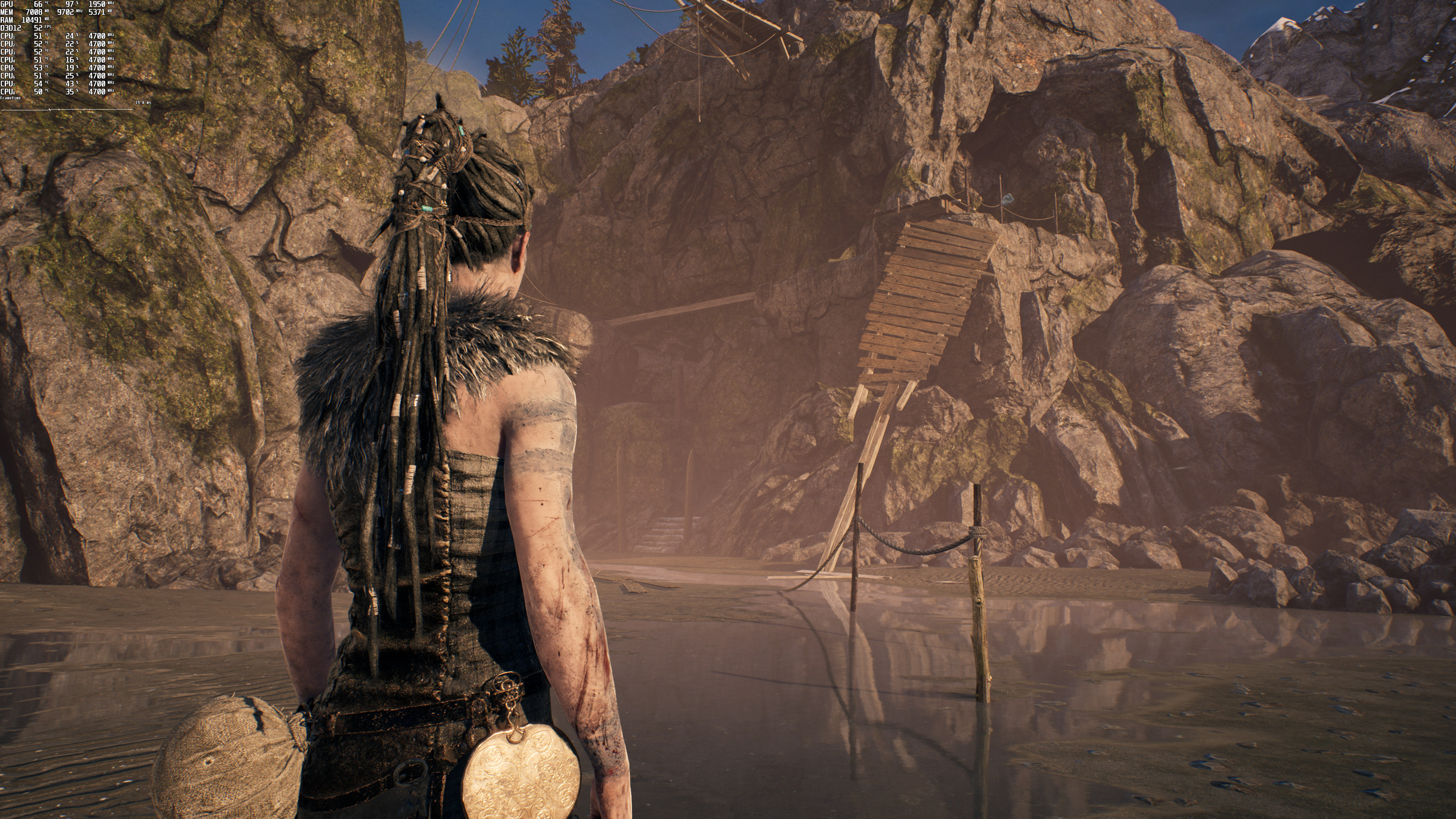
Ninja Theory has used Ray Tracing in order to overhaul the game’s reflections and shadows. And while there is a visual improvement over the rasterized version, these RT effects come with a huge performance hit. Below you can find some comparison screenshots between the ray-traced (left) and the non-ray-traced (right) versions.
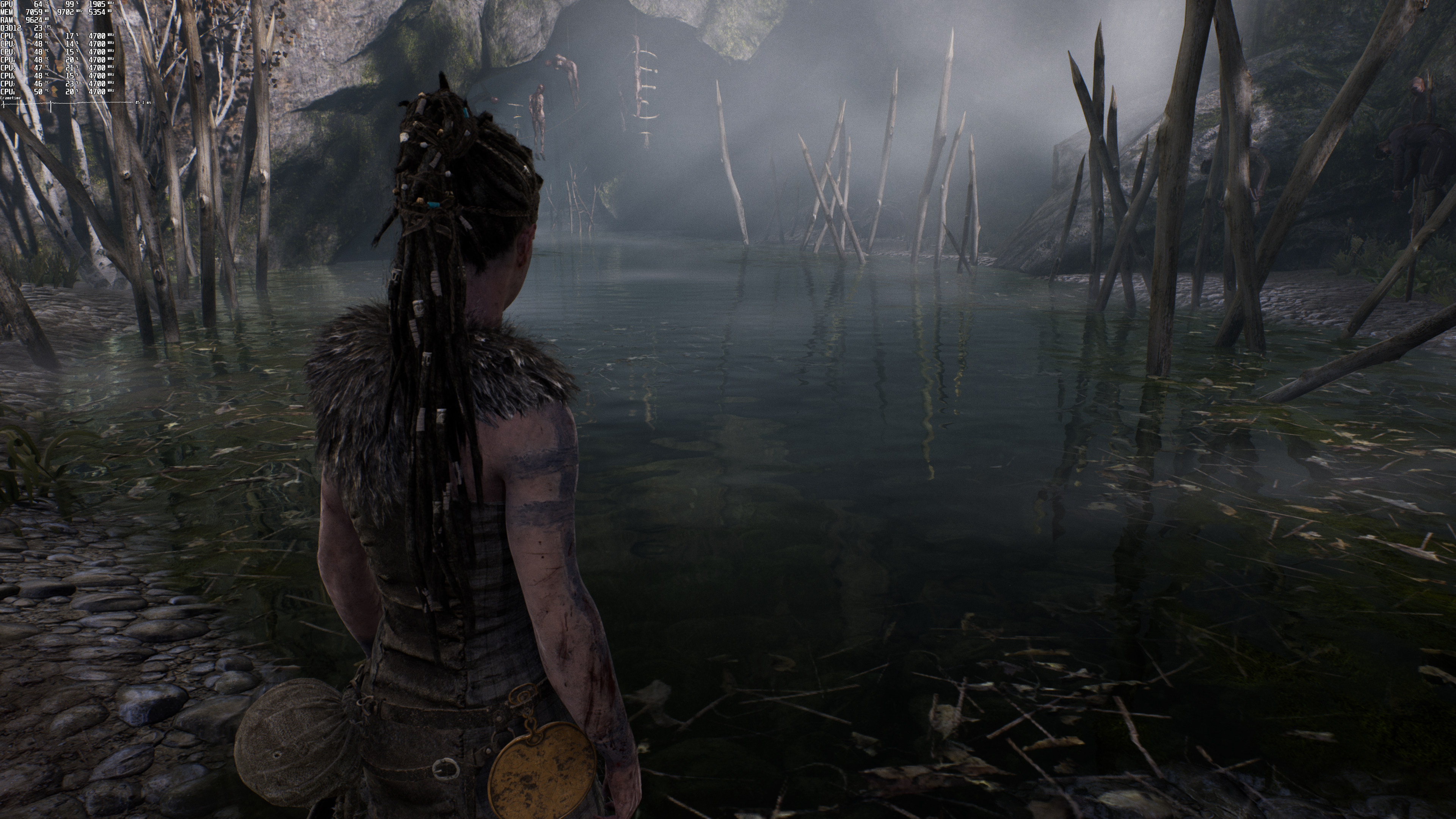
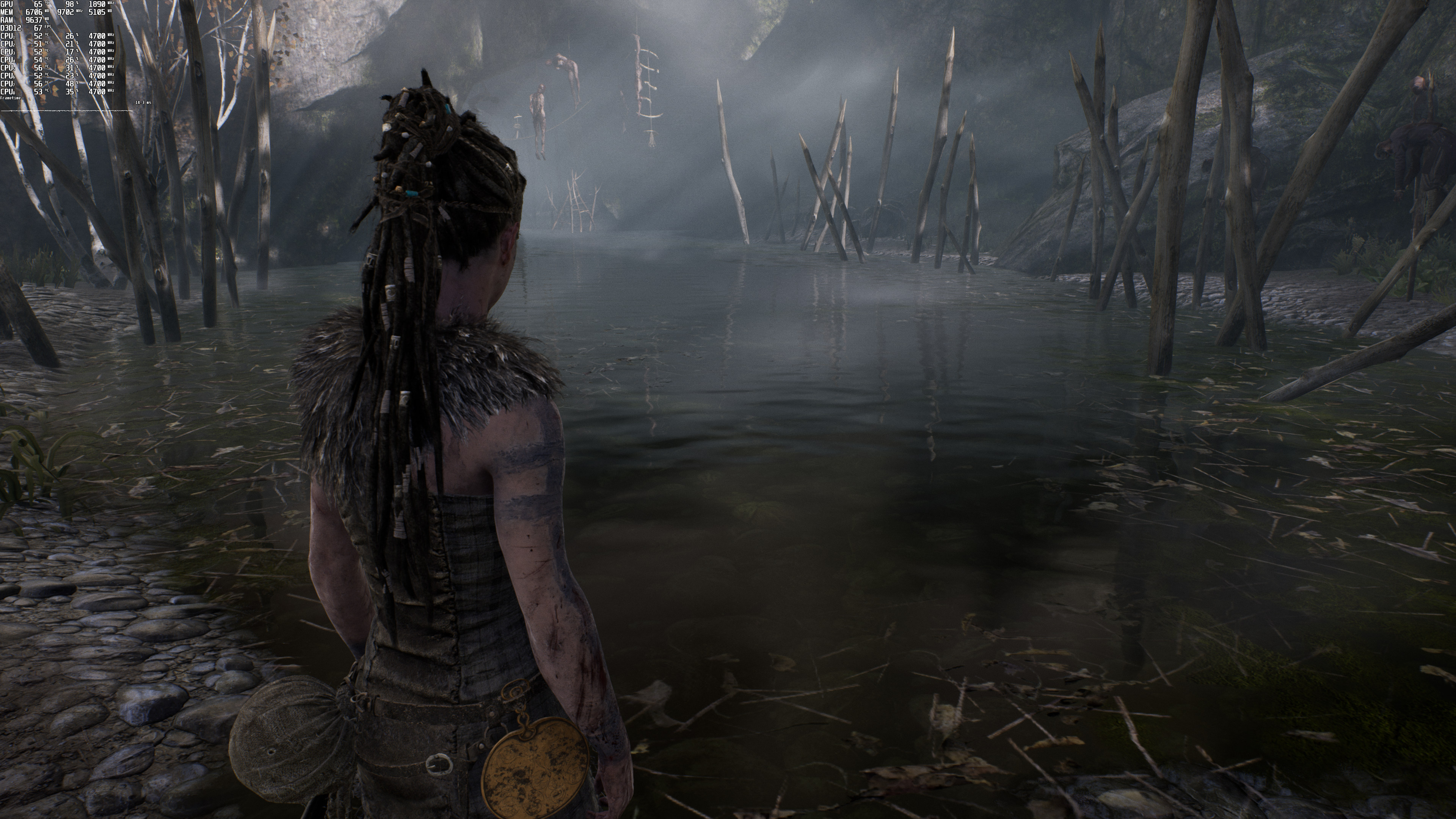
Hellblade Senua's Sacrifice 4K Native Ray Tracing-1Hellblade Senua's Sacrifice 4K Native No Ray Tracing-1 Hellblade Senua's Sacrifice 4K Native Ray Tracing-2Hellblade Senua's Sacrifice 4K Native No Ray Tracing-2 Hellblade Senua's Sacrifice 4K Native Ray Tracing-3Hellblade Senua's Sacrifice 4K Native No Ray Tracing-3 Hellblade Senua's Sacrifice 4K Native Ray Tracing-4Hellblade Senua's Sacrifice 4K Native No Ray Tracing-4 Hellblade Senua's Sacrifice 4K Native Ray Tracing-5Hellblade Senua's Sacrifice 4K Native No Ray Tracing-5

The NVIDIA GeForce RTX 3080 can run these Ray Tracing effects comfortably at 1080p. However, performance tanks at both 1440p and 4K. In fact, this game is more demanding than Metro Exodus, a game that uses more advanced Ray Tracing effects. So yeah, there is definitely room for improvement here (though I don’t expect Ninja Theory or QLOC to further optimize them).
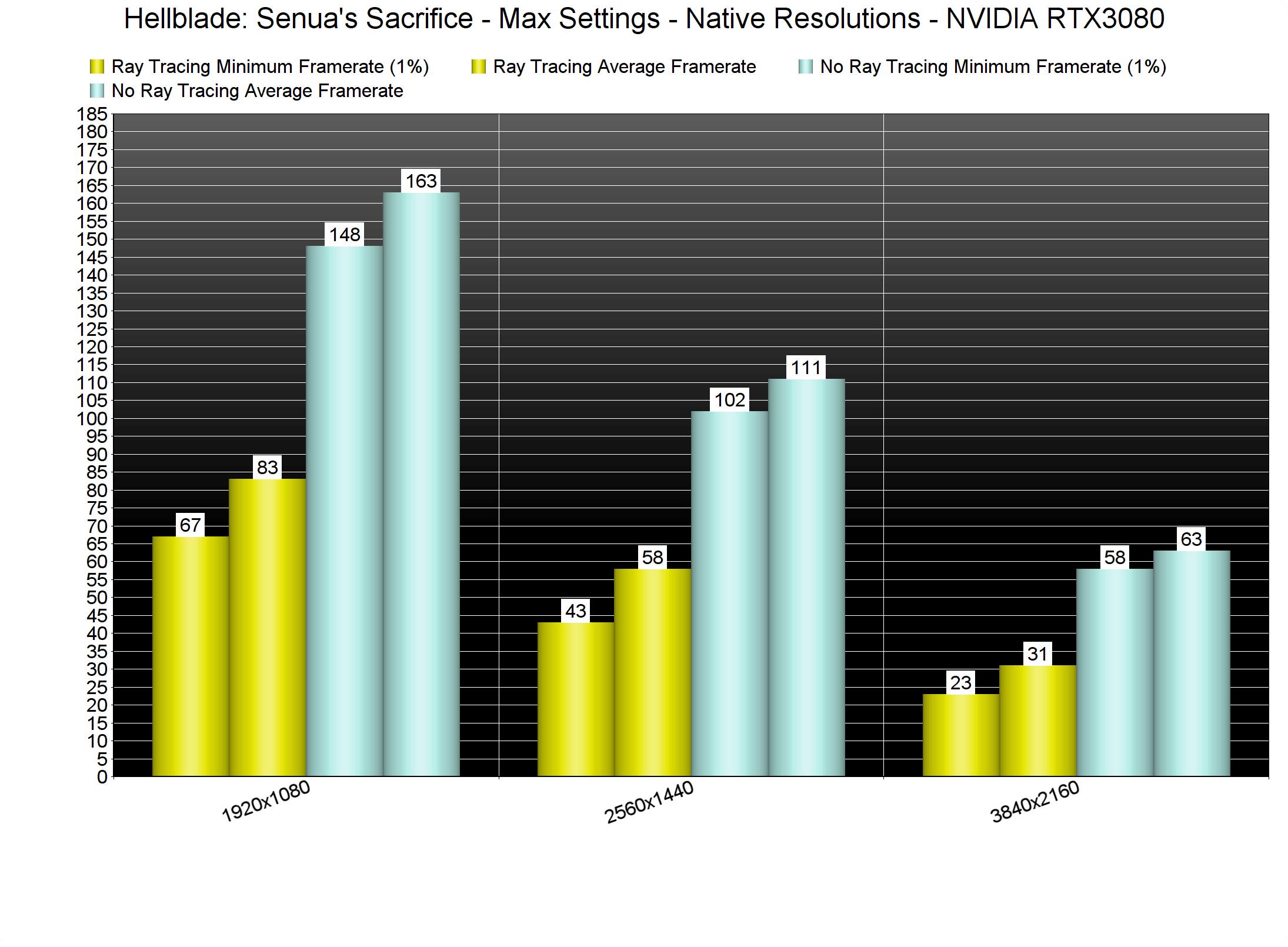
Hellblade Senua's Sacrifice Ray Tracing benchmarks

Hellblade: Senua’s Sacrifice Enhanced supports both NVIDIA DLSS and AMD FSR. And, to be honest, I was genuinely surprised by the FSR implementation. In this game, AMD FSR looks almost identical to both the NVIDIA DLSS and native resolution. While NVIDIA DLSS can have less aliasing on distant objects, I had to use NVIDIA’s ICAT and zoom at 300% in order to notice any differences between the NVIDIA DLSS and AMD FSR screenshots. Needless to say that RTX owners should use DLSS. However, FSR is an amazing alternative (at least in this game) for everyone else. Below you can find some comparison screenshots. Native 4K is on the left, AMD FSR is on the middle, and NVIDIA DLSS is on the right.
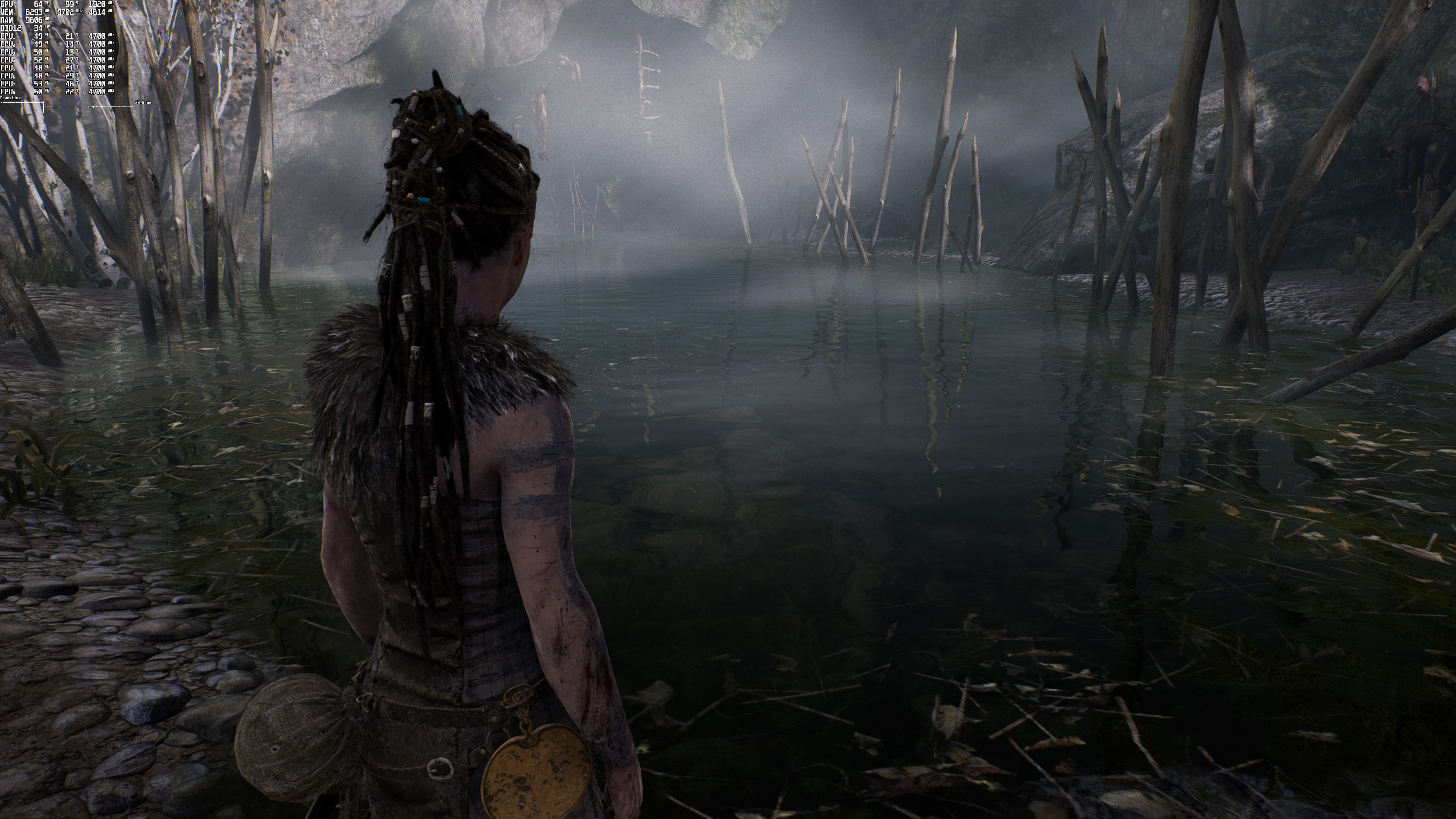
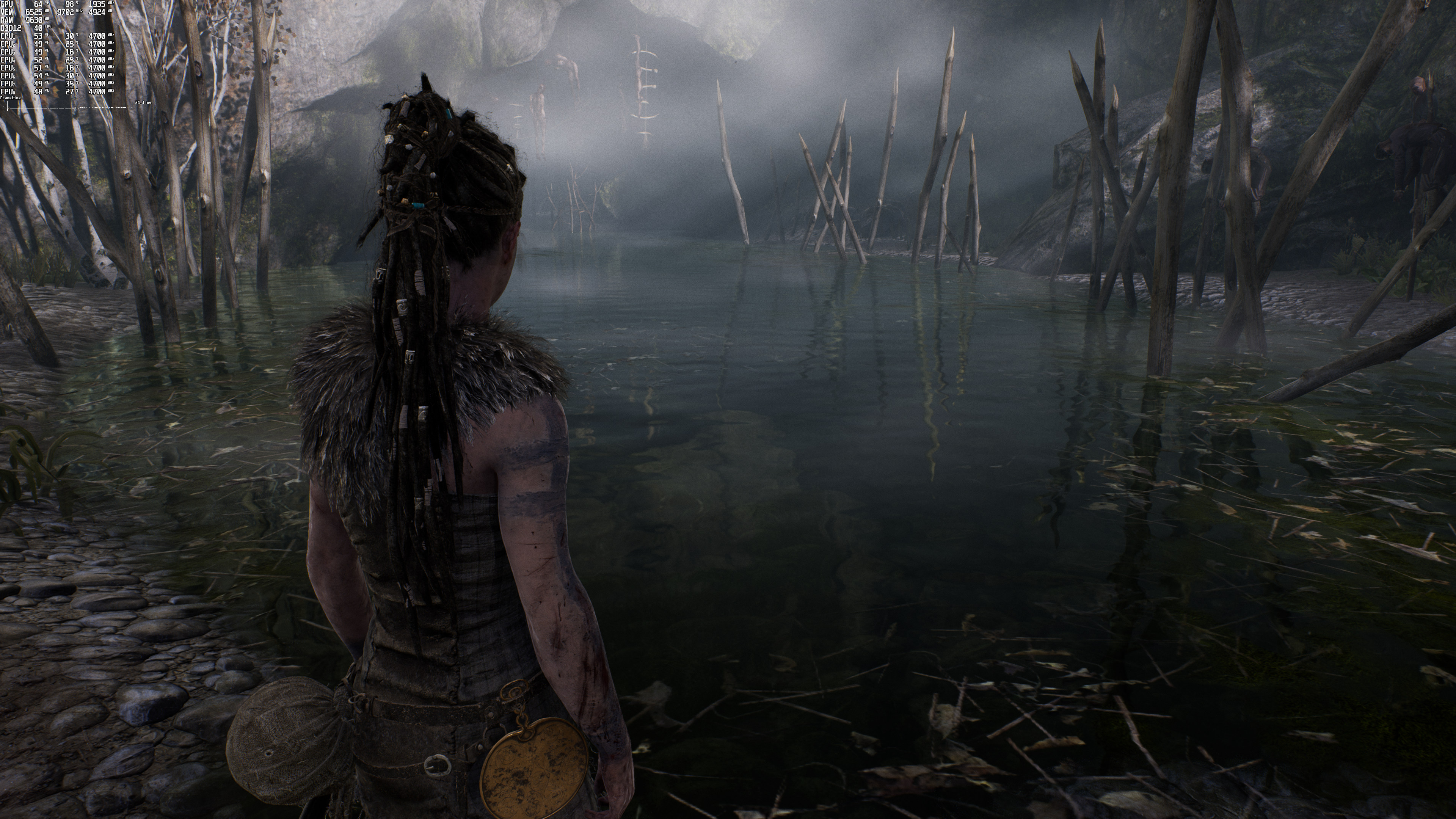
Hellblade Senua's Sacrifice 4K Native Ray Tracing-1Hellblade Senua's Sacrifice AMD FSR Ray Tracing-1Hellblade Senua's Sacrifice NVIDIA DLSS Ray Tracing-1 Hellblade Senua's Sacrifice 4K Native Ray Tracing-2Hellblade Senua's Sacrifice AMD FSR Ray Tracing-2Hellblade Senua's Sacrifice NVIDIA DLSS Ray Tracing-2 Hellblade Senua's Sacrifice 4K Native Ray Tracing-3Hellblade Senua's Sacrifice AMD FSR Ray Tracing-3Hellblade Senua's Sacrifice NVIDIA DLSS Ray Tracing-3 Hellblade Senua's Sacrifice 4K Native Ray Tracing-4Hellblade Senua's Sacrifice AMD FSR Ray Tracing-4Hellblade Senua's Sacrifice NVIDIA DLSS Ray Tracing-4 Hellblade Senua's Sacrifice 4K Native Ray Tracing-5Hellblade Senua's Sacrifice AMD FSR Ray Tracing-5Hellblade Senua's Sacrifice NVIDIA DLSS Ray Tracing-5

Performance-wise, NVIDIA DLSS runs slightly better than AMD FSR. This is another reason why we recommend DLSS over FSR for those owning RTX GPUs. Unfortunately, though, those with 4K monitors won’t be able to enjoy the game with its RT effects. Even with DLSS Quality, our NVIDIA RTX3080 had trouble reaching 50fps. So, for the best Ray Tracing gaming experience, we recommend using 1440p with DLSS Quality.
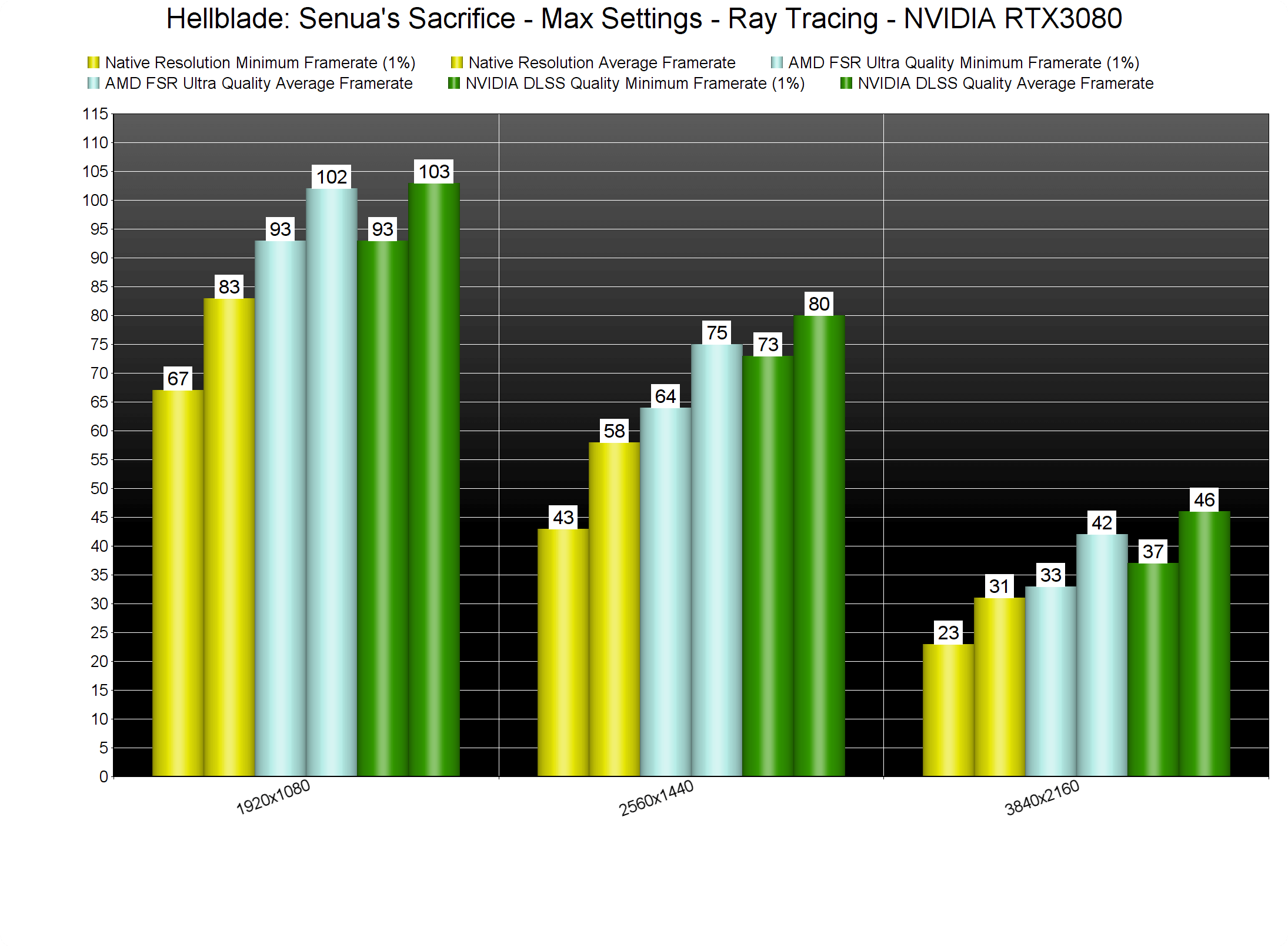
Hellblade Senua's Sacrifice DLSS & FSR benchmarks

All in all, the Ray Tracing effects in Hellblade: Senua’s Sacrifice are quite demanding. Thankfully, PC gamers can use both DLSS and FSR in order to boost their performance. Moreover, both the NVIDIA DLSS and AMD FSR implementations are amazing in Hellblade: Senua’s Sacrifice. Contrary to Battlefield 2042, NVIDIA DLSS does not blur any textures or distant objects in this game. In fact, DLSS looks better than native resolution. On the other hand, AMD FSR looks almost as good as native resolution.

15 thoughts on “Hellblade: Senua’s Sacrifice – Ray Tracing, NVIDIA DLSS & AMD FSR Benchmarks”

    1. I’m an owner of a RTX 3070 Ti,but in this game I have to say that FSR looks sharper than DLSS to my eyes….it’s less performing though.

      1. fair enough. Eye sight is a pretty unique thing tho, everyone views stuff slightly differently. And I can clearly see inferior texture/mesh/shadow quality on the screenshots in the article.

        1. You say “everyone views stuff slightly differently” and then “I can clearly see inferior texture/mesh/shadow quality”. So basically everyone is different, but you are better than Ivano and those who think FSR is as good if not better… High horse much?

  1. John, why don’t you try to use and report the other DLSS and FSR presets as well?
    There is not only the DLSS Quality … there is the performance preset, the balanced one etc.
    This is a DLSS and FSR specific review … I think you should do it for the next games.
    Thanks!

  2. about AMD FSR…
    I tested this with my GTX1080. It’s very, very difficult to figure out how much it helps because you shouldn’t simply compare HIGHEST settings without FSR to highest settings with FSR enabled.
    I get a huge FPS boost. But…
    I also got a huge FPS boost by turning down graphics settings. The image quality going from VERY HIGH to HIGH is quite close. The most FAIR comparison is to play with game settings to achieve the CLOSEST visuals to VERY HIGH + FSR (i.e. HIGH without FSR?).

    I also tried Ray Tracing but on LOW (the only realistic option with my card) it seems to only affect reflections in puddles as far as I can tell. And I can’t get a SOLID 60FPS without using AMD FSR on lower graphical settings which defeats the purpose. (I didn’t expect RT to work well so I’m not complaining. I’m actually impressed it’s working at all on non-RTX hardware. HIGH with RT was unplayable but at least I can get an idea what it looks like.)

    I ended up putting all the graphical settings to their HIGHEST setting (without RT) and then using AMD FSR on its best visual setting because occasionally I would normally dip below 60FPS at times. So that seems to give nearly IDENTICAL visuals but at a more stable FPS (and fan noise is slightly reduced).

    AMD FSR in this game would greatly help weaker cards than a GTX1080 maintain a solid 60FPS. Maybe “HIGH” plus one of the FSR options.

    (I’m not quite clear why games now have graphical choices that are so close I can’t tell the difference without careful inspection. Seems rather stupid but whatever…)

    1. I didn’t understand ANYTHING of what you wrote!

      “you shouldn’t simply compare HIGHEST settings without FSR to highest settings with FSR enabled” : what does this mean?

      “The most FAIR comparison is to play with game settings to achieve the CLOSEST visuals to VERY HIGH + FSR (i.e. HIGH without FSR?).” :WHY???

    2. Benchmarking is not about teaching people how they should tune the gaphics settings on a game, it’s about using the highest possible settings to stress and compare the hardware.

      I mean ofcourse using Ultra settings is dumb, we all know that.

  3. What’s the input during motion? DLSS and FSR can be similar in stills but it’s during motion that I think should be added into these. Needless to say, thanks John for putting this together!

  4. Did they use the RT to replace the god awful UE4 screen space shadows though?
    Pretty much all default effect rendering in UE4 is an artifact ridden mess. (And thankfully many devs these days replace those with their own. You can really tell when they don’t though.)

  5. Thank you for testing both Nvidia and AMD cards, it is always usefull to see a comparison between at least one pair of rival cards (3080vs6800).

Leave a Reply

Your email address will not be published. Required fields are marked *