

S-Game has lifted the review embargo for Phantom Blade Zero. And since NVIDIA has provided us with a review code, we can provide you with a PC Performance Analysis before the game comes out. Phantom Blade Zero uses Unreal Engine 5.7.4, and it has Denuvo. So, time to see how it runs on PC.
For our benchmarks, I used an AMD Ryzen 9 7950X3D, 32GB of DDR5 at 6000Mhz, AMD’s Radeon RX 6900XT, RX 7900XTX, RX 9070XT, as well as NVIDIA’s RTX 2080Ti, RTX 3080, RTX 4090, RTX 5080, and RTX 5090. I also used Windows 10 64-bit, as well as the GeForce 617.14 and the Radeon Adrenalin Edition 26.9.2 drivers.
S-Game has added a lot of graphics settings to tweak. PC gamers can adjust the quality of Lighting, Materials, Shadows, Reflections, and more. The game also supports all PC upscalers. In other words, we have support for NVIDIA DLSS, AMD FSR, and Intel XeSS. Not only that, but on PC, we get both Ray Tracing and Path Tracing support.
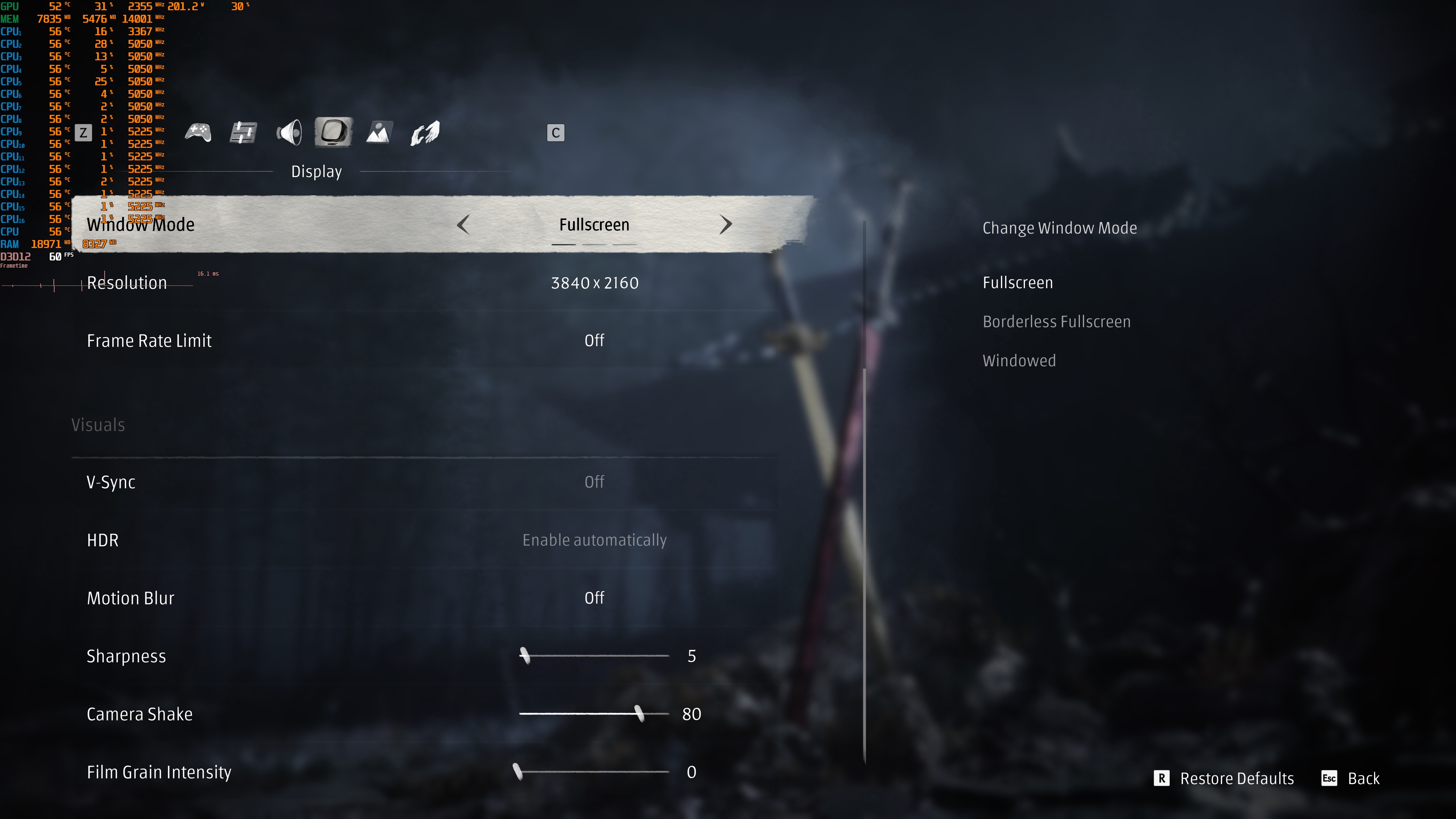
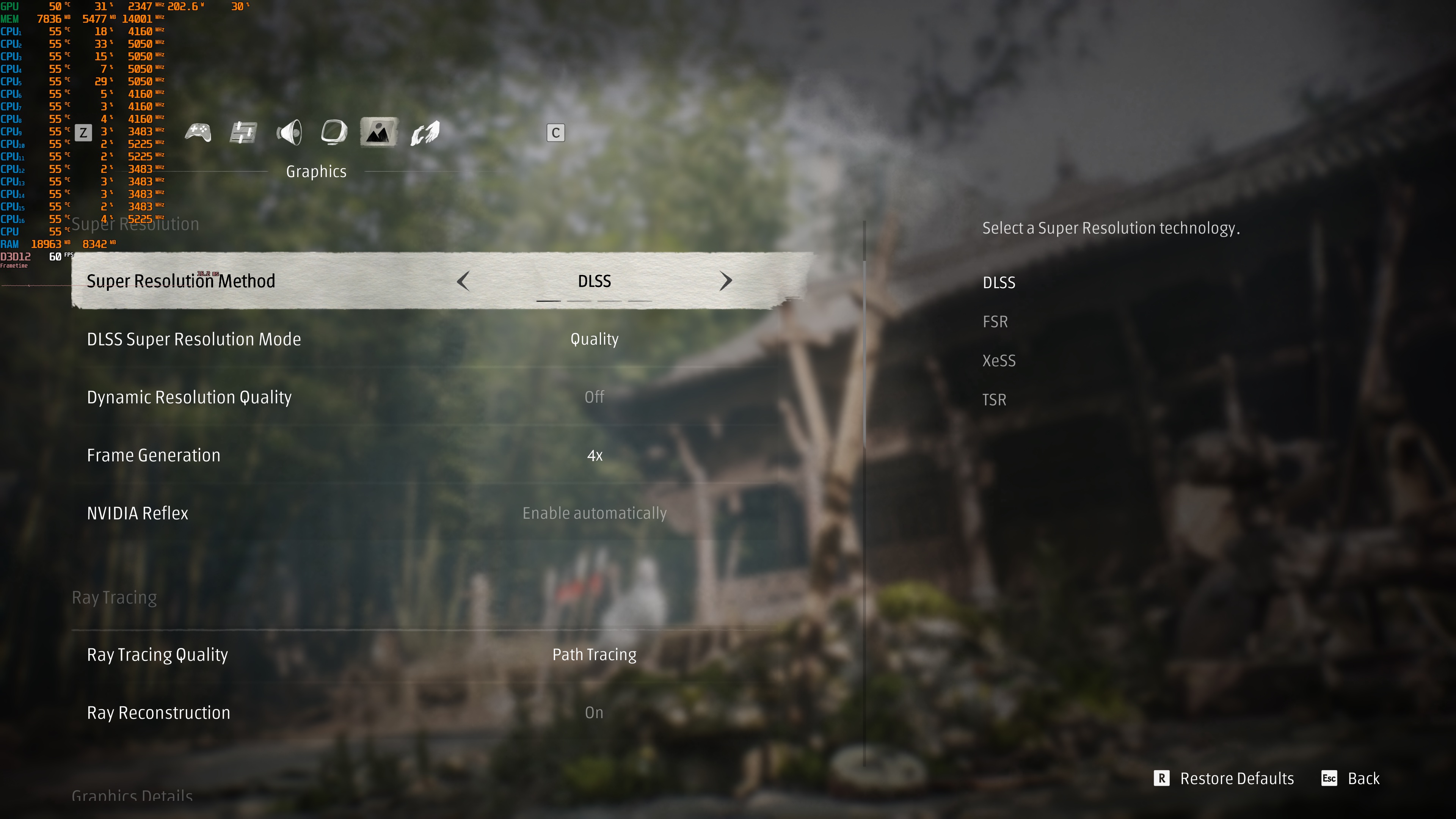
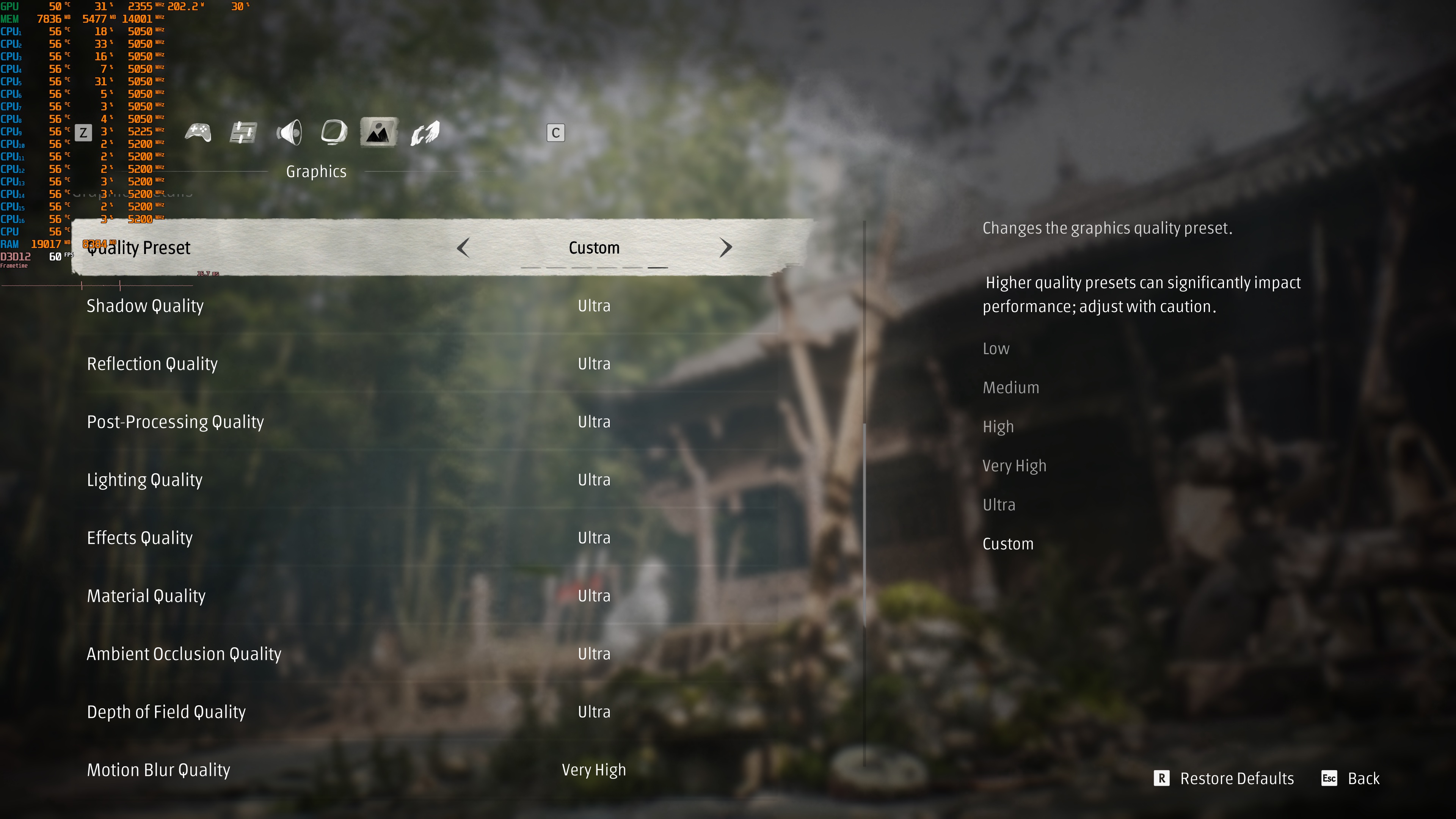
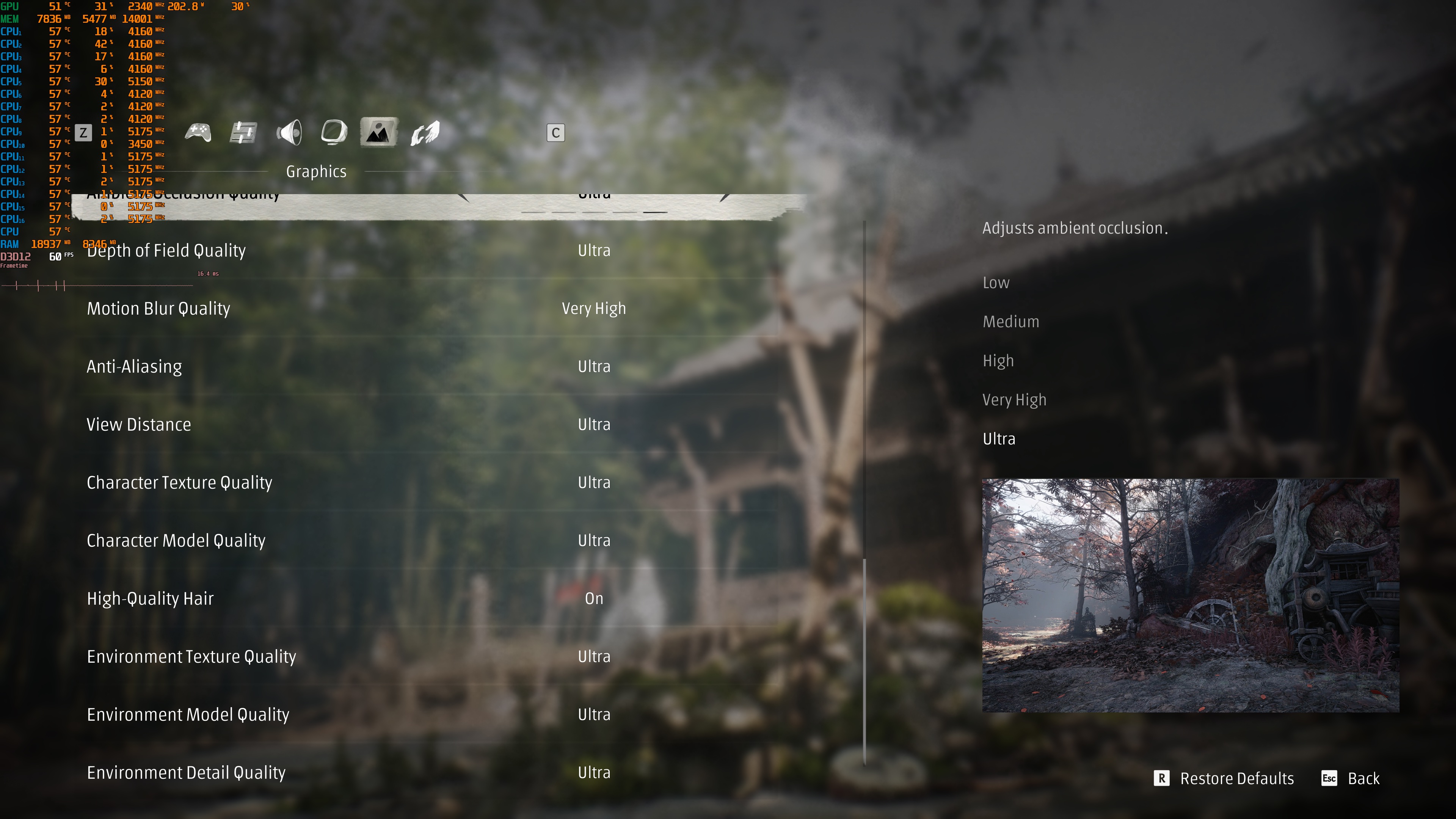
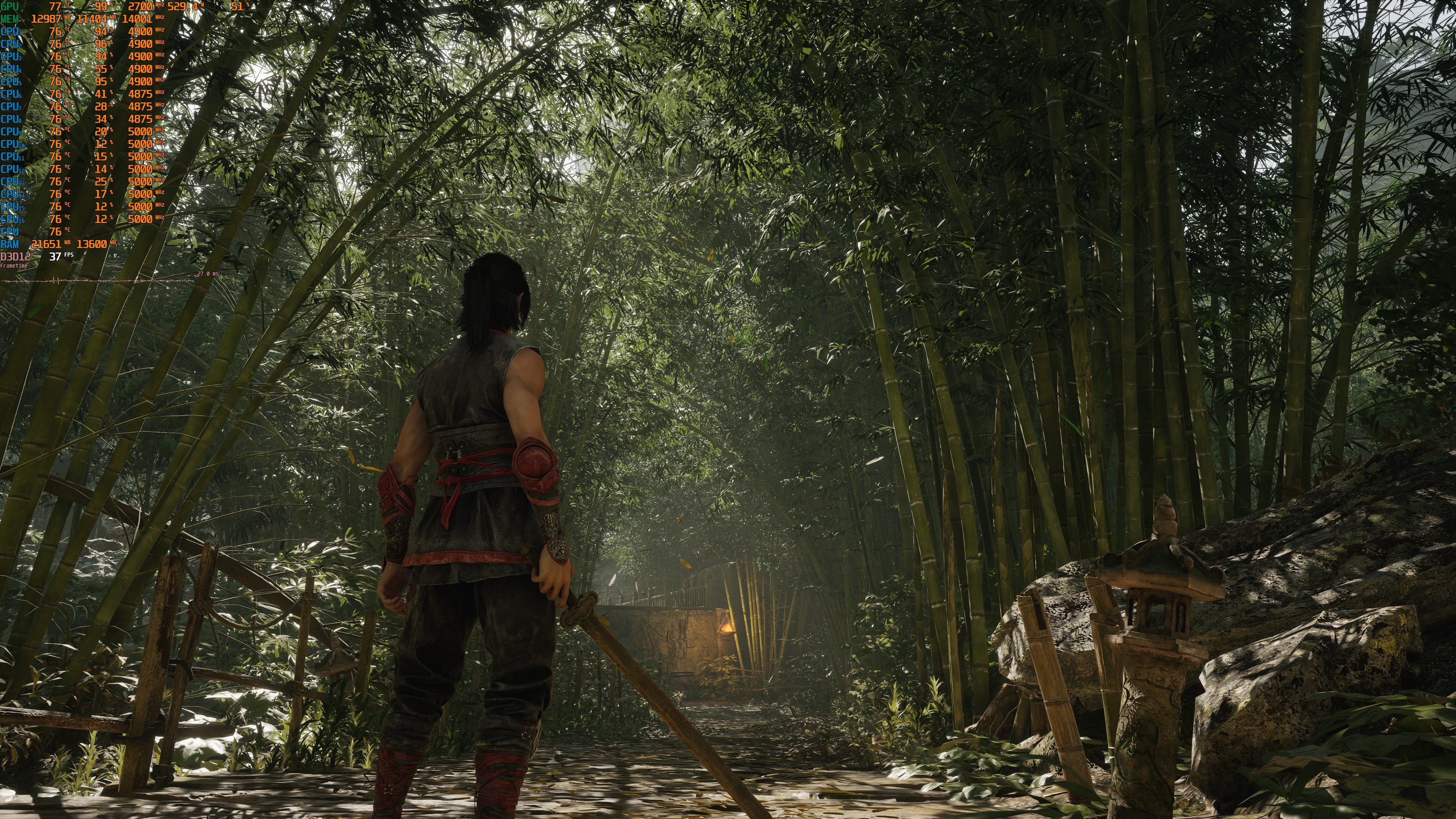
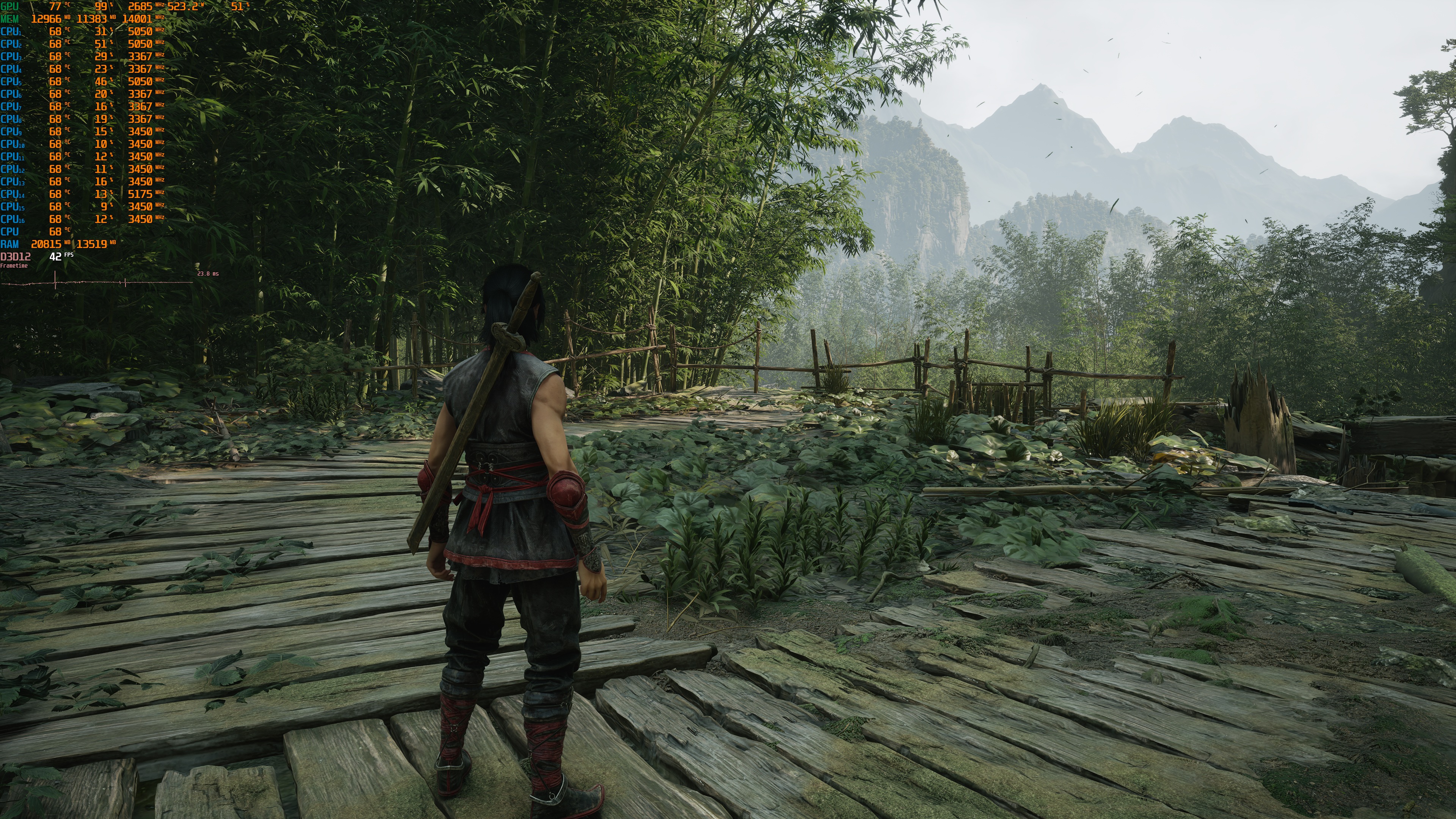
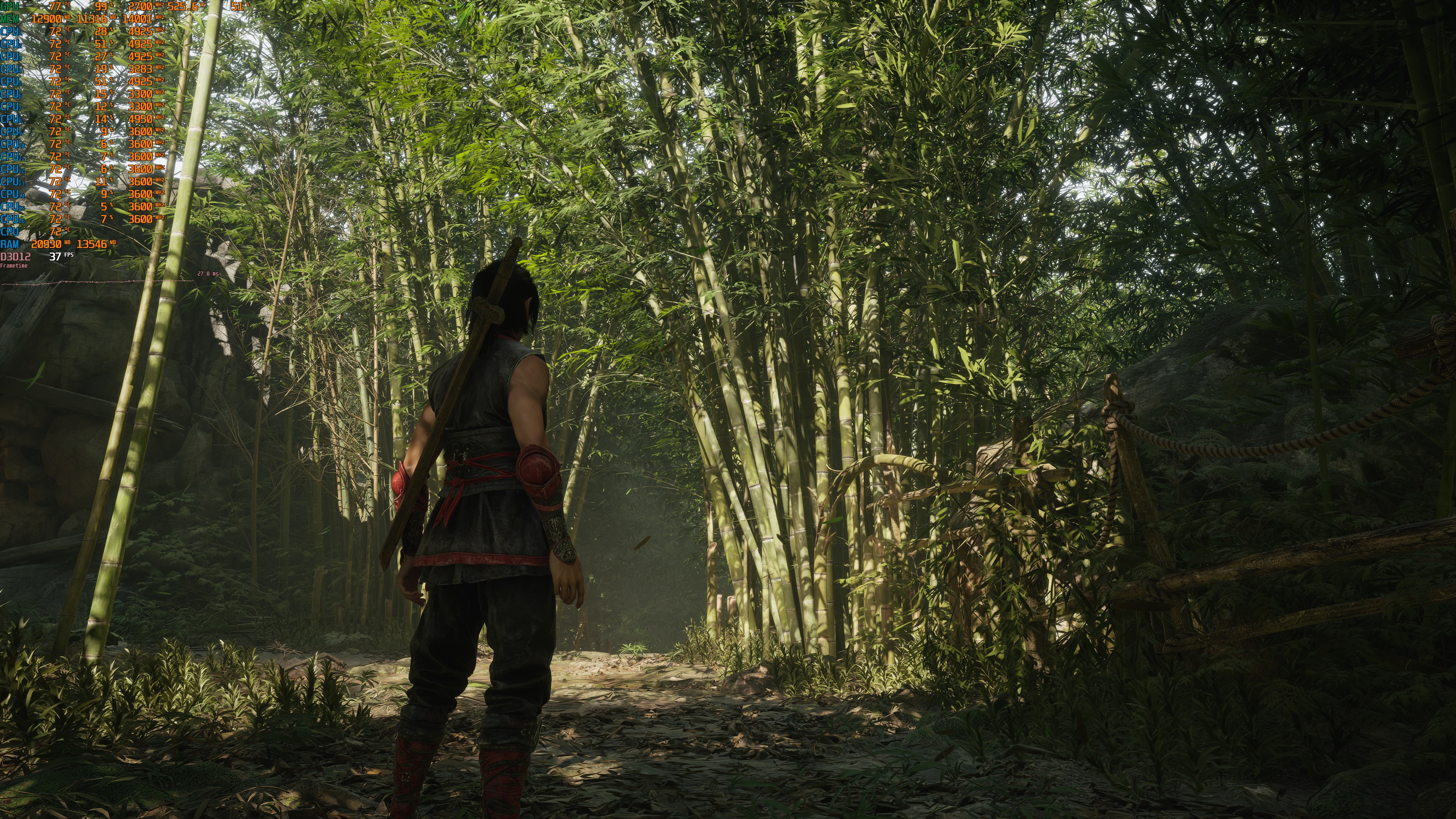
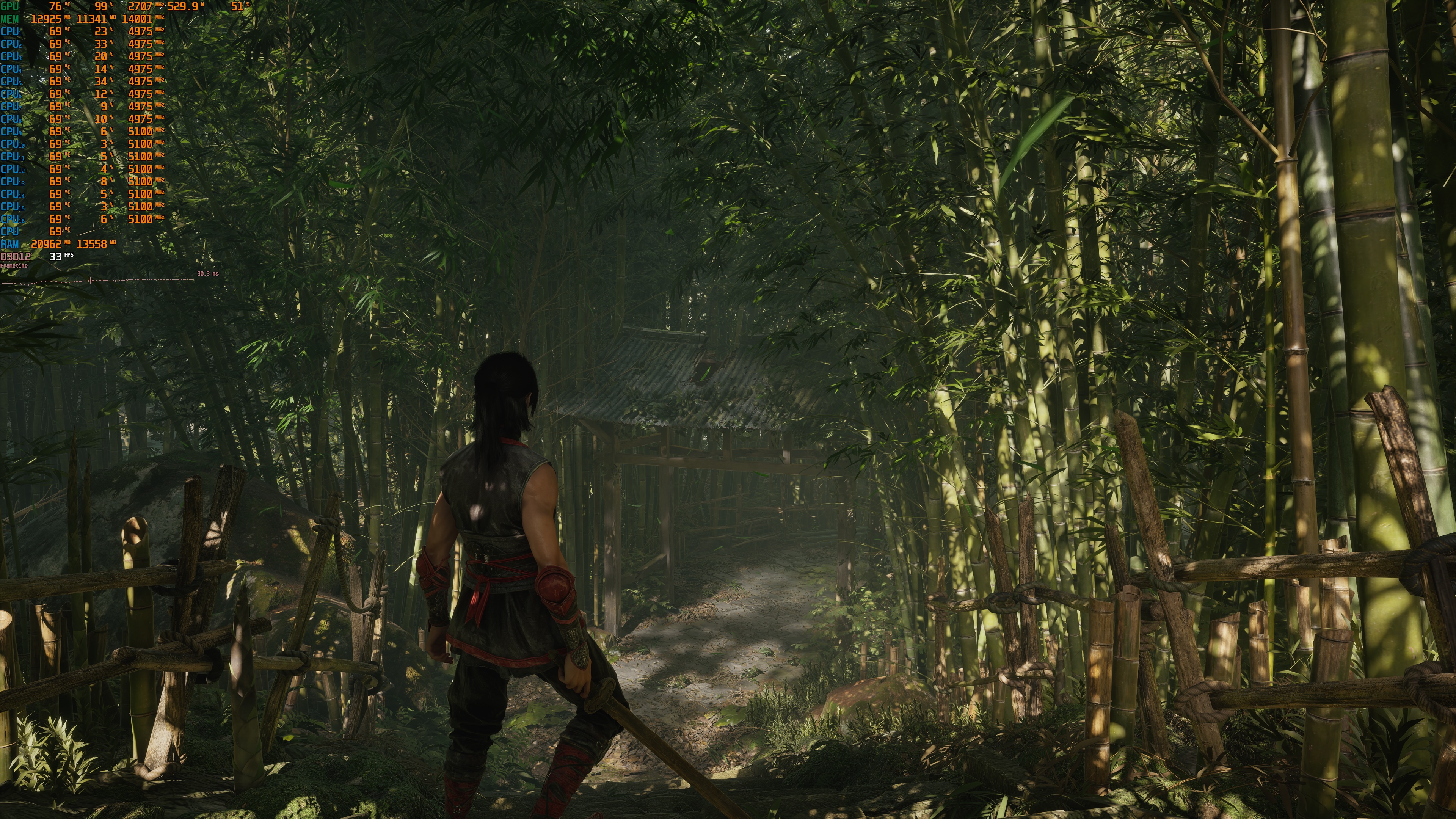
Phantom Blade Zero does not have a built-in benchmark tool. So, for our benchmarks, I used its starting area. Surprisingly enough, this area appeared to be one of the most demanding areas in the first two chapters. So, it should give us a pretty good idea of how the game runs.
As I said, the PC version supports Path Tracing. Sadly, though, you cannot Enable/Disable Path Tracing or Ray Tracing while playing. To Enable/Disable them, you have to go to the main menu. The game also relies on checkpoints. So, I had to reach specific checkpoints so that I could capture a couple of comparison screenshots.
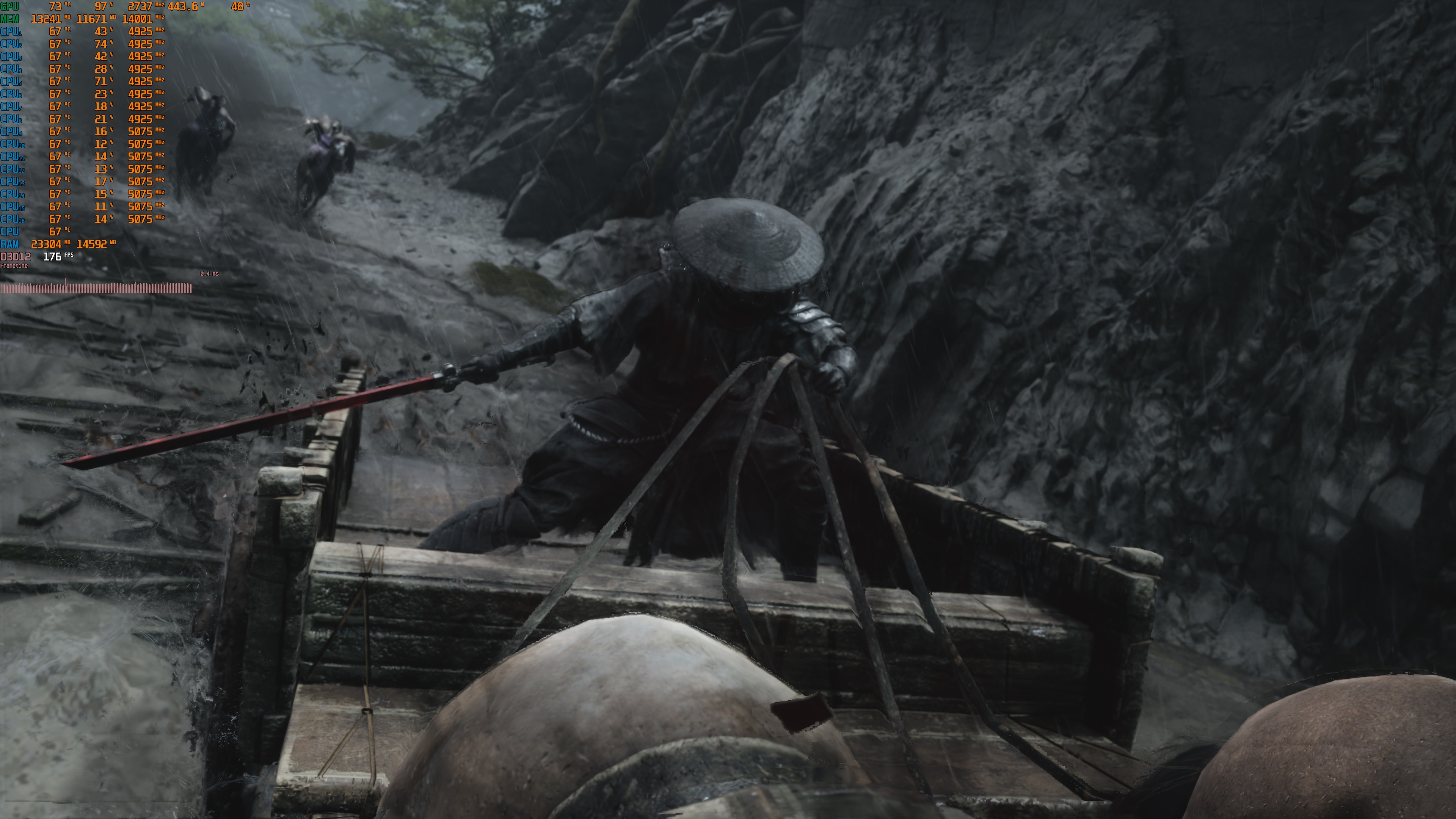
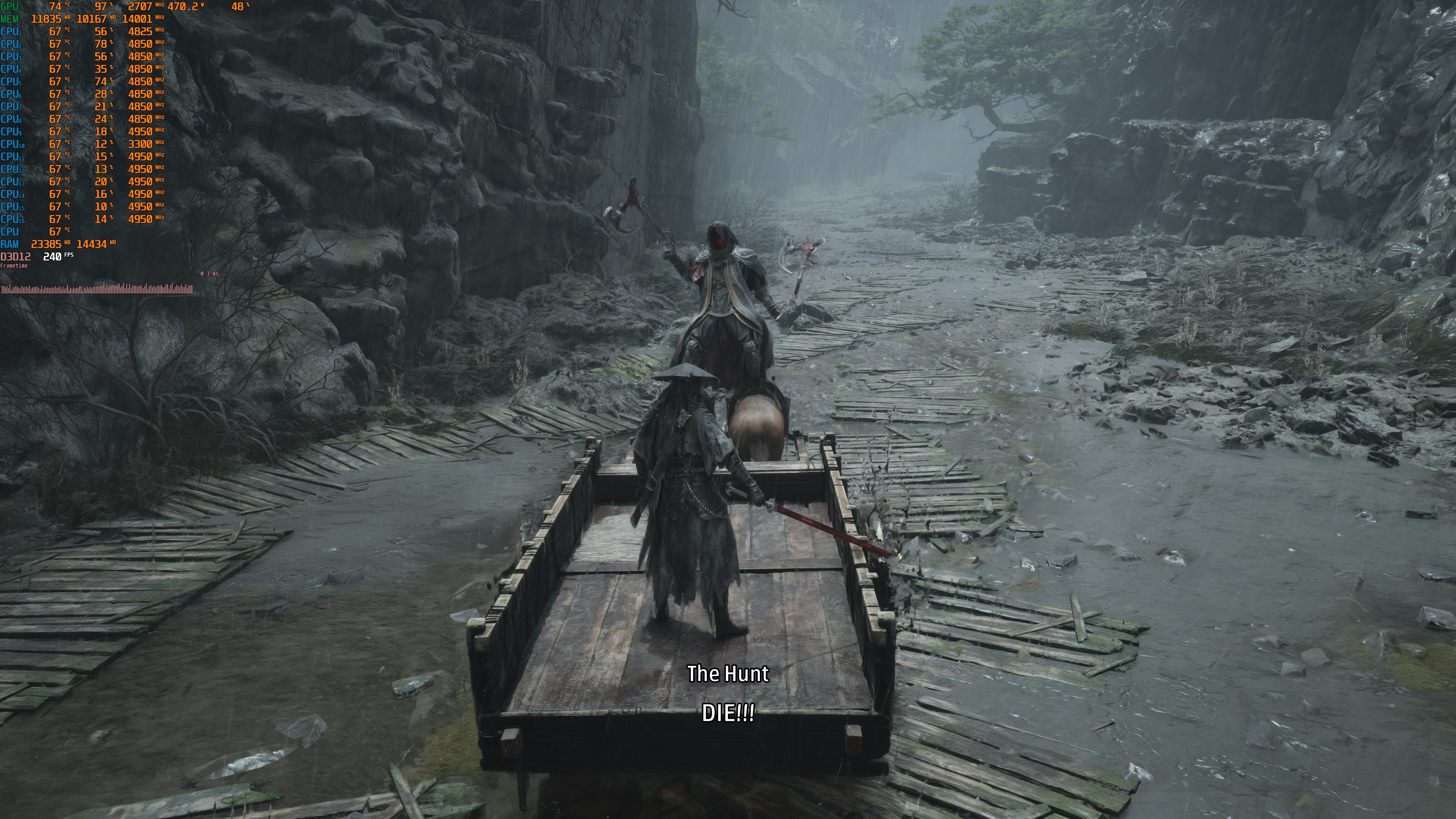
On the left, we have screenshots with Path Tracing enabled. On the right, we have shots without it. As you can see, Path Tracing makes a huge visual difference. With Path Tracing on, Phantom Blade Zero is one of the best-looking games on PC. The game still looks great without it, but Path Tracing fixes many of its visual flaws. I honestly wasn’t expecting this, but Phantom Blade Zero is a graphical showcase on PC.
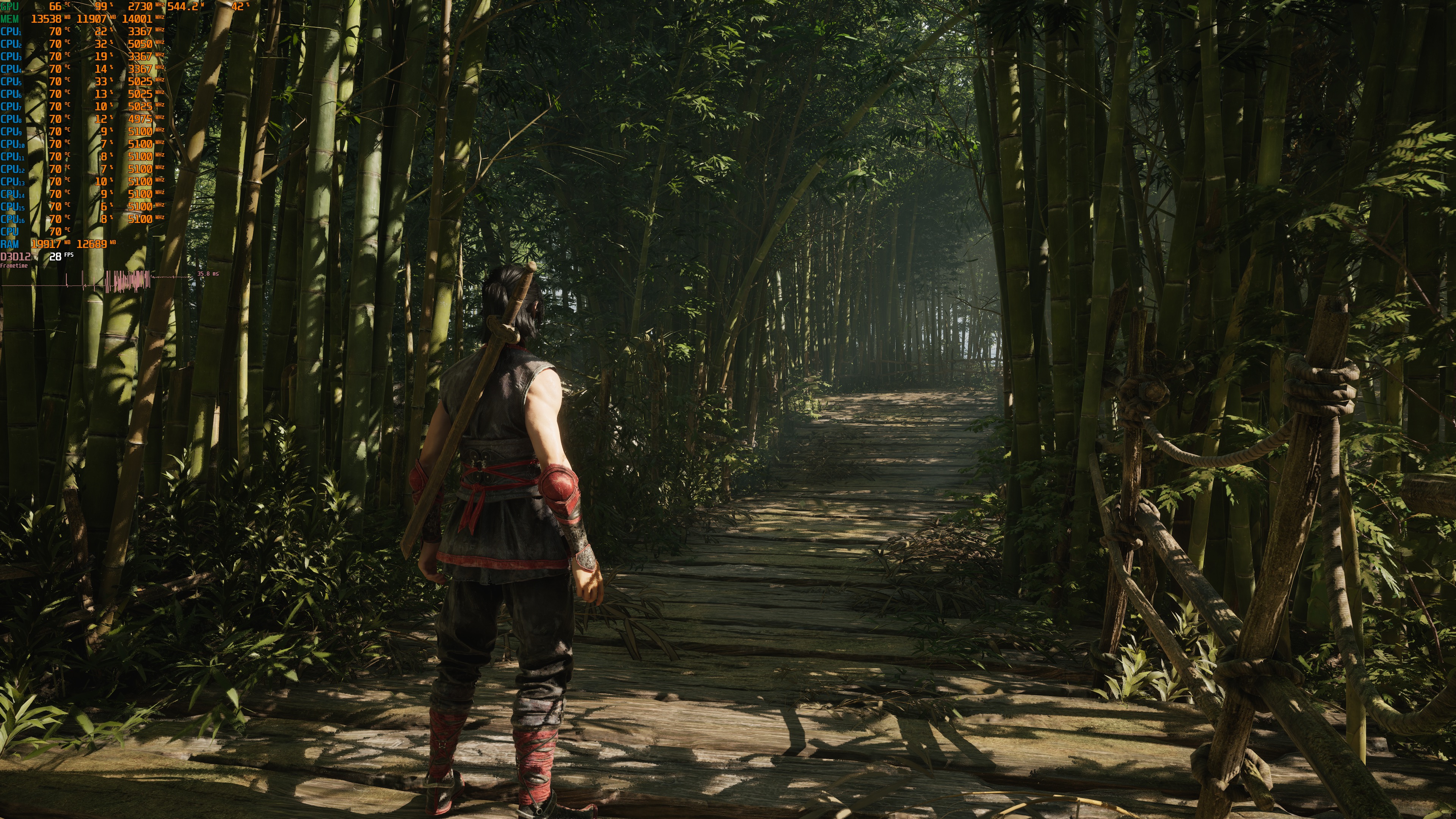
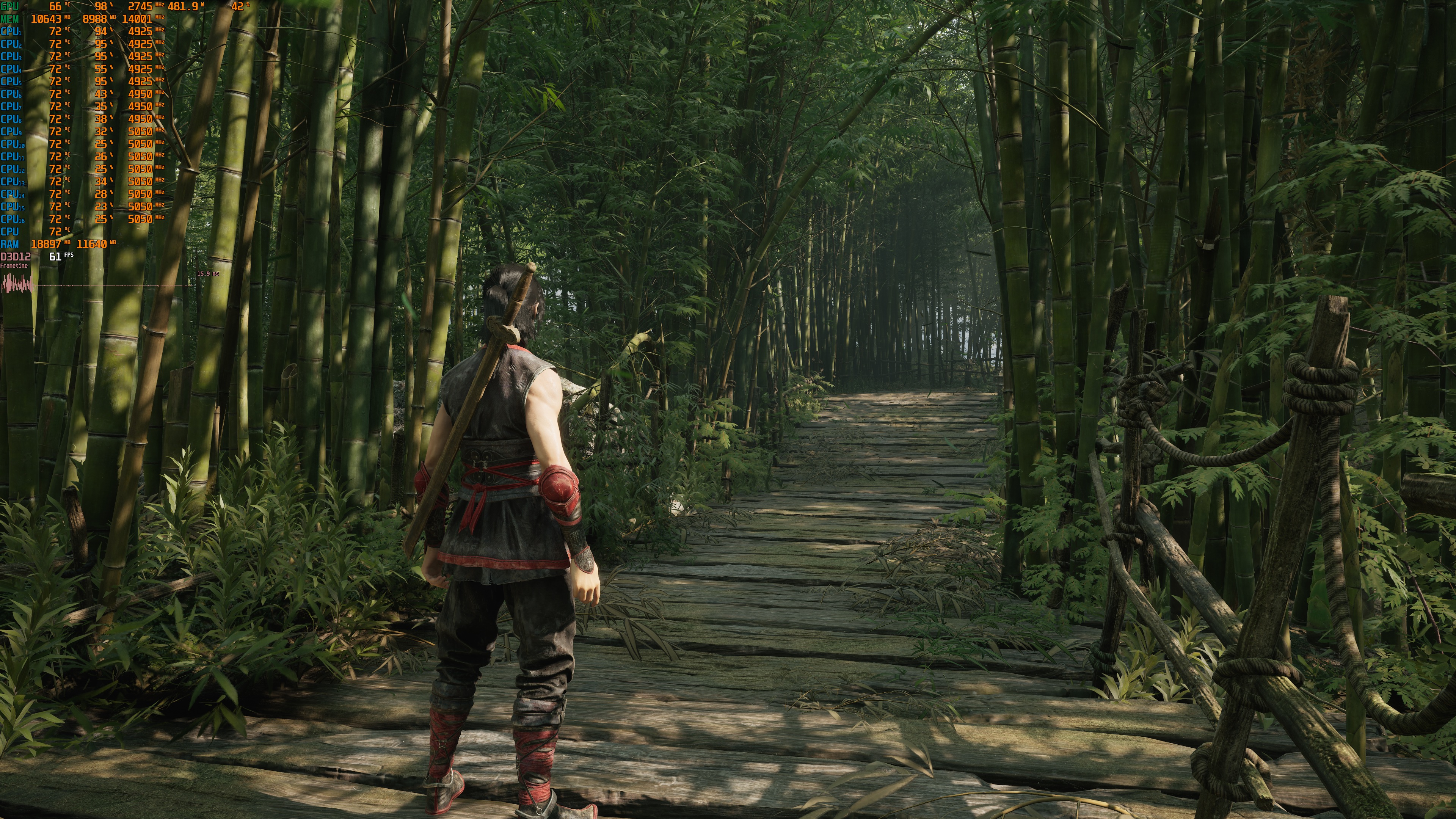
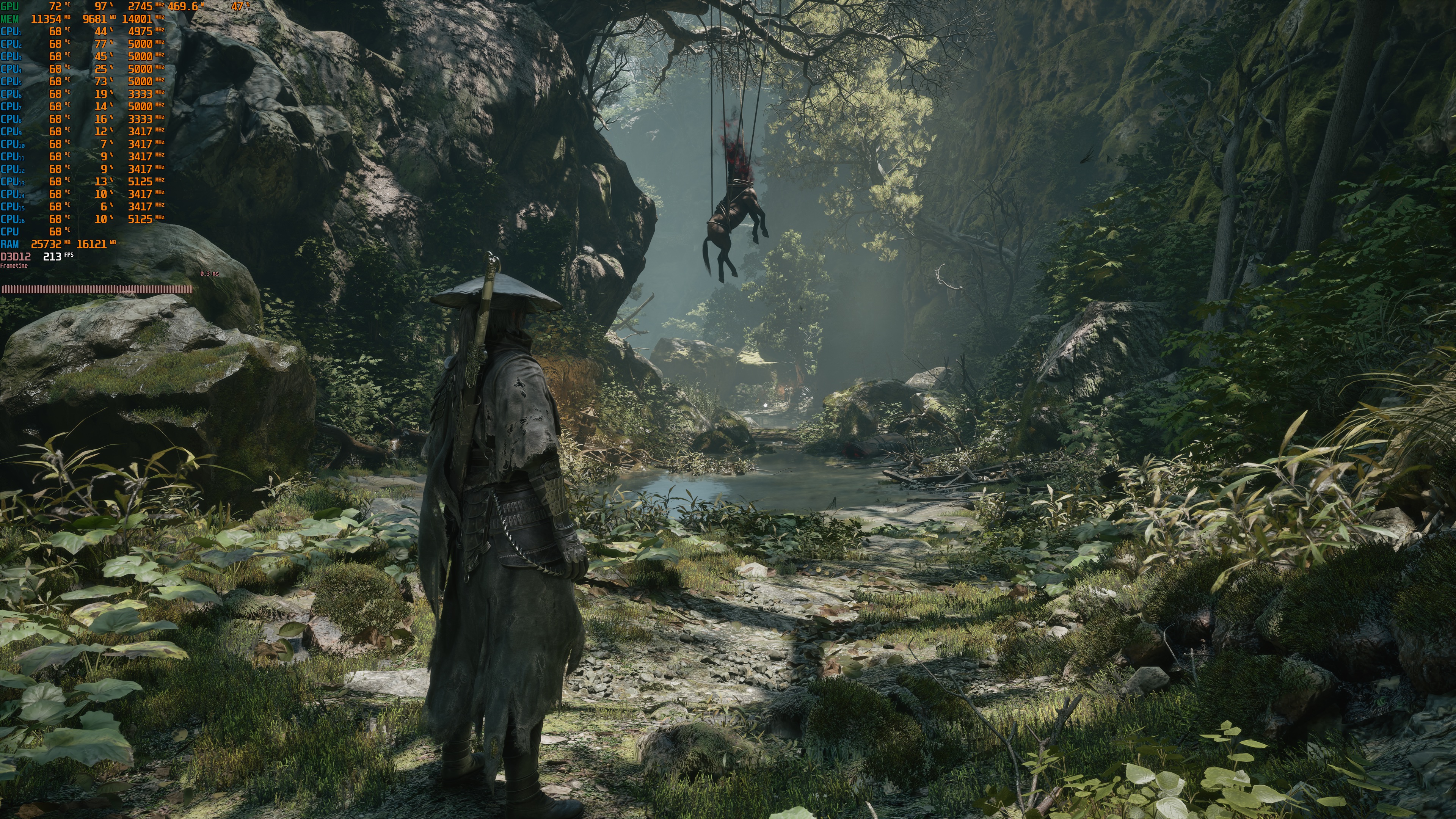
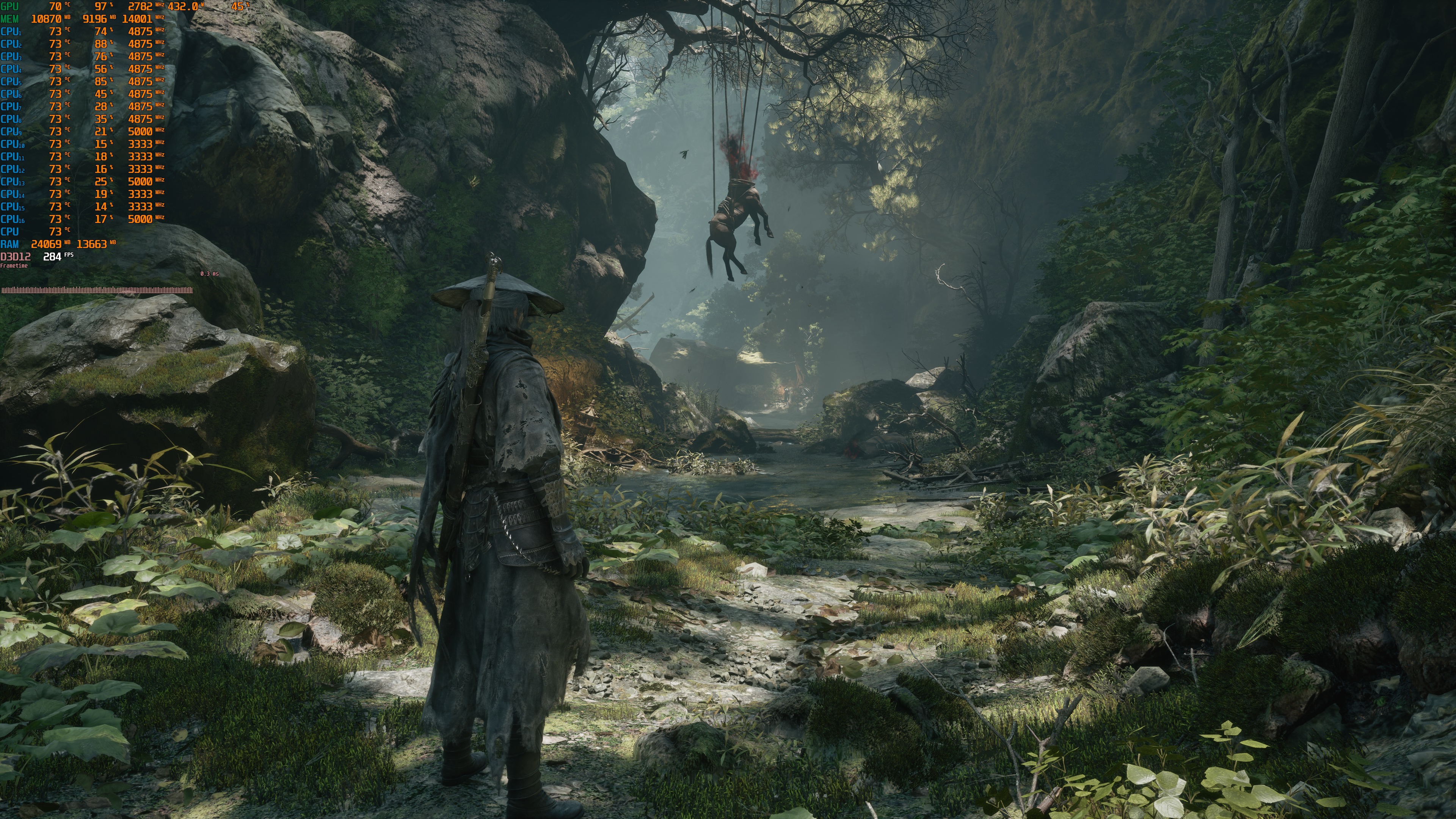
What’s also interesting is that when you enable DLSS with Path Tracing, Ray Reconstruction will be enabled by default. DLSS Ray Reconstruction improves image quality and can also boost performance. Here is a comparison between DLAA with Ray Reconstruction (left) and Native TSR (right). Look at the shadows. Without DLSS Ray Reconstruction, they look noisy and pixelated. And yes, with DLAA and Ray Reconstruction, the game runs 10 FPS faster than with Native TSR.
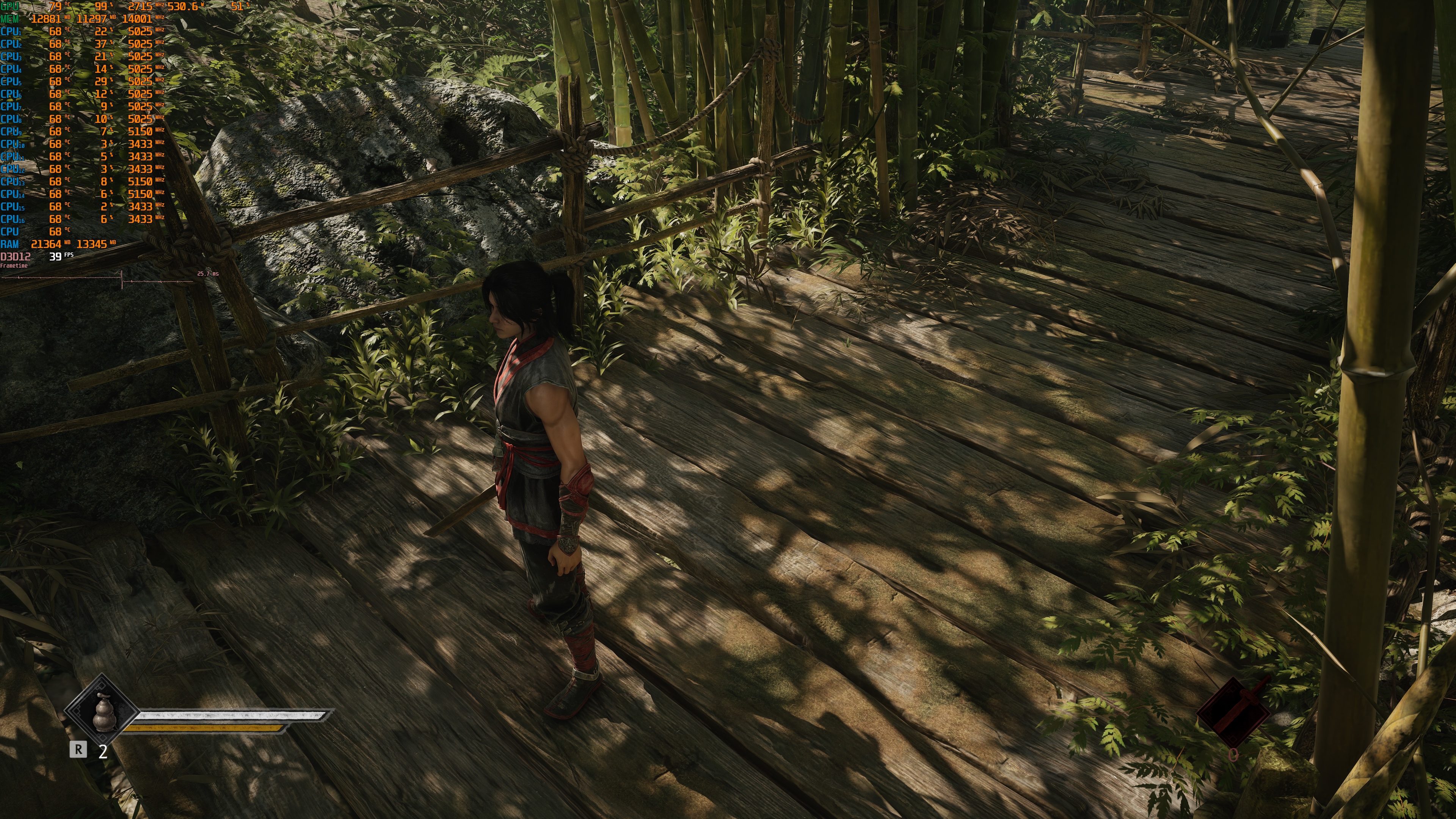
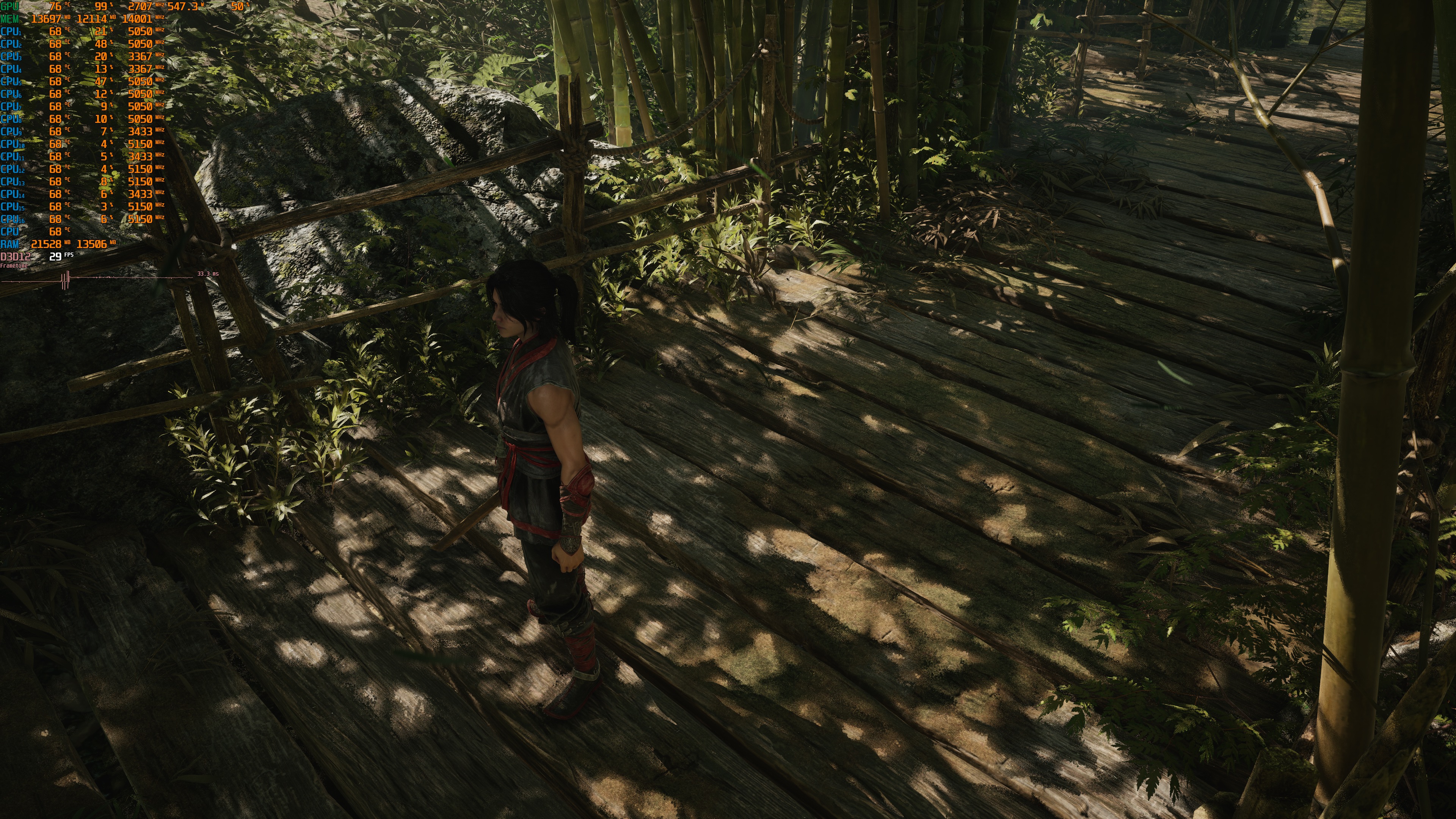
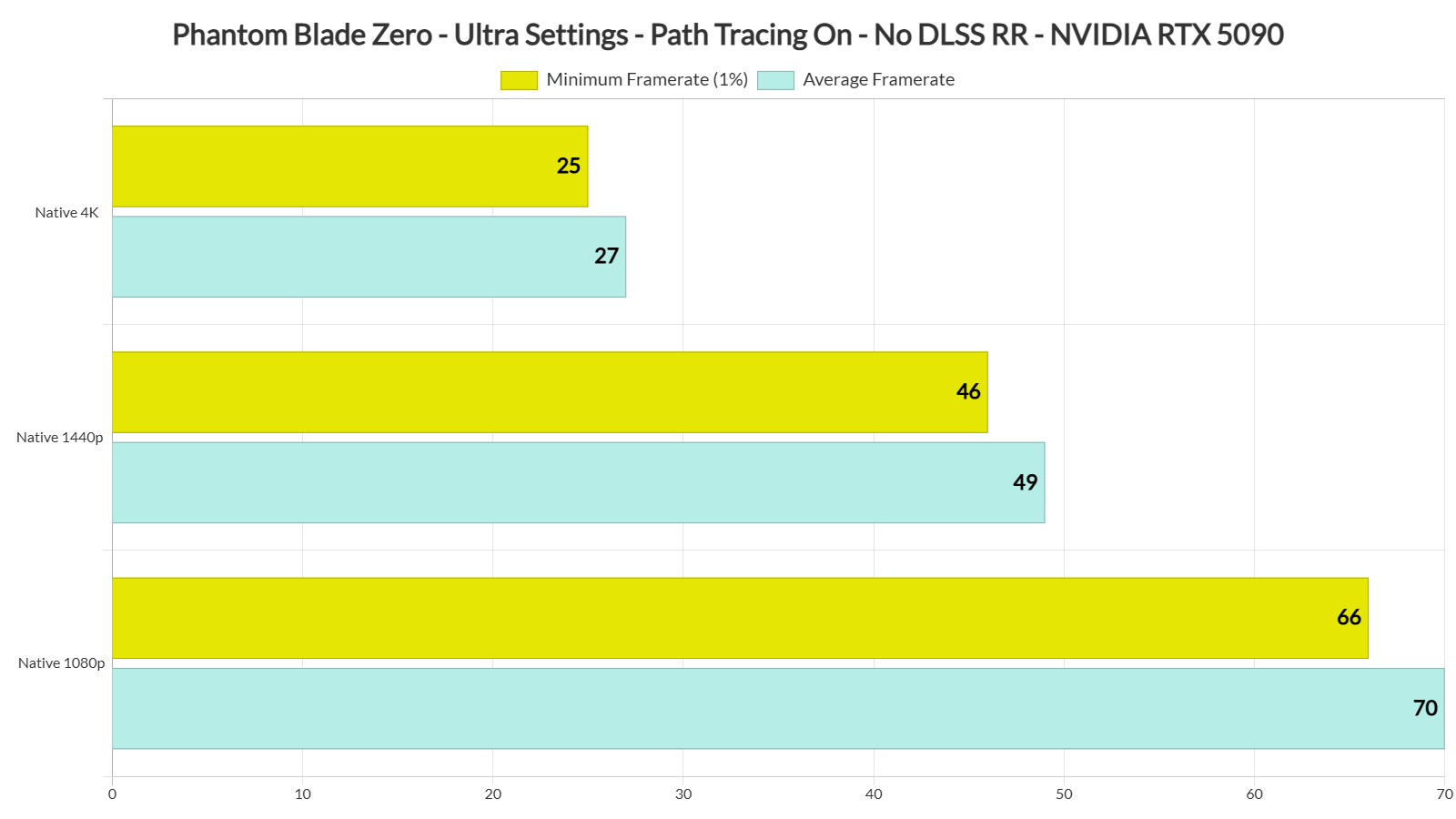
But what about performance? Well, Path Tracing is quite demanding. At Native 4K with TSR, the NVIDIA RTX 5090 can push 25-27 FPS. At Native 1440p, we get to 46-47 FPS. And finally, at Native 1080p, we get above 60 FPS. As I said, you can boost your performance without any visual image loss with DLAA and RR. But you won’t be able to hit a constant 60 FPS at Native 1440p/Path Tracing.
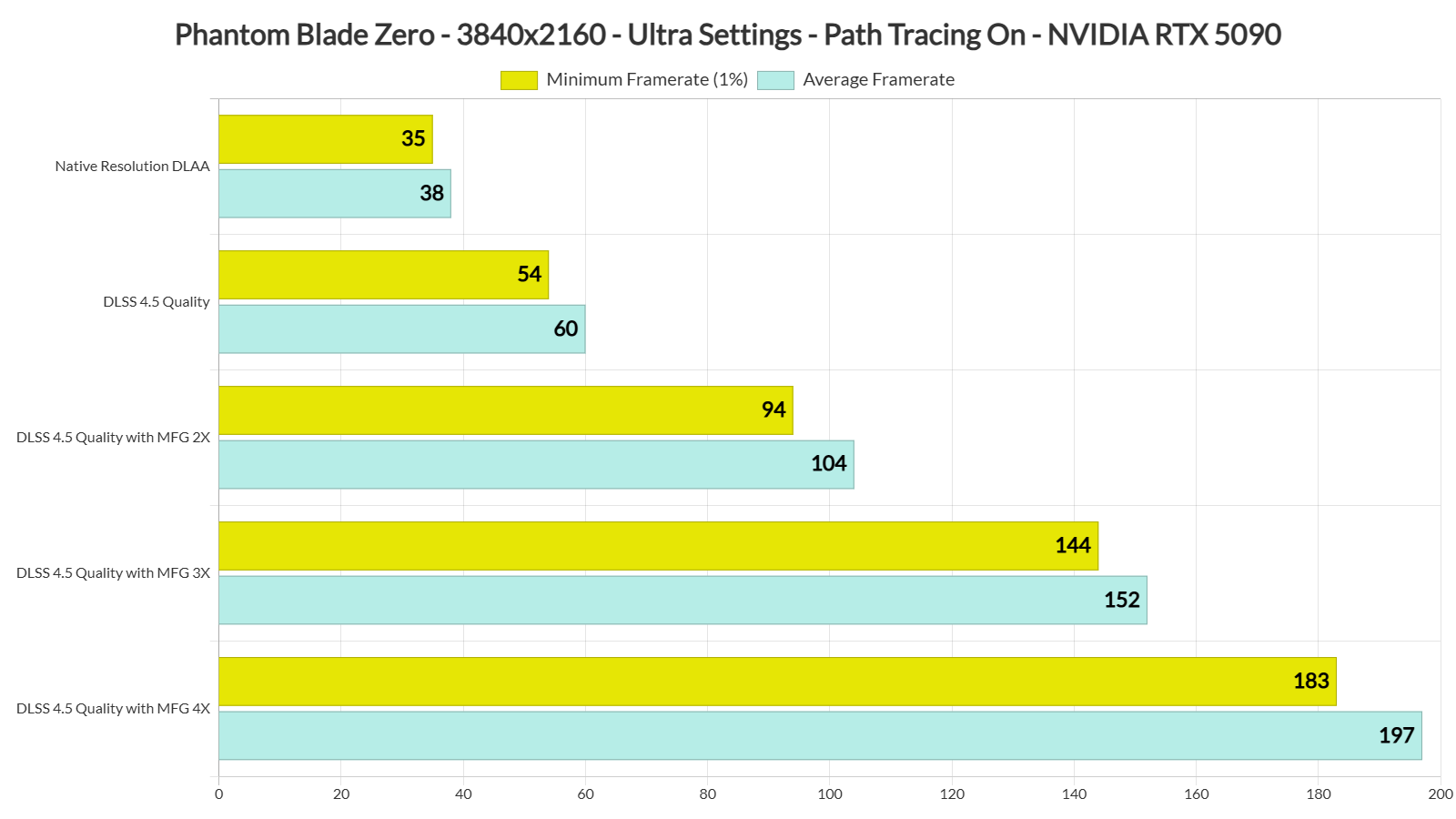
To get a fully playable and enjoyable experience with Path Tracing, you’ll have to rely on both DLSS Super Resolution and Frame Gen. This obviously depends on the resolution you target and the GPU you use. At 4K with DLSS Quality, our NVIDIA RTX 5090 was able to push 54-60 FPS. This is an ideal frame rate for using Frame Gen. With MFG X2, we were able to get to 100 FPS without any noticeable input latency issues. MFG X3 and X4 allowed us to hit even higher frame rates.
At first glance, the DLSS 4.5 Frame Generation implementation did not appear to be that good. During very fast movements (you won’t be moving your mouse as crazy as I was while capturing them), there were noticeable visual artifacts.
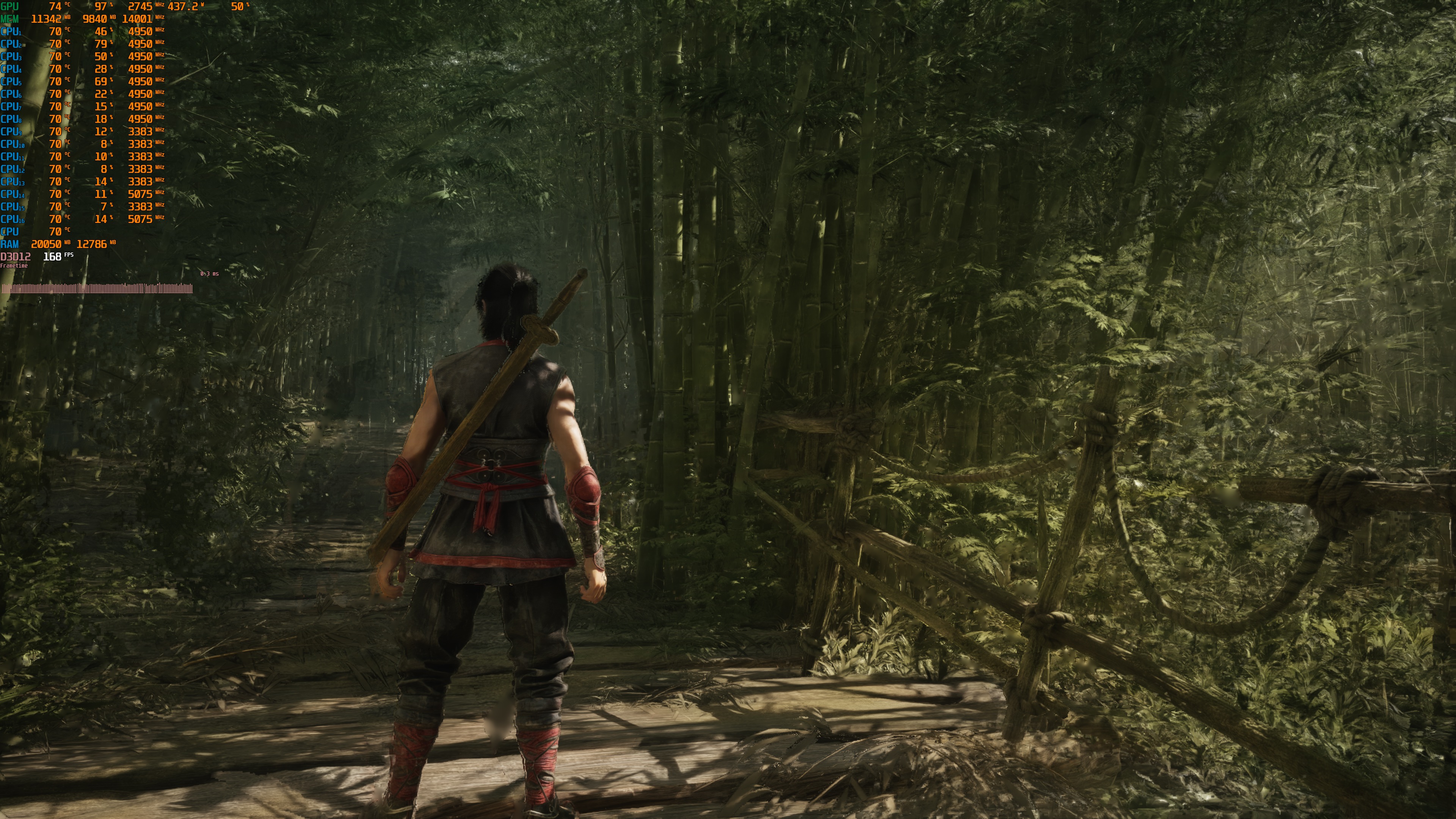
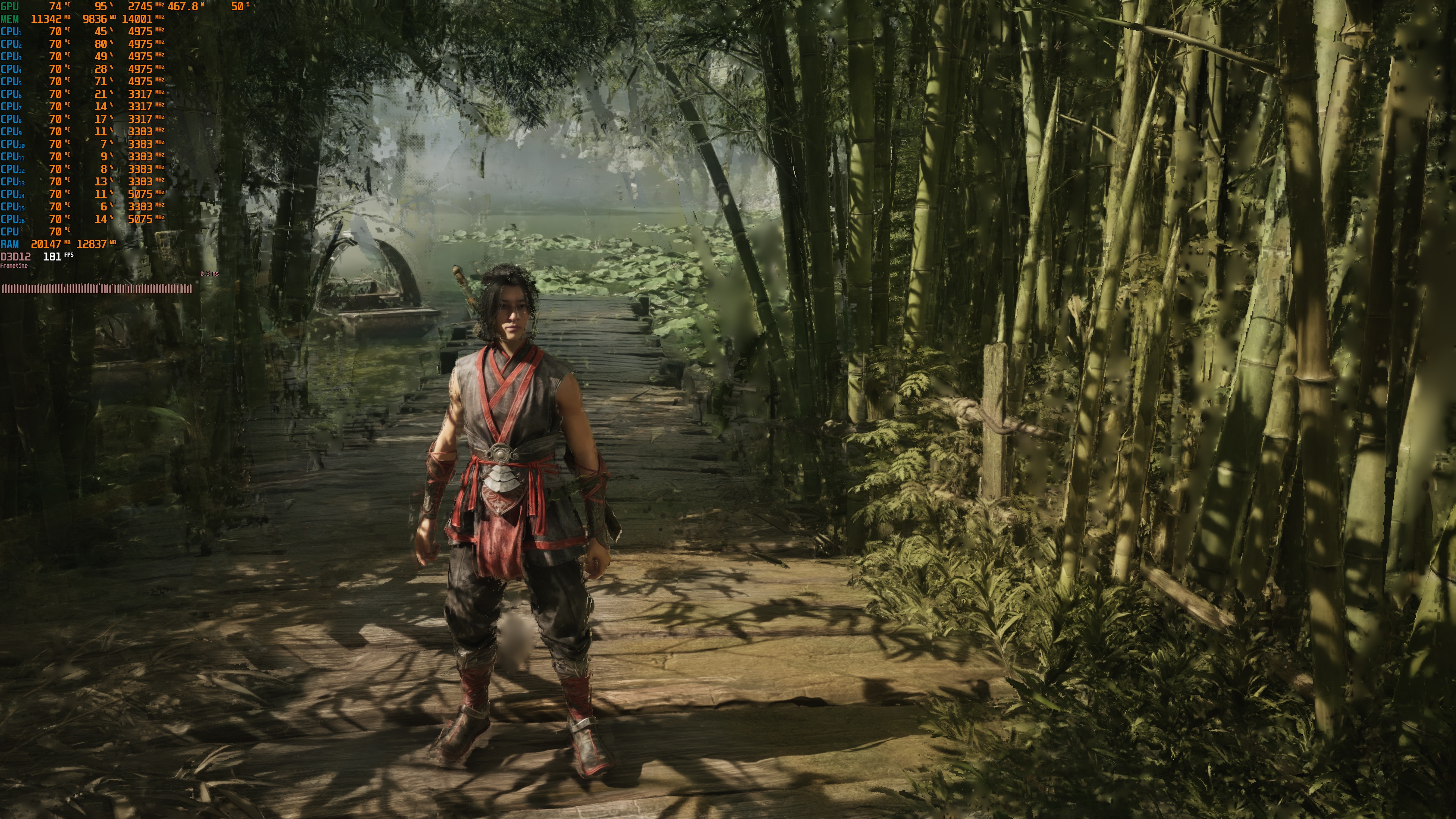
However, these artifacts are mainly due to the game’s Motion Blur setting. Once you disable it, you won’t get major visual artifacts. This is something we’ve also seen in other UE5 games. So, if you want to use Frame Gen, you should completely disable Motion Blur.
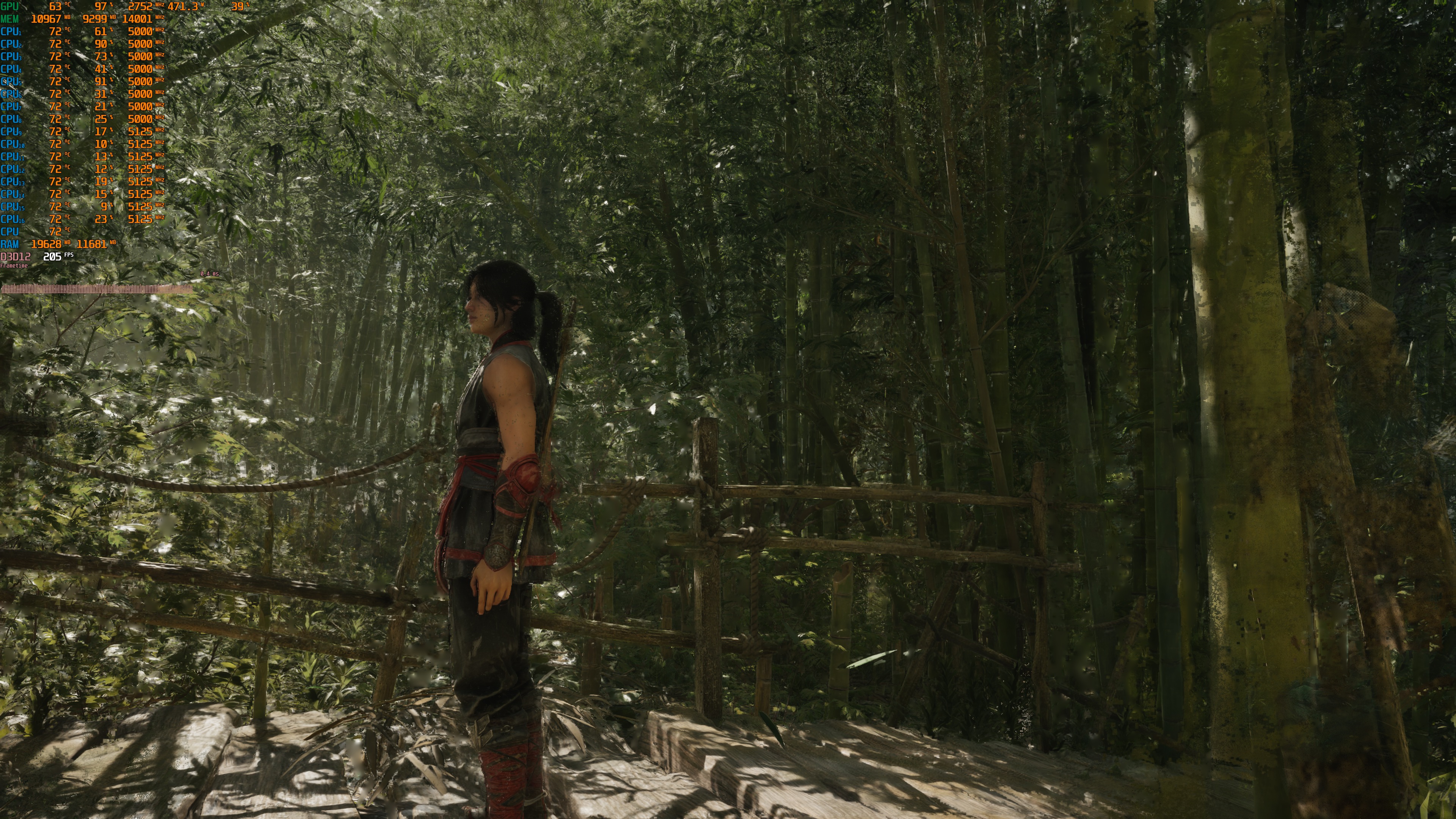
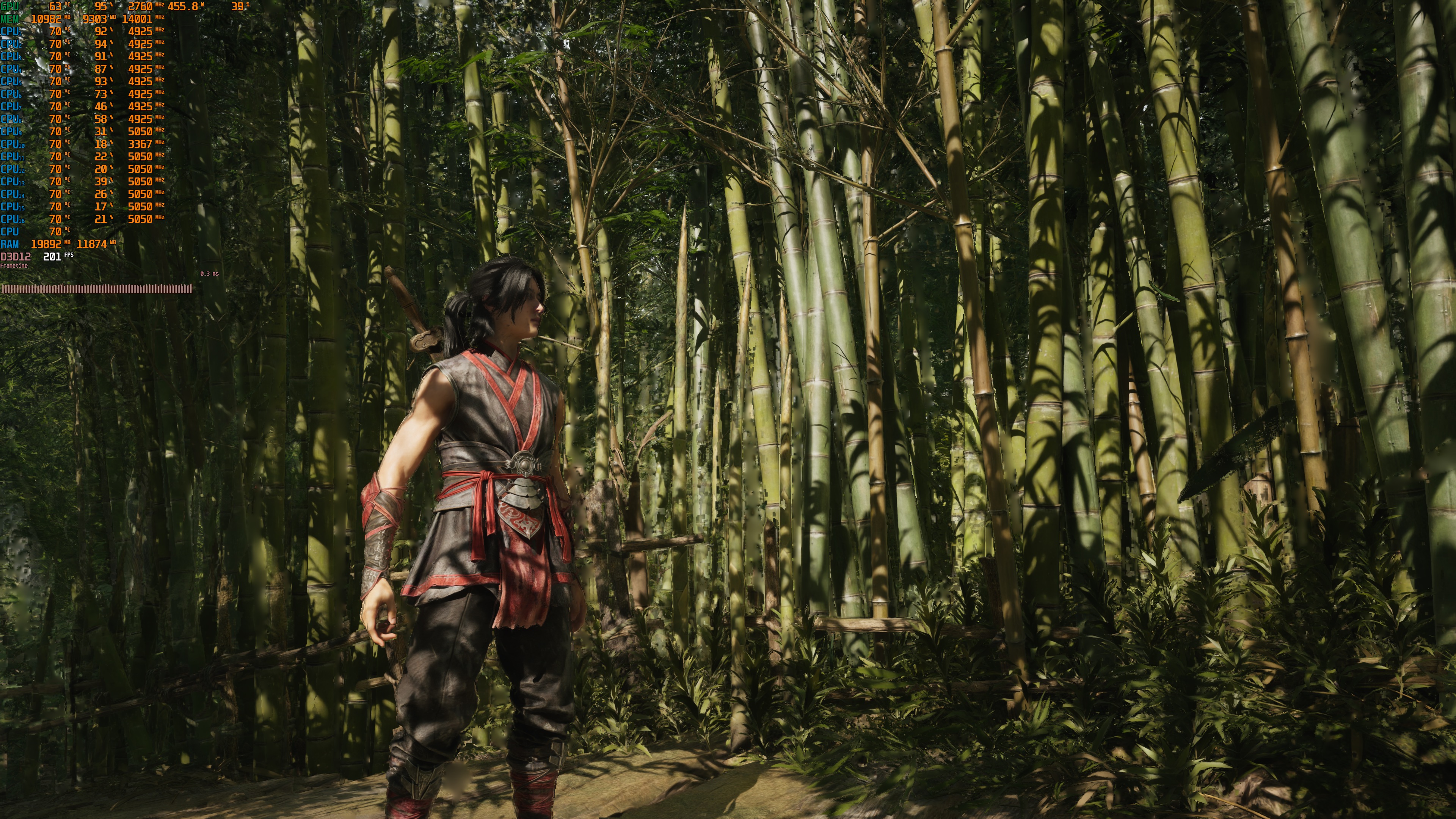
In case you’re wondering, Ray Tracing sits between the rasterized and path-traced versions. It looks better than the rasterized version but not as good as the path-traced version. It also runs slower than the rasterized version but faster than the path-traced version. So, if your GPU is powerful enough to handle Ray Tracing but not Path Tracing, you should use it.
But how does the game run without Path Tracing or Ray Tracing? At Native 1080p/Ultra Settings, our top five GPUs had no trouble pushing frame rates over 60 FPS at all times.
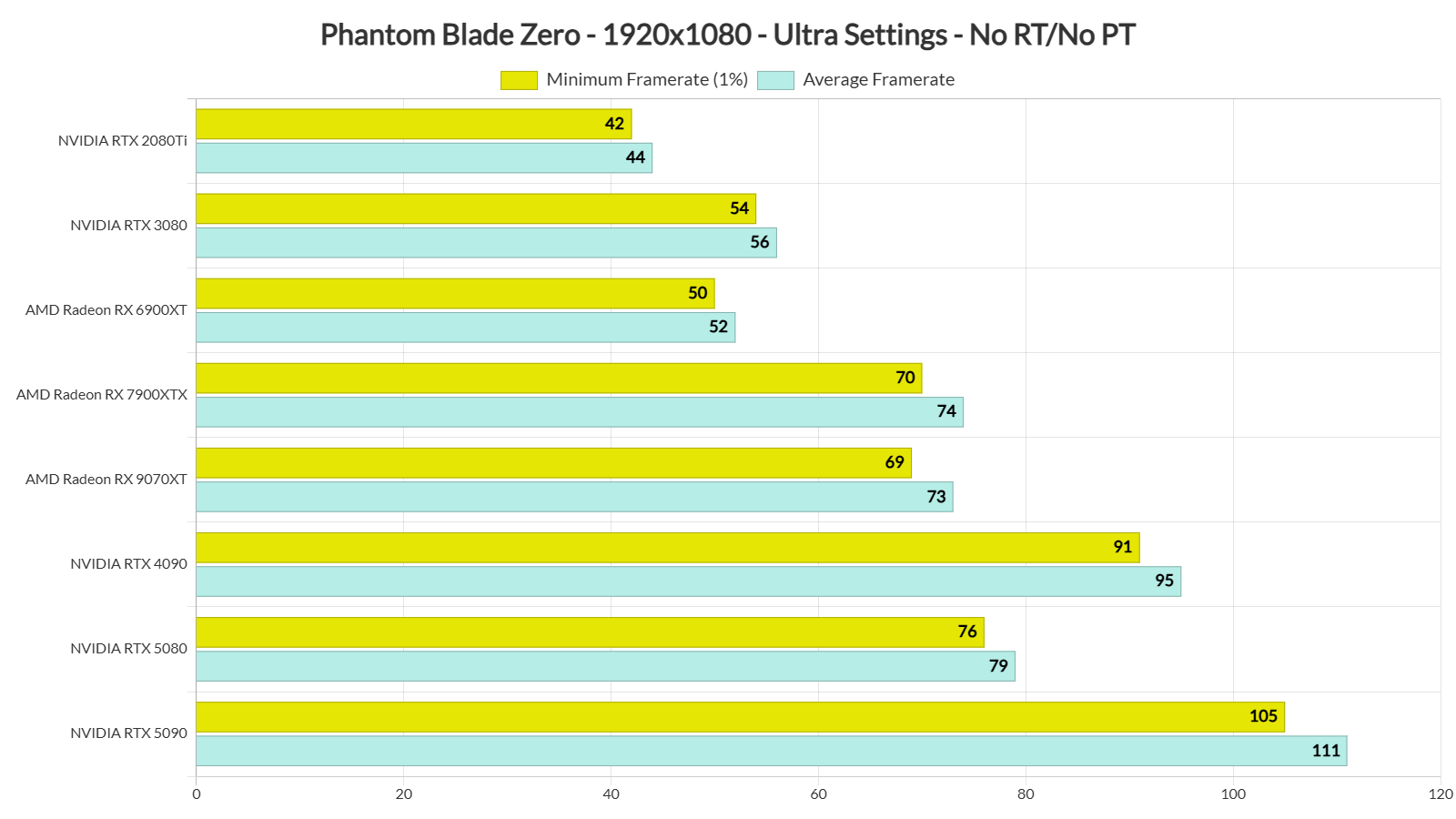
At Native 1440p/Ultra, only our NVIDIA RTX 4090 and RTX 5090 were able to push frame rates over 60 FPS at all times. The NVIDIA RTX 5080 was also able to provide a smooth gaming experience, though you might need a G-Sync monitor. As for Native 4K/Ultra, the only GPU that was able to hit 60 FPS was the NVIDIA RTX 5090. However, there were drops to the mid-50s, so you will need a G-Sync monitor.
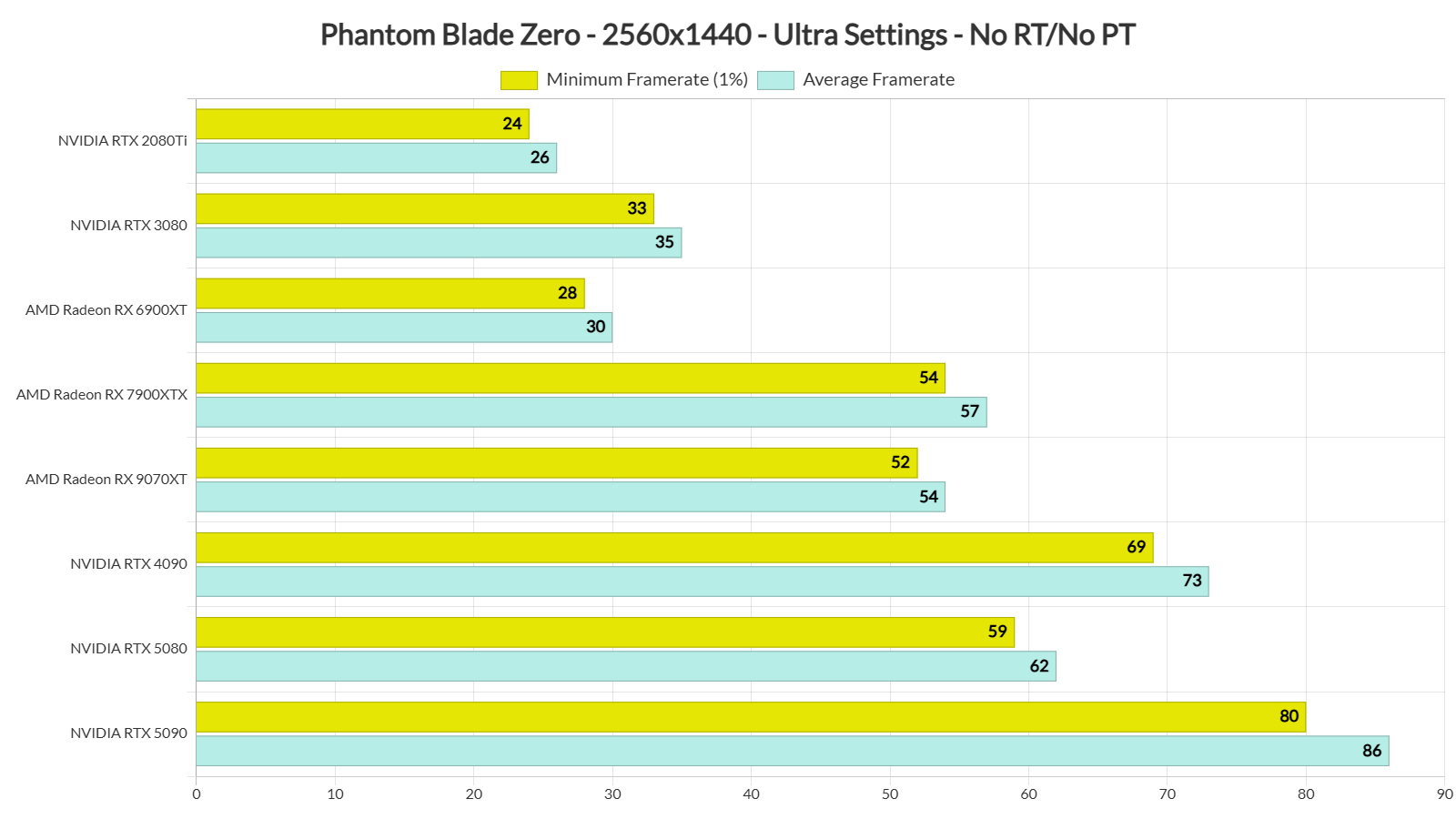
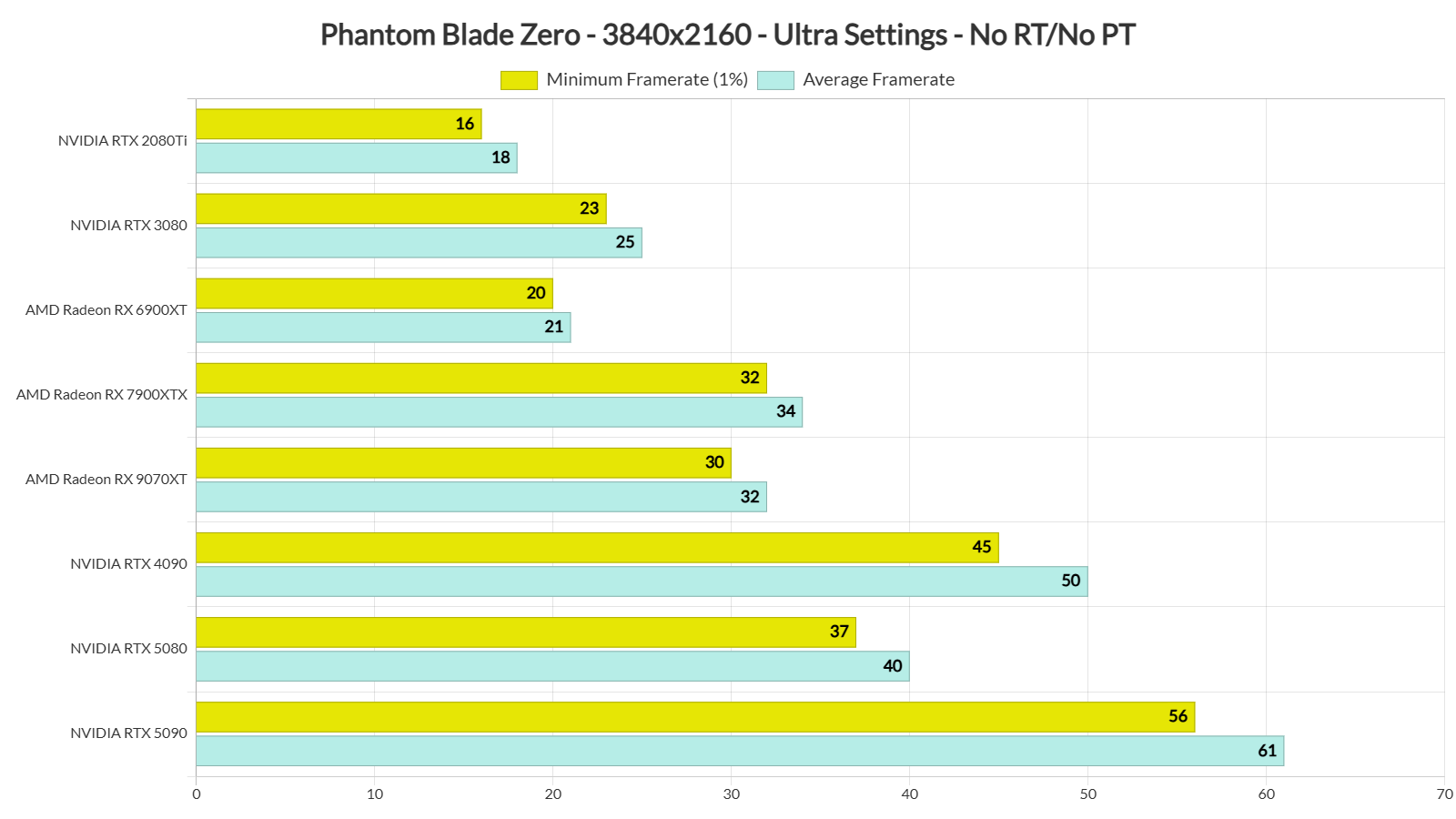
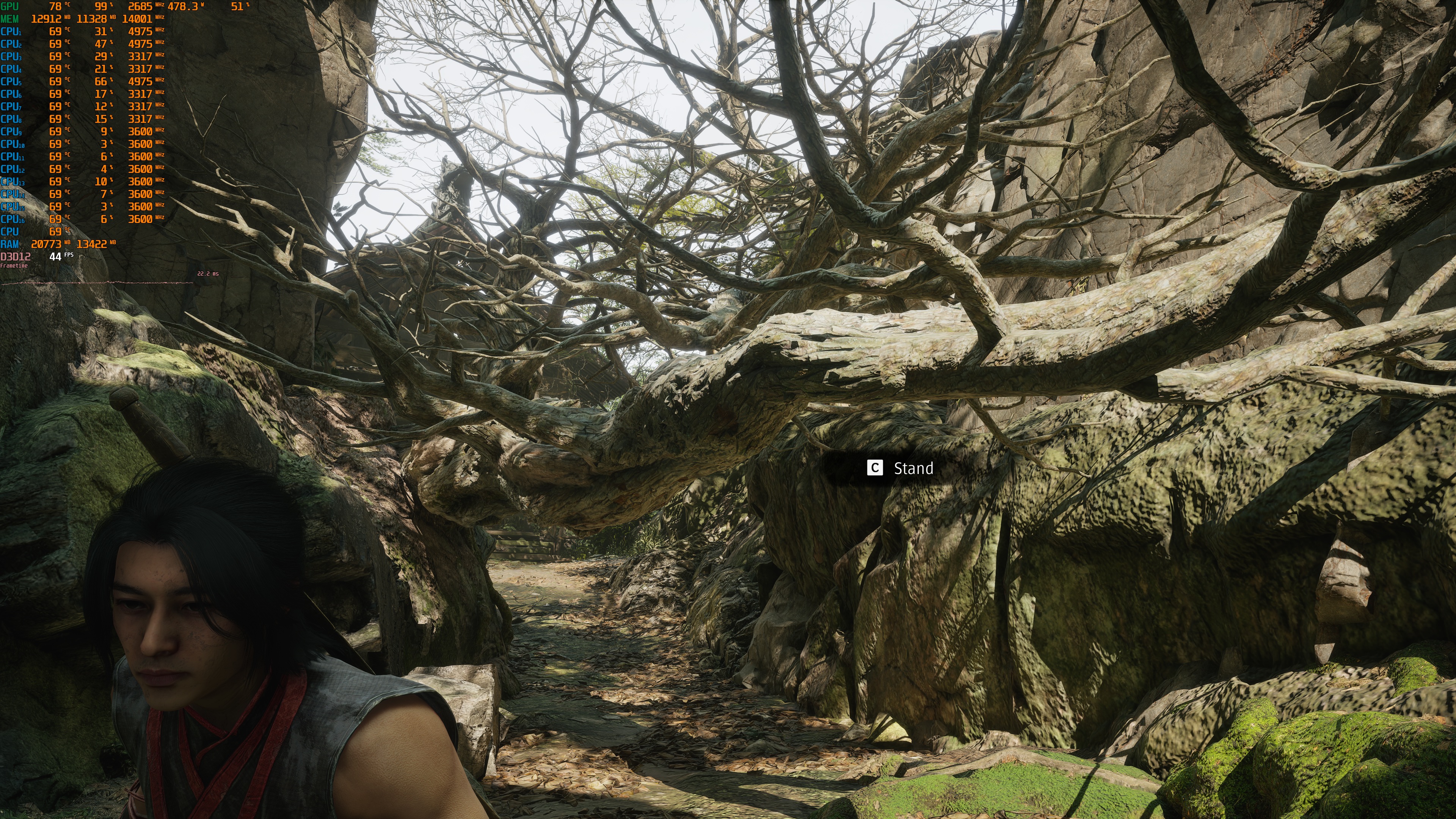
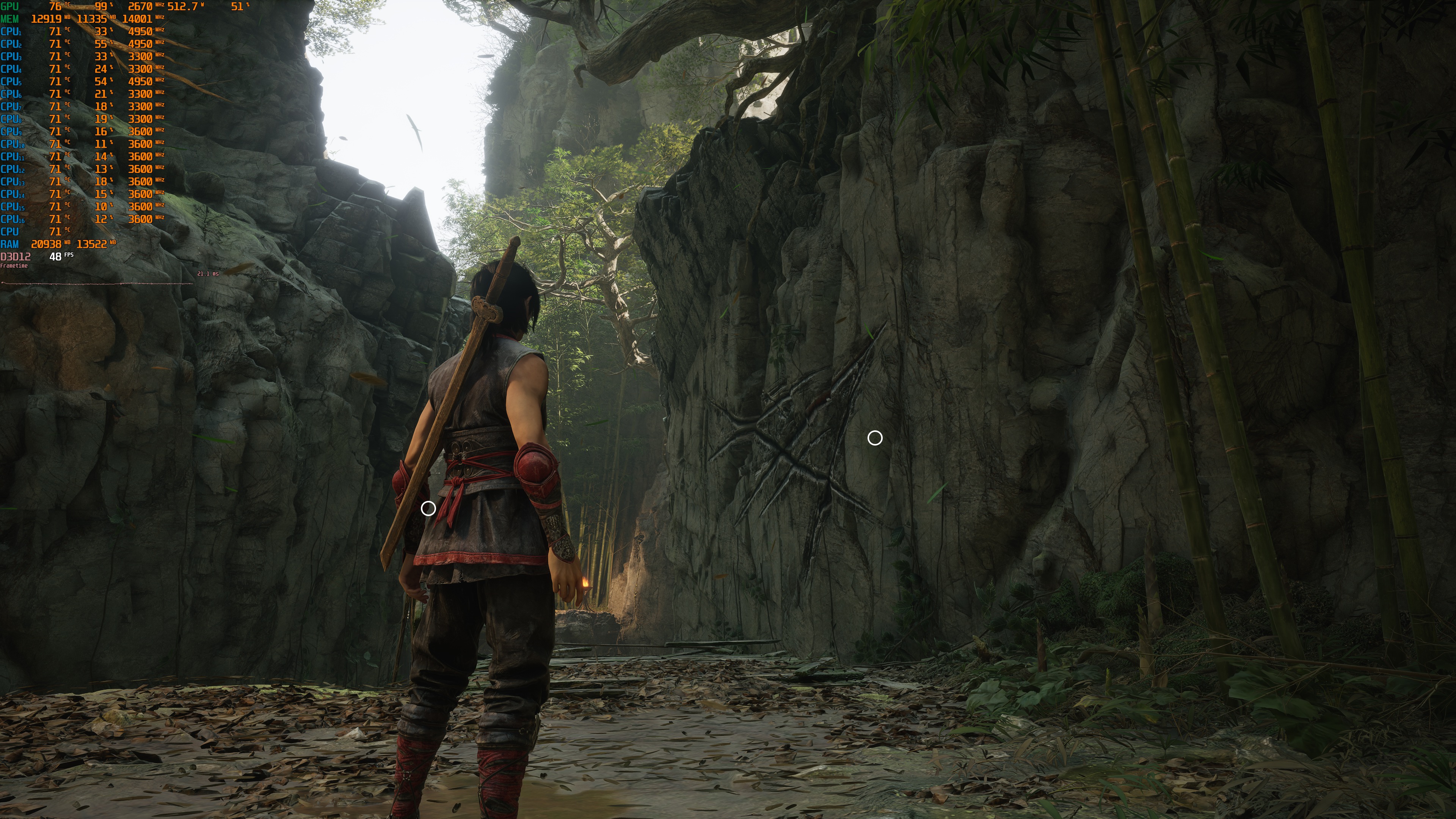
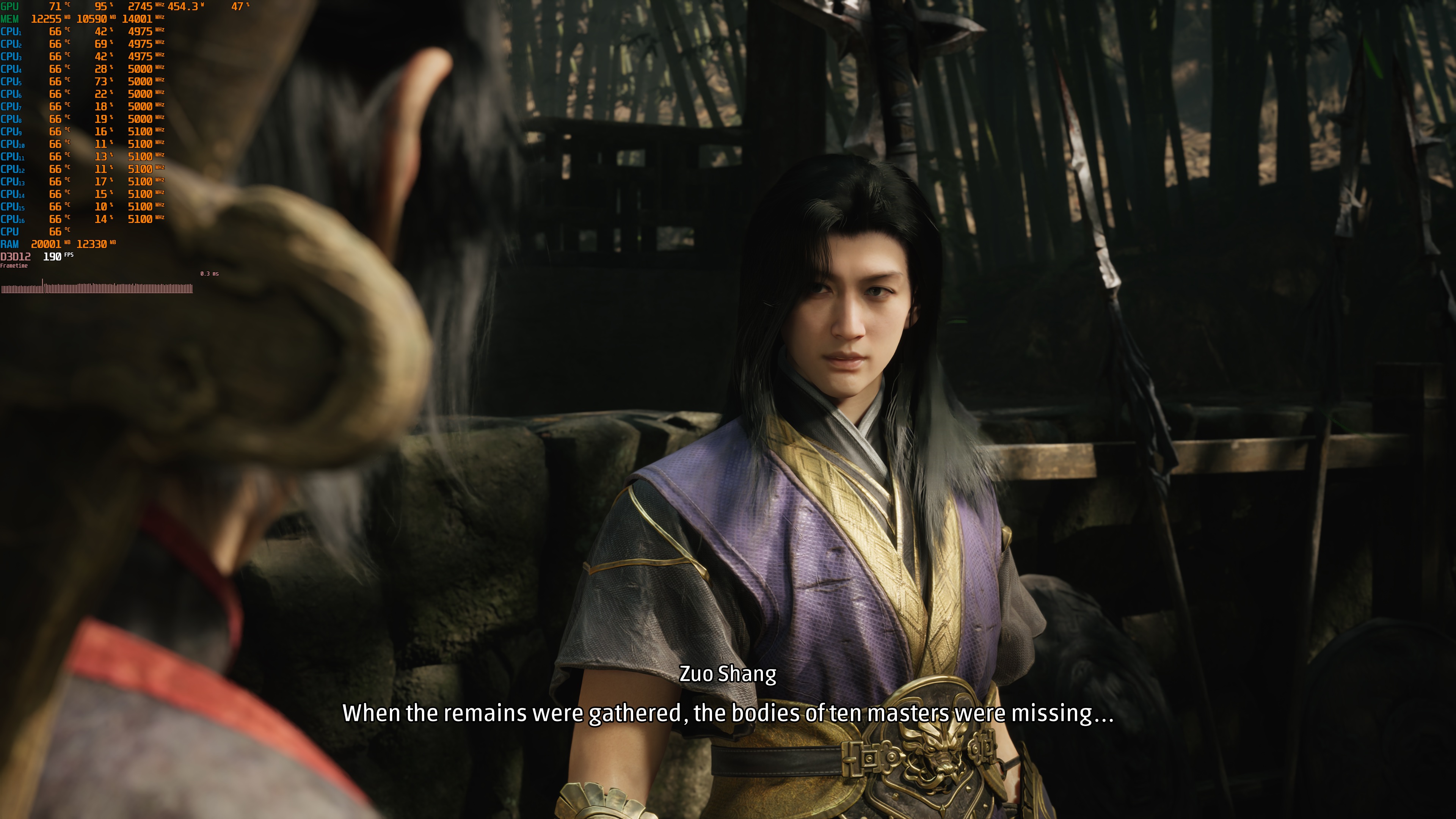
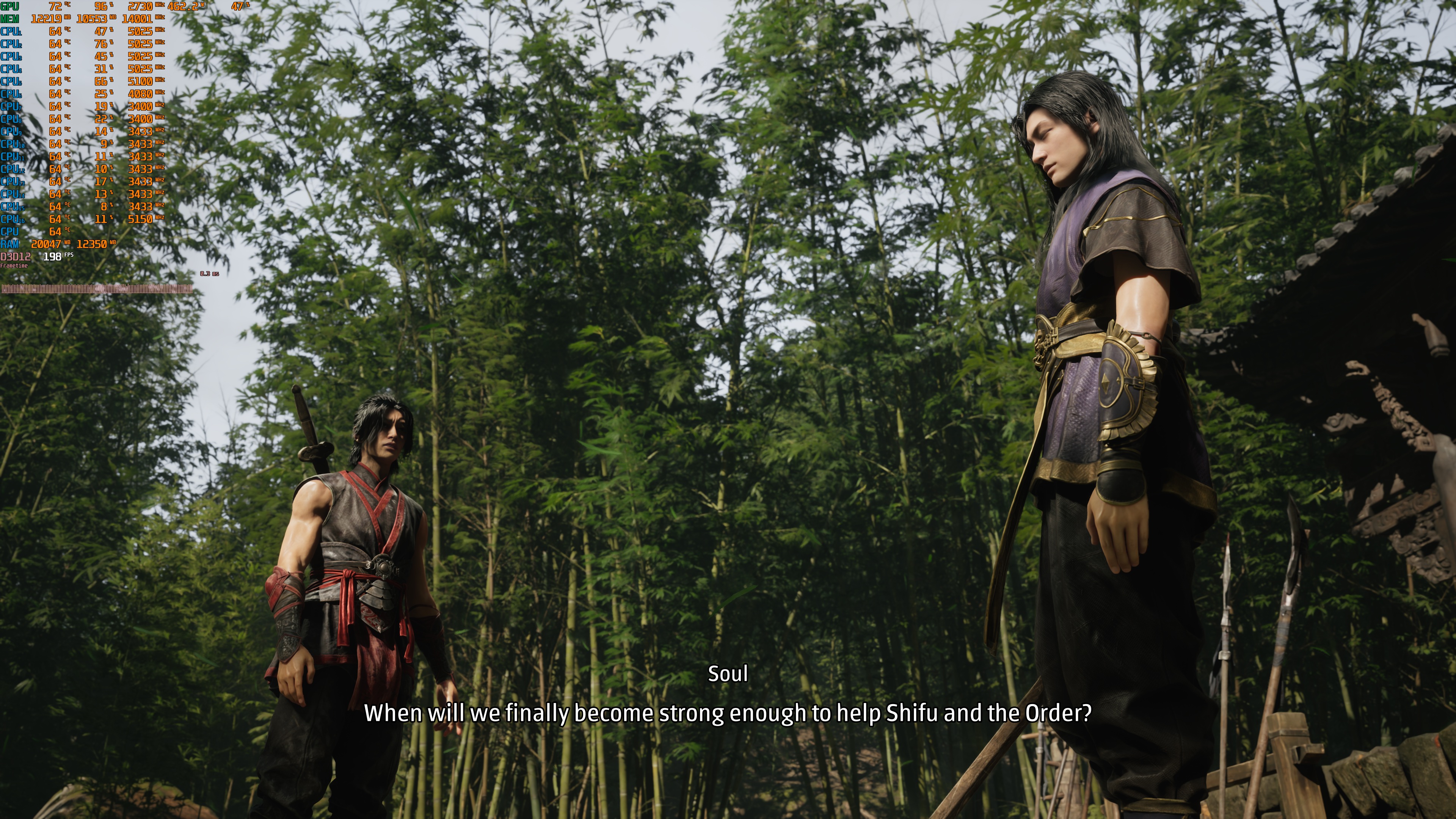
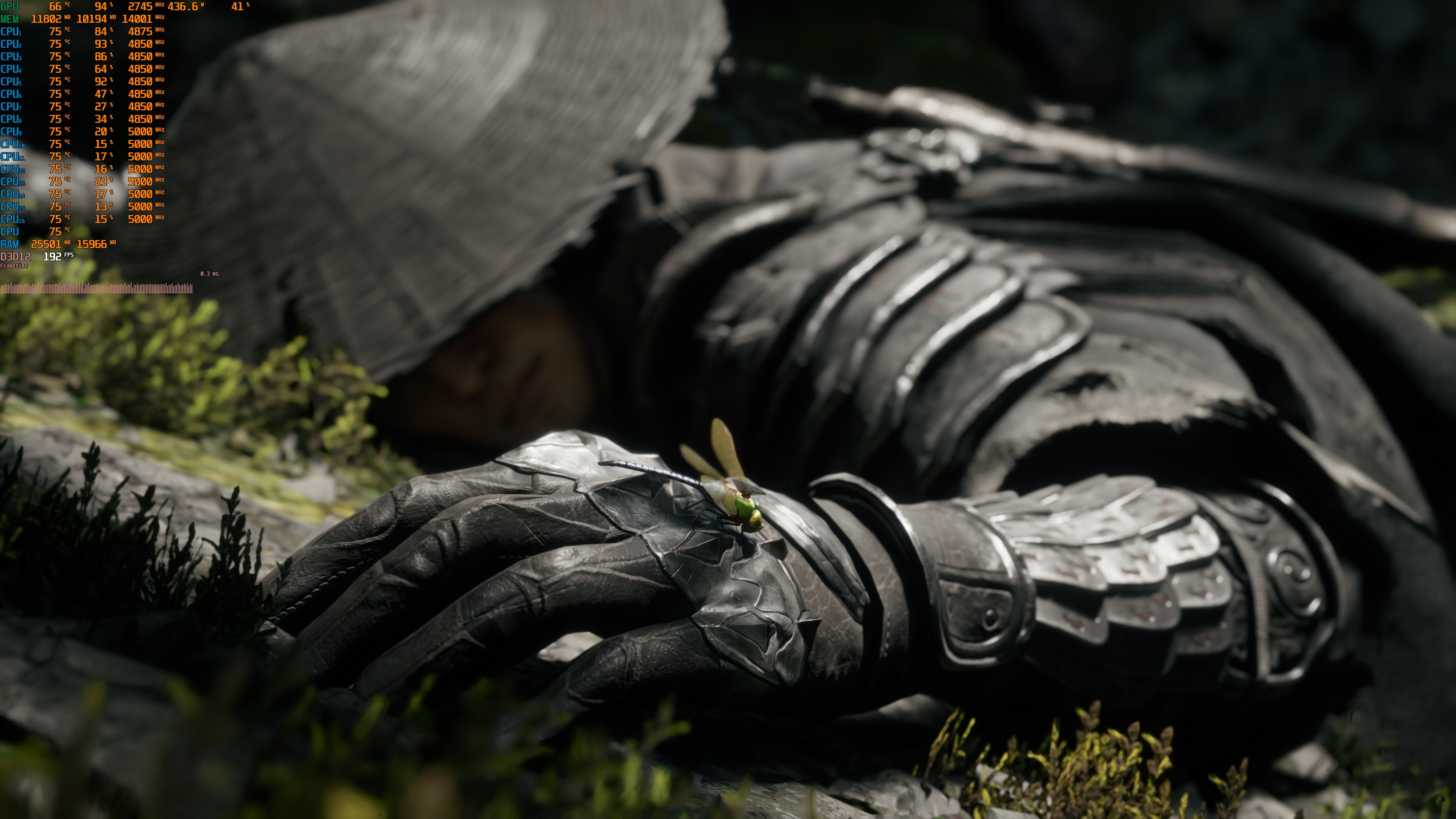
It’s pretty obvious that Phantom Blade Zero is a demanding game. But do its graphics justify these high GPU requirements? They do. Even without Path Tracing or Ray Tracing, Phantom Blade Zero looks great. This is a great-looking game, and it has an amazing art style.
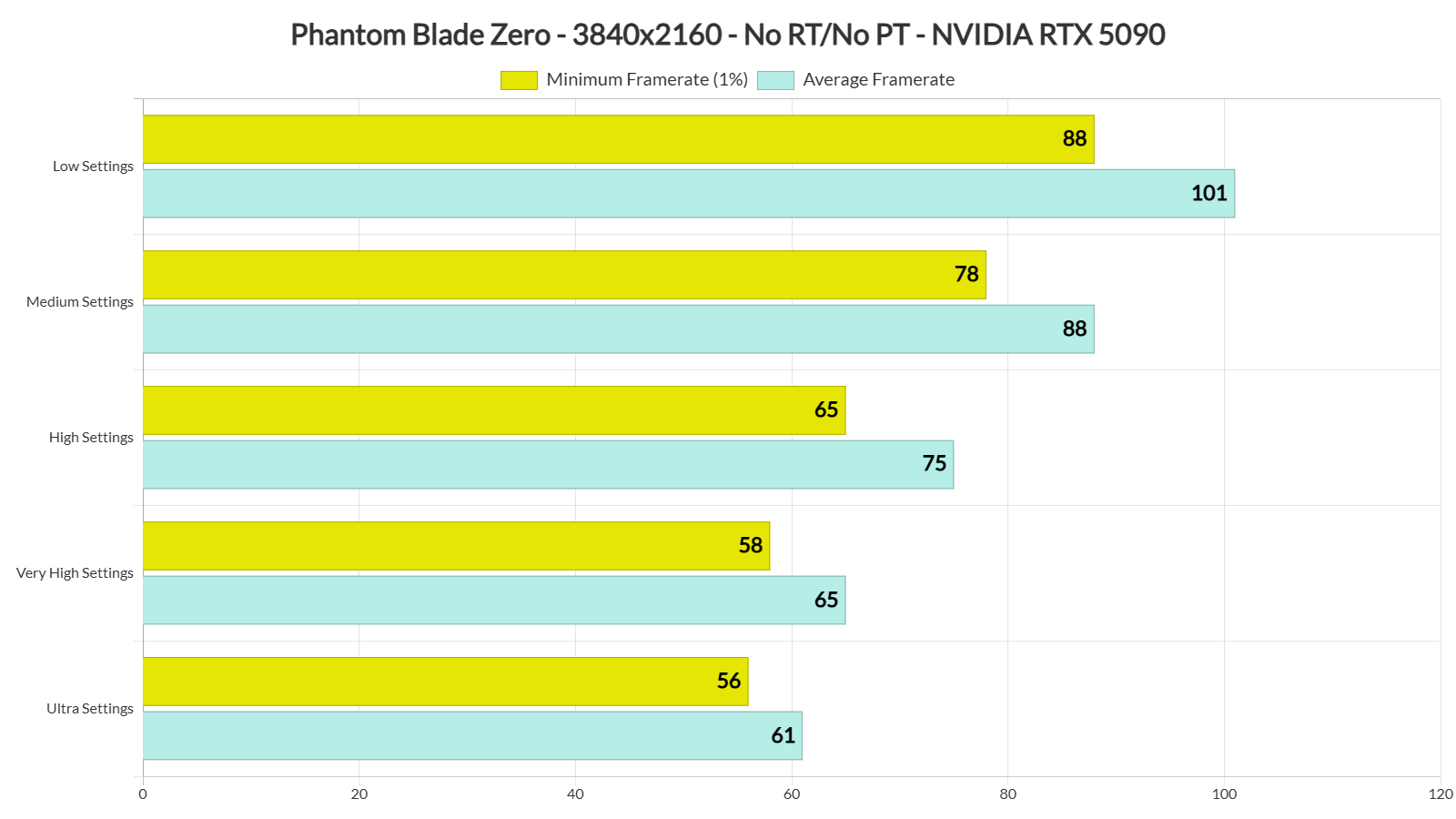
It’s also worth noting that the game can scale well with its in-game graphics settings. The performance and visual difference between Ultra and Very High is very small. However, the NVIDIA RTX 5090 is able to push frame rates above 65 FPS at all times at Native 4K/High Settings. By dropping the settings to Medium, we were able to get an additional 10 FPS boost. Then, on Low Settings, we were able to get to 100 FPS.
Before closing, I should note that I did not experience any major stutters. The first time you launch the game, there is a lengthy shader pre-compilation phase. During gameplay, I did not get any major shader compilation or traversal stutters. This is one of the smoothest UE5 games. So, kudos to the devs for delivering such a polished PC version.
All in all, Phantom Blade Zero is a graphical showcase on PC. It looks amazing, supports Path Tracing, and runs well. It does not suffer from major stutters, and it supports all major PC upscalers. My only complaint is that you cannot enable or disable Ray Tracing or Path Tracing while playing. Other than that, this is a top-quality PC version. So, if you’ve been looking forward to this game, you can rest assured that the PC version is well-polished!

John is the founder and Editor in Chief at DSOGaming. He is a PC gaming fan and highly supports the modding and indie communities. Before creating DSOGaming, John worked on numerous gaming websites. While he is a die-hard PC gamer, his gaming roots can be found on consoles. John loved – and still does – the 16-bit consoles, and considers SNES to be one of the best consoles. Still, the PC platform won him over consoles. That was mainly due to 3DFX and its iconic dedicated 3D accelerator graphics card, Voodoo 2. John has also written a higher degree thesis on the “The Evolution of PC graphics cards.”
Contact: Email