
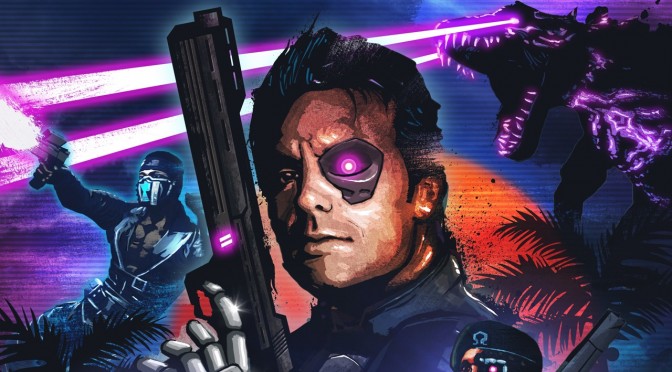
Here Is How You Can Edit Splinter Cell: Blacklist’s FOV & Remove ScanLines From Far Cry 3: Blood Dragon

Our reader ‘Dirty Dan’ has informed us about some must-have tweaks for both Splinter Cell: Blacklist and Far Cry 3: Blood Dragon. Using a HEX editor, Dirty Dan was able to find a way to change the FOV in Splinter Cell: Blacklist and to disable the Scan Lines in Far Cry 3: Blood Dragon.

In order to make the following adjustments, you will need a HEX Editor (Dirty Dan used HxD).

For Splinter Cell: Blacklist, players will have to open up the .exe, find “DesiredFOV=75” (search for FOV and the first result will be that line of code) and change it to whatever value they want to.

The procedure to remove Far Cry 3: Blood Dragon‘s scanlines is similar. Players will have to open up the FC3.dll in a HEX editor, search for “COverlayTrack”, and replace the default values with zeroes.

Enjoy!

12 thoughts on “Here Is How You Can Edit Splinter Cell: Blacklist’s FOV & Remove ScanLines From Far Cry 3: Blood Dragon”

  1. Head over to Dirty Dan’s links (we’ve included both of them) as they have images for both 😉

  2. Yes, after playing with the Blood Dragon fix, its impossible to go back with scan lines, soooo much better. the only issues ive ran across are the surface texture for water is invisible but it still reacts with bullets and swimming, but the one or two times you are by water, it doesn’t really matter. other than that, it works perfectly. thanks for posting the fixes!!!!

    1. Thanks for discovering this! Can you post a screenshot of the water? Is it all water, like in the rivers, or just the ocean?

      1. Yeah, its just certain bodies of water and a neon green light on some of the rocks, looks really cool actually. Not a deal breaker considering you’re not around water much.

    1. Because i wanted to. If you like em, dont use the fix. I didn’t, and there was no option to disable, so I fixed it. Glad it didn’t bother you. It still is retro, now its clear without a crappy overlay.

  3. After I disabled scanlines I actually went back in with an injection tool and added in finer higher resolution looking scanlines that are more eye pleasing to me. That was my only problem with the stock scanlines.. they where far too low res looking no matter what resolution you put the game in. With the injection method you can put in as subtle or not subtle effects and fine tune them the way you want it.

    Example: http://imageshack.com/a/img838/1273/w053.png

  4. I don’t have any permission to post links here. However, I just gotta mention that… Once I disabled the stock scan lines I could then replace them via injection with subtler finer scan lines So I still get the same look and feel only higher resolution looking and not so “In your face” with low res scan lines that are far apart from each other. That was my only gripe with the stock scan lines.

Leave a Reply

Your email address will not be published. Required fields are marked *