
Microsoft has just announced in a recent blog post that the software giant is testing the new “Auto HDR” feature on Windows 10 OS, which works in a similar manner like it does on the latest Xbox Series S and X consoles.
Microsoft plans to automatically add HDR support to more than 1,000 PC games, so following the launch of the Auto HDR feature on Xbox Series S/X game consoles Microsoft is now extending support for this technology to work on PCs.
Once enabled, “Auto HDR” will add high dynamic range (HDR) to a large number of DirectX 11 and DirectX 12 PC games, as long as you have a compatible HDR monitor.
HDR is a video/imaging technique where the lights and darks in a digitally reproduced scene can be shown with more detail than before. In video games, the increased range of color and luminance of HDR enables a more immersive, realistic experience.
As of this writing, Auto HDR for PC is currently a preview feature only available in the Windows Insider Program (Dev Channel). To experience this feature now, you’ll want to click here to join and get access to build 21337 or above.
Hannah Fisher, a DirectX program manager at Microsoft had to say this, “While some game studios develop for HDR gaming PCs by mastering their game natively for HDR, Auto HDR for PC will take DirectX 11 or DirectX 12 SDR-only games and intelligently expand the color / brightness range up to HDR,”
“It’s a seamless platform feature that will give you an amazing new gaming experience that takes full advantage of your HDR monitor’s capabilities.”
Auto HDR for PC will take DirectX 11 or DirectX 12 SDR-only games and intelligently expand the color/brightness range up to HDR. It’s a seamless platform feature that will give you an amazing new gaming experience that takes full advantage of your HDR monitor’s capabilities.
The Auto in the title implies how easy it is for you to enable the feature; a simple settings toggle flip will let you turn the feature on and off.
According to Microsoft, Auto HDR will automatically adjust the color and luminance on monitors to enable a more immersive/realistic gaming and visual experience. Auto HDR will also work even in DirectX 11 games
More than 1000+ DirectX 11 and DirectX 12 games are going to support this technology. Microsoft has also shared one visual example to show how SDR, Auto HDR and native HDR implementations compare to each other.
Microsoft has demonstrated Auto HDR in Gears 5 which has native HDR support. While native, game-studio implemented HDR is the best quality experience, for games that don’t have a native implementation; Auto HDR still brings you a vastly improved experience over regular SDR.
The left side is running in SDR, the middle running in Auto HDR, and the right side running in Gears 5’s amazing native HDR, as shown in the image below.
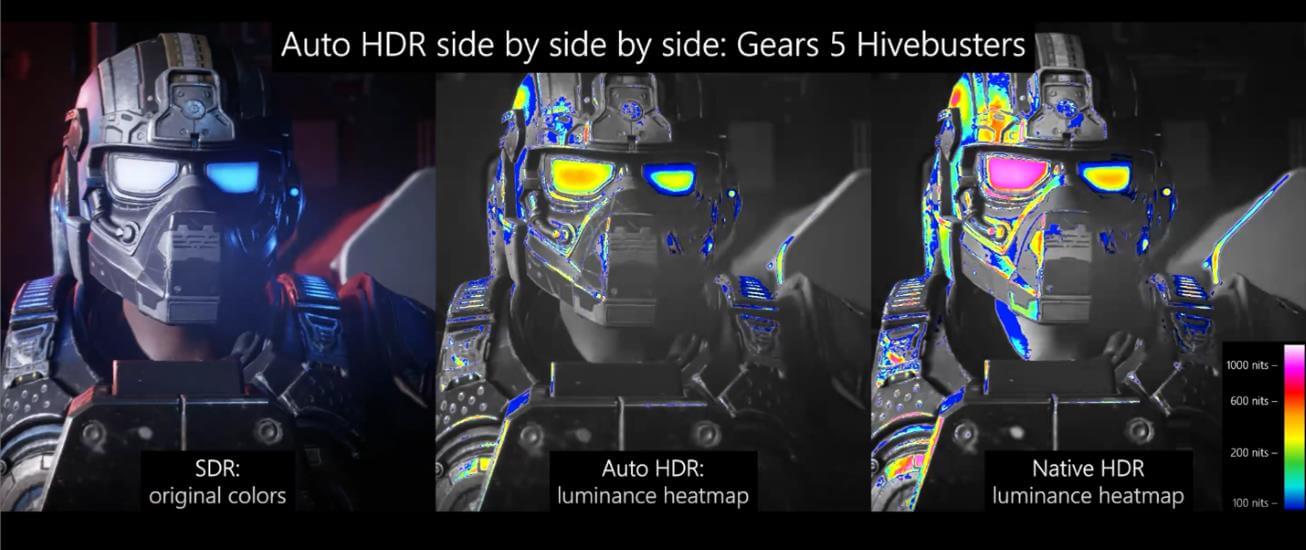
“Notice on the middle and right-side images that the highlights on the goggles and helmet show an increased amount of detail.
HDR and Auto HDR are not just about boosting brightness but really about emphasizing the details in a scene leveraging the increased range: darkening shadows and illuminating highlights.
Looking at Auto HDR and native HDR, you can see the similarities in how the details in the shadows and highlights are much improved using luminance ranges beyond SDR. SDR simply doesn’t have the ability to show the same range of color and luminance the way native HDR and Auto HDR can.”
But of course Native HDR will still be better, but Auto HDR is still a big upgrade over SDR image. Microsoft is also working to optimize performance and fix some issues, and the company does admit “Auto HDR does take some GPU compute power to implement.”
As the blog reads:
“We’re already working on fixing those issues, optimizing performance, and even adding customizability to your experience. While Auto HDR does take some GPU compute power to implement, we don’t expect it to significantly impact your gaming experience.
However, if you notice significant issues in your gaming experience or find one of your favorite DX11/DX12 titles doesn’t work yet, please let us know through the feedback hub app.”
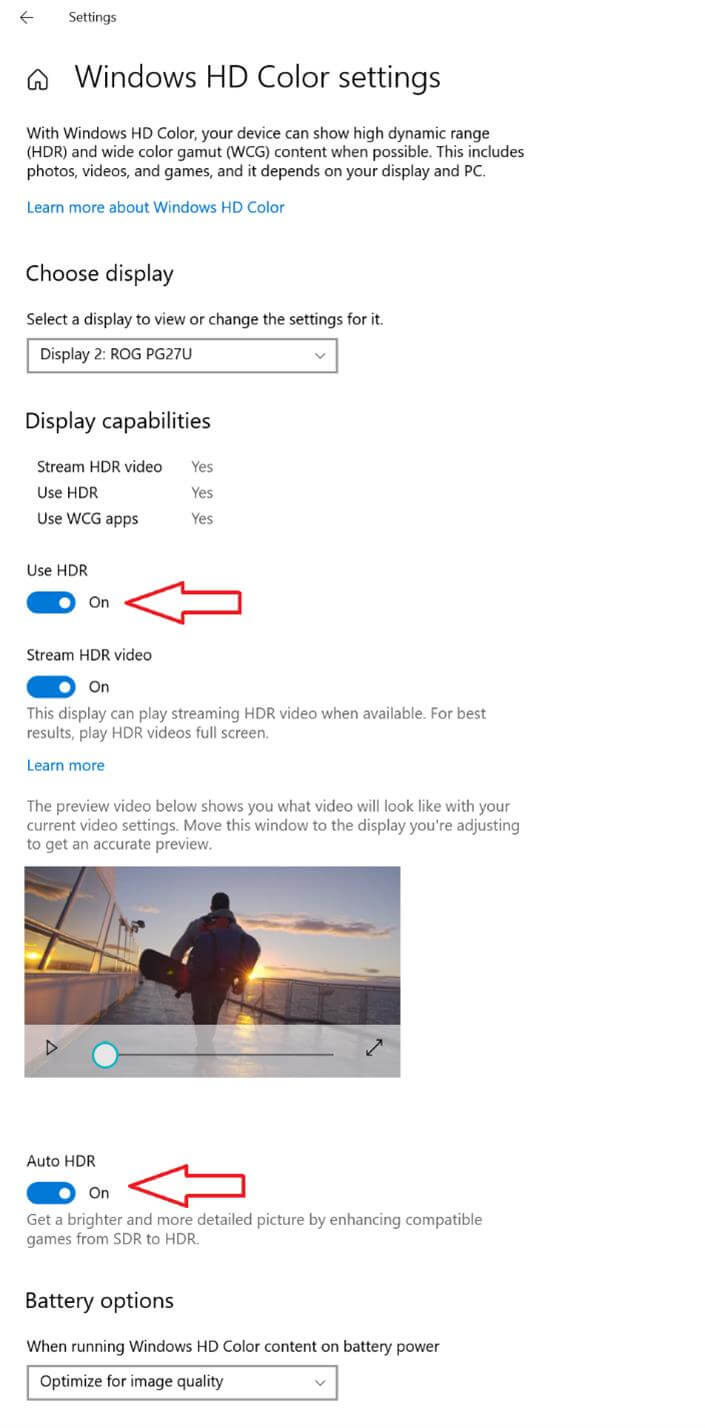
If your PC monitor is already configured to use HDR, you will automatically receive the Auto HDR PC gaming experience. But to explicitly enable/disable Auto HDR, you need to go to the Windows HD Color Settings page as shown below.
Microsoft has not given any ETA when this technology feature will be released in a public Windows OS build. For now, you need to have the Windows Insider Program (Dev Channel) build 21337, alongside an HDR certified monitor.
Stay tuned for more tech news!
Hello, my name is NICK Richardson. I’m an avid PC and tech fan since the good old days of RIVA TNT2, and 3DFX interactive “Voodoo” gaming cards. I love playing mostly First-person shooters, and I’m a die-hard fan of this FPS genre, since the good ‘old Doom and Wolfenstein days.
MUSIC has always been my passion/roots, but I started gaming “casually” when I was young on Nvidia’s GeForce3 series of cards. I’m by no means an avid or a hardcore gamer though, but I just love stuff related to the PC, Games, and technology in general. I’ve been involved with many indie Metal bands worldwide, and have helped them promote their albums in record labels. I’m a very broad-minded down to earth guy. MUSIC is my inner expression, and soul.
Contact: Email


No thanks.
I find this interetsing. If only I had an HDR compatible screen.
If you have phone with HDR (most new phones with OLED) you can find Digital Foundry AutoHDR review with older games like Batman Arkham Knight. Dark streets, bright lights… it looks really great with older games.
Even games like Half Life Orange Box support AutoHDR on Xbox so it will support this also on PC. Those games in HDR looks amazing
Thanks. Will check it out now.
This is awesome but the insider program makes you enable optional data collection which tells them what websites and apps that you use.
This is Windows 2021 H2, it will be released to public in November. A lot of time to buy HDR monitor with HGIG support
And alot of time for devs to catch up, hdr is neat when done properly on a proper display
This doesn’t require devs to catch up but I don’t see how it could be that useful when there is no way to measure the screens actual contrast and brightness.
November? God damn that is a long time. I might just have to let them steal my information and dive it.
How is it optional if it forces you to enable it?
It’s optional because you don’t have to enable it. You just have to enable it for the insiders build. It’s just the name of the switch.
Ah I see. Thanks for clarifying.
Well I’m looking forward to this! Having to toggle on and off is pretty annoying
Like everything Microsoft ever announces. It sounds far better than it will ever be implemented. I have no hope whatsoever for this, simply because, it’s Microsoft.
When you can’t even take a simple chat client like Skype, and not resist pile driving it into the deepest realms of stupidity in terms of design choices? What hope does this have?
“Like everything any company announces.” – There, fixed it 🙂
No argument here. Only, the degree of MS’ fails, is certainly far, far higher than the average.
Coming from someone who’s never designed a UI in their entire life. Sure.
What a great feature, definitely excited for this.
I hope that they bring over previous gen Xbox game emulation to PC too. That’d be awesome.
YESSSSS this is great news
It support split screen if someone want to see difference
Want to see how awesome your 1000 nit HDR monitor looks when displaying Auto HDR content? Well, we have a cool little “only for development and evaluation” secret feature for you! You can enable a splitscreen mode where the left side shows the original SDR content and the right side shows the Auto HDR upgraded content. This is only for advanced users but if you want to give it a go, here’s how:
Open an admin command prompt. To enable splitscreen, run the following command:
reg add HKLMSYSTEMCurrentControlSetControlGraphicsDrivers /v AutoHDR.ScreenSplit /t REG_DWORD /d 1
To disable splitscreen, run the following command:
reg delete HKLMSYSTEMCurrentControlSetControlGraphicsDrivers /v AutoHDR.ScreenSplit /f
Make sure it’s compatible with the Asus ROG Swift 360Hz PG259QN.
I will tell them to make it compatible for you handsome.
Pakistani authorities approved this…
Now I have a reason to get an HDR monitor!
Neatorino! This’ll come in handy indeed. I like MICROSOFT recently 🙂
Shame so many hdr enabled windows system owners seems to miss the hdr/sdr brightness balance setting in windows 10 and thus keep hdr disabled as windows looks washed and greyed out without that set.
Know at least 4 peeps who had that unset and got amazed once it was properly set and they could keep hdr enabled at all times rather than switch on/off depending on titles etc.
Looking forward to getting blind by 1000 nits in games 🙂
Shame so many hdr enabled windows system owners seems to miss the hdr/sdr brightness balance setting in windows 10 and thus keep hdr disabled as windows looks washed and greyed out without that set. Silly that its set to 0 as default.
Know at least 4 peeps who had that unset and got amazed once it was properly set and they could keep hdr enabled at all times rather than switch on/off depending on titles etc.
Its in the same dialog shown in the article
https://uploads.disquscdn.com/images/849f579f3272a35e8dc4158cad1a0918c9ece2fbfd0c520f550dc70d652a1238.jpg
Looking forward to getting blinded by 1000 nits in games 🙂
I didn’t quite like it :/ It felt washed out. Maybe this update will improve it.
I don’t know much about this, but mine is an HDR10 monitor. It looked pretty washed out, and the fonts had a weird outline-ish, plus the colors became more difficult to differentiate between them.
https://www.lg.com/us/monitors/lg-29WK600-W-ultrawide-monitor
I’ve tested this again, this time I tried messing with the Nvidia control panel settings. I think I have achieved quite an adequate setting, and the images are not longer “Washed” out. Do you have any suggestions in images or programs I can use to test out and apply the appropriate setting?
This, from nvidia.
https://uploads.disquscdn.com/images/98ea40b1db036896af9c05183125fa6f504841afa13adc9c938696c75a3edf5e.jpg
Oh! thanks for the explanation!! I didn’t know even half of this.
I found this, and bulletpoint 5 it says I can use the phone to measure it. I’m going to try that and see what this monitor is capable of.
https://displayhdr.org/guide/
It looks good when I enable HDR and go through the sliders, but it also looks weird at the same time. hahaha
No one missed that, and the settings in your pic are wrong.
It is set to 50 by default and it will always look bad because you’re displaying SDR content in HDR color space.
You shouldn’t keep hdr enabled at all times. It’s terrible advice. You want hdr on for hdr content and nothing else. It f*ks with the gamma and color gamuts when you are using sdr content. This slider just helps make it look less sh**ty but it’s still plenty sh**ty. It also does nothing in game.
When Microsoft rollout new feature
https://uploads.disquscdn.com/images/a660cdb54b60723e8c9878a9e3c81aebaccd0c2d1aa58e2ce5e800d3d898a4a9.jpg
HDR is pretty rare in PC monitors, even in the top pricy ones. I need to stick with Reshade fake HDR and other shaders
Fake HDR has nothing to do with real hdr and HDR isn’t rare at all it’s in basically every new monitor.
What’s the point? I never use HDR. It prevents recording with Nvidia Share and it also prevents even taking screenshots in Steam. Sure it looks pretty, yea, big deal.