
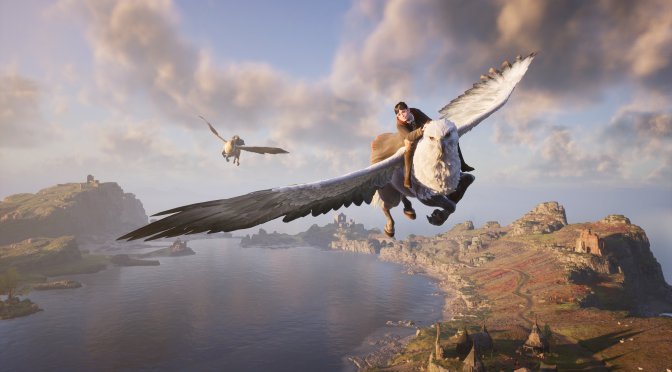
One of my biggest issues with Hogwarts Legacy was its Ray Tracing effects. Even when using the game’s Ultra RT settings, these RT effects can be underwhelming. Thankfully, PC gamers have figured out ways via which they can significantly improve the quality of these Ray Tracing effects.
For starters, the view distance for the Ray Tracing Shadows is a bit low, even on Ultra Settings. As a result of that, there are some truly awful pop-in issues when exploring the game’s open-world environments.

Furthermore, Ray Tracing Ambient Occlusion appeared to be broken in our initial tests. For whatever reason, Avalanche has used some really low-quality settings for it. Hell, you can even see the screen-space AO artifacts, even when enabling RTAO.

To be honest, I didn’t mind the quality of the RT Reflections. However, the RT Shadows and the RTAO were huge disappointments. And, thankfully, you can increase their quality.
All you have to do is open the game’s Engine.ini file, located in “C:\Users\USERNAME\AppData\Local\Hogwarts Legacy\Saved\Config\WindowsNoEditor”, and use the following settings.
[SystemSettings]
r.RayTracing.Reflections.ScreenPercentage=100
r.RayTracing.Reflections.SamplesPerPixel=1
r.RayTracing.Reflections.MaxRoughness=0.7
r.RayTracing.AmbientOcclusion.Intensity=1
Do note that these tweaks will bring an additional performance hit. Still, they currently resolve all of the issues we had with the game’s RT implementation, so that’s a big plus.
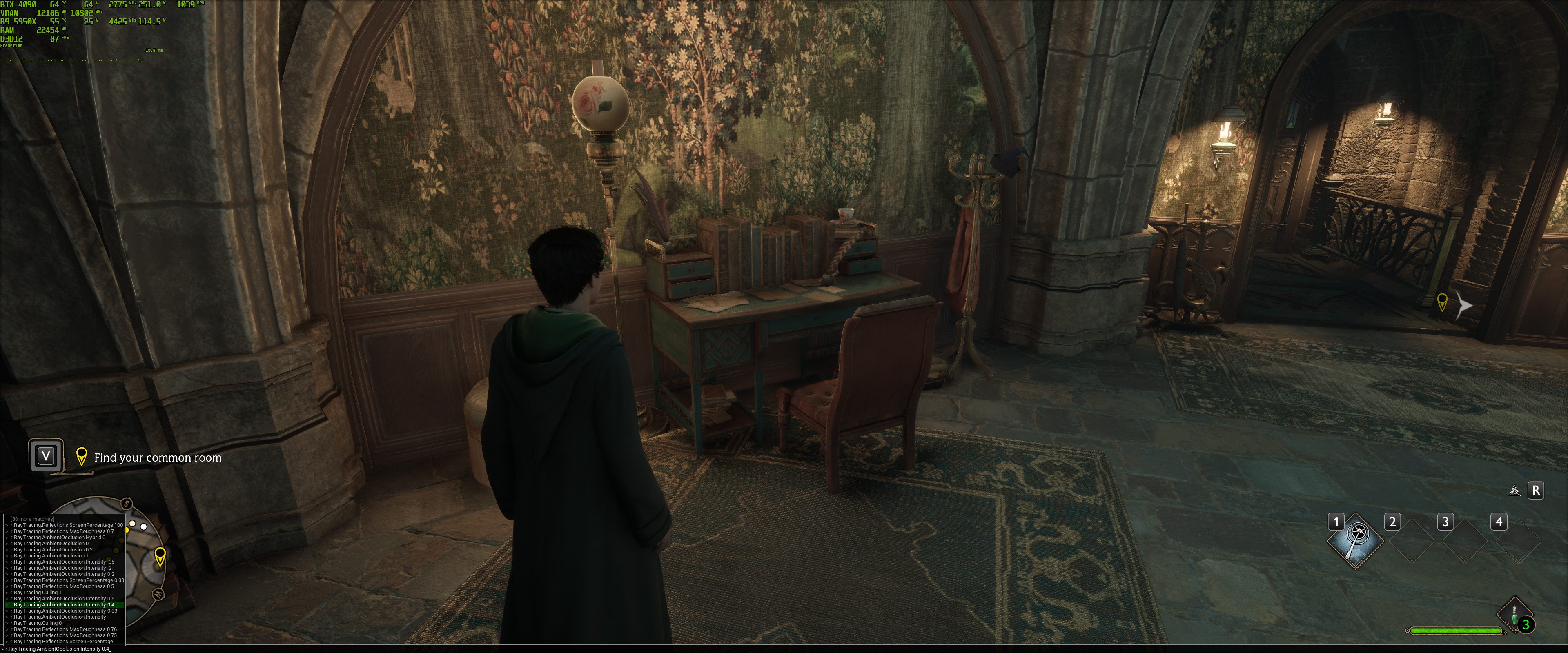
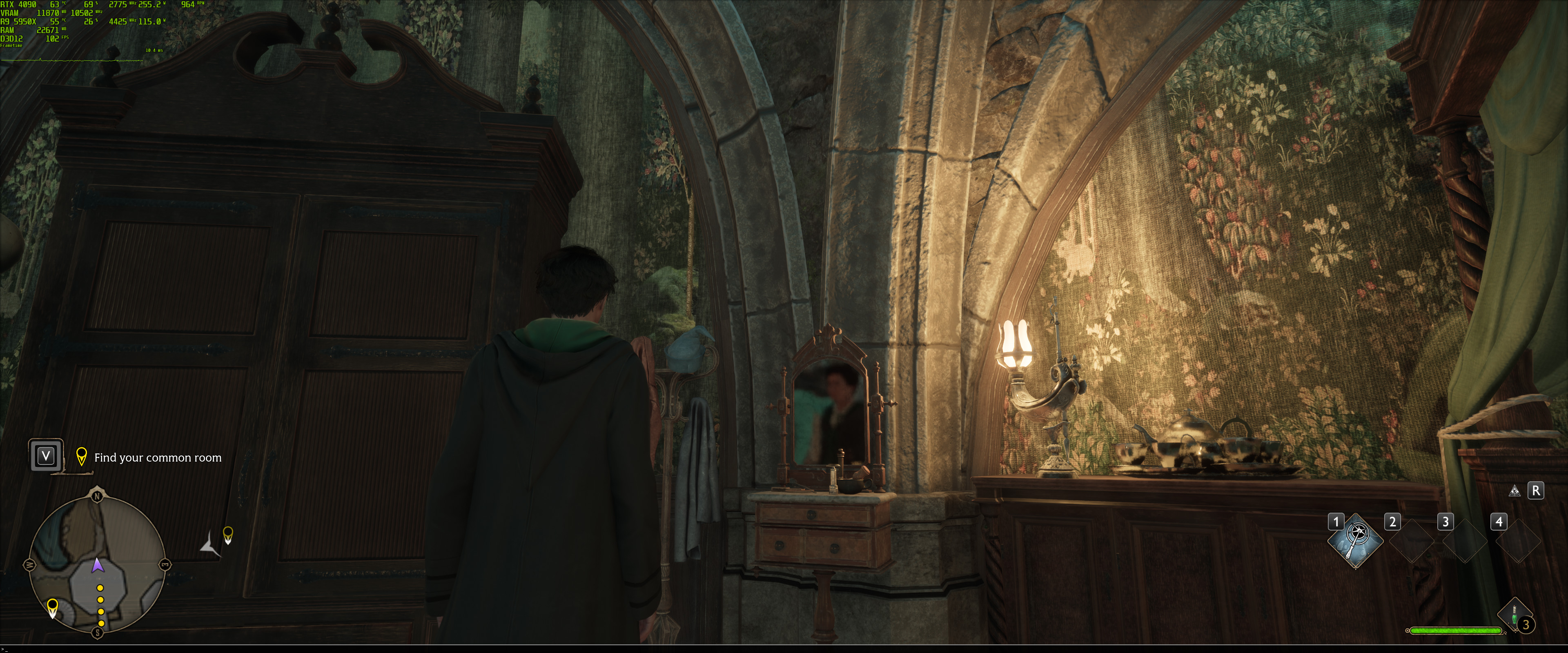
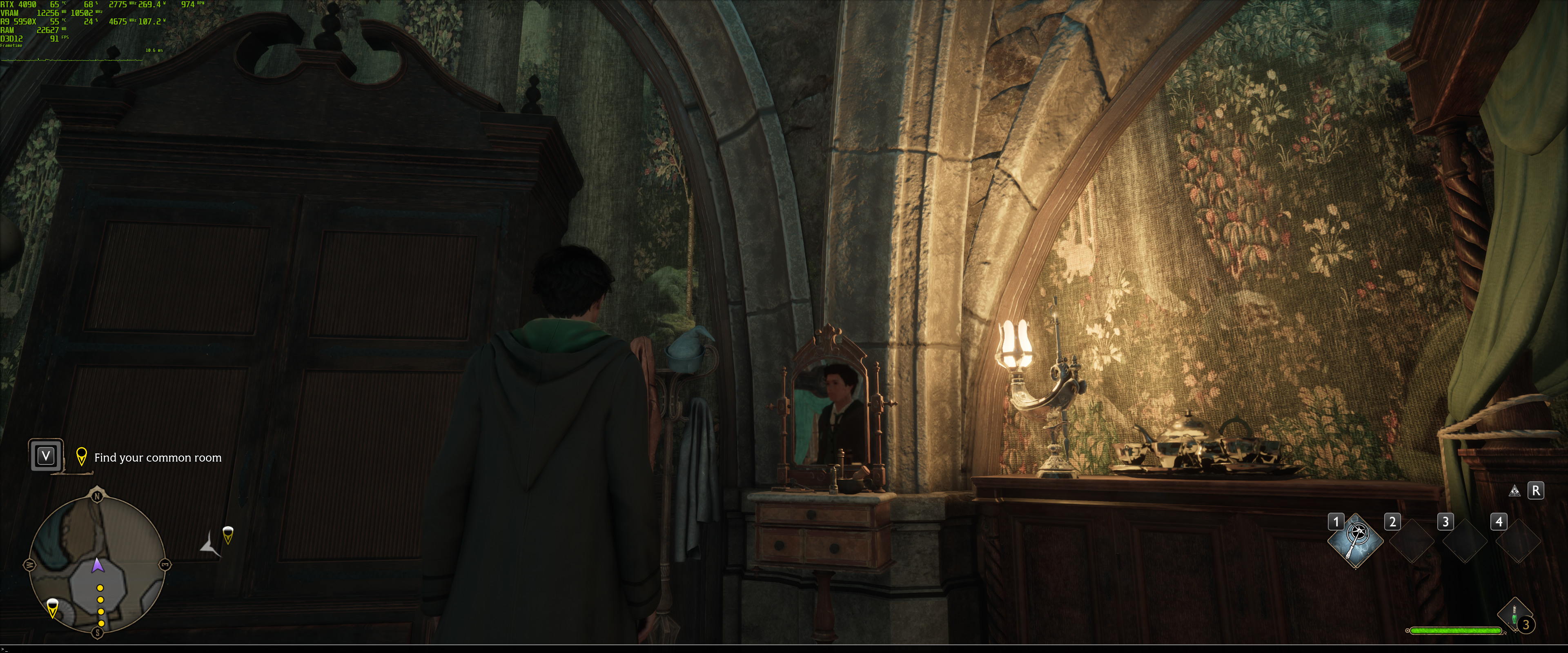
Reddit’s member Knochey, who has discovered this, shared the following comparison screenshots. And, as you can see, the visual improvements that these tweaks bring is enormous. The Default RT screenshots are on the left, and the modified RT screenshots are on the right.
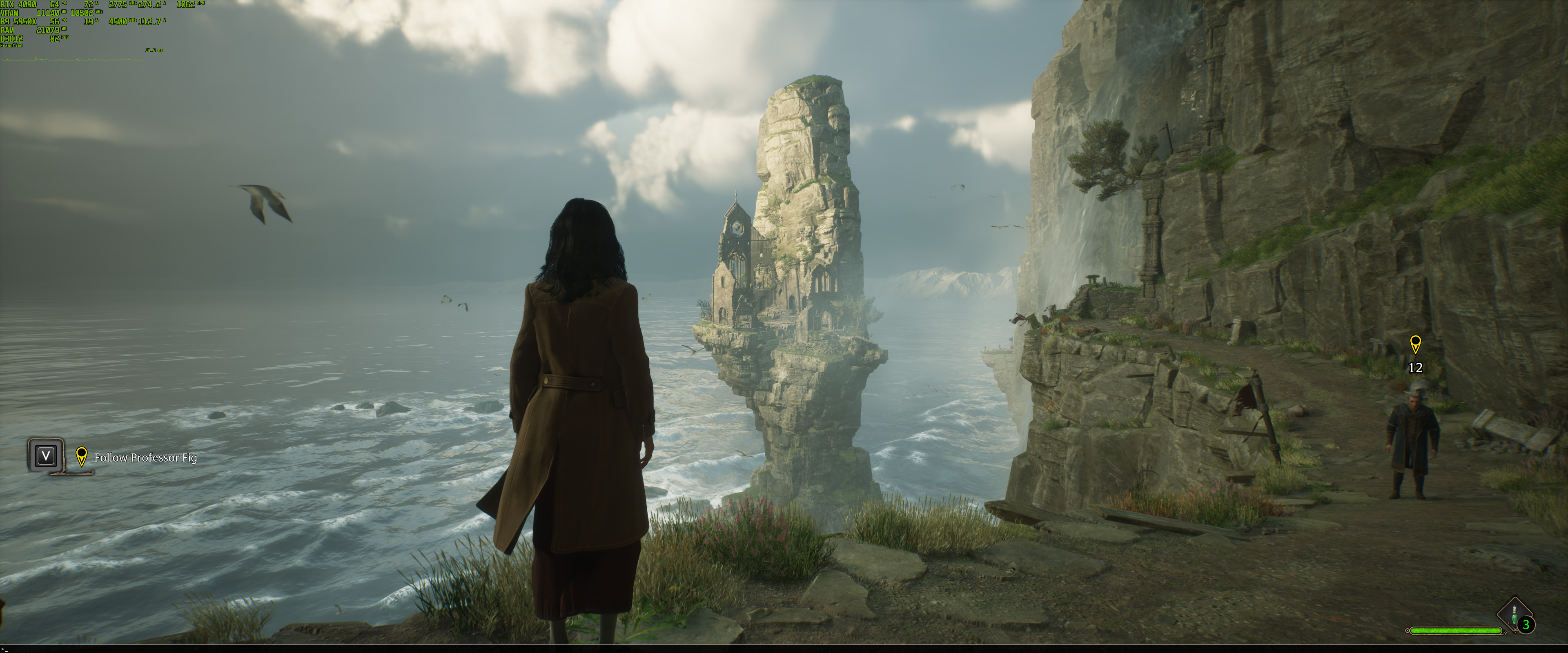
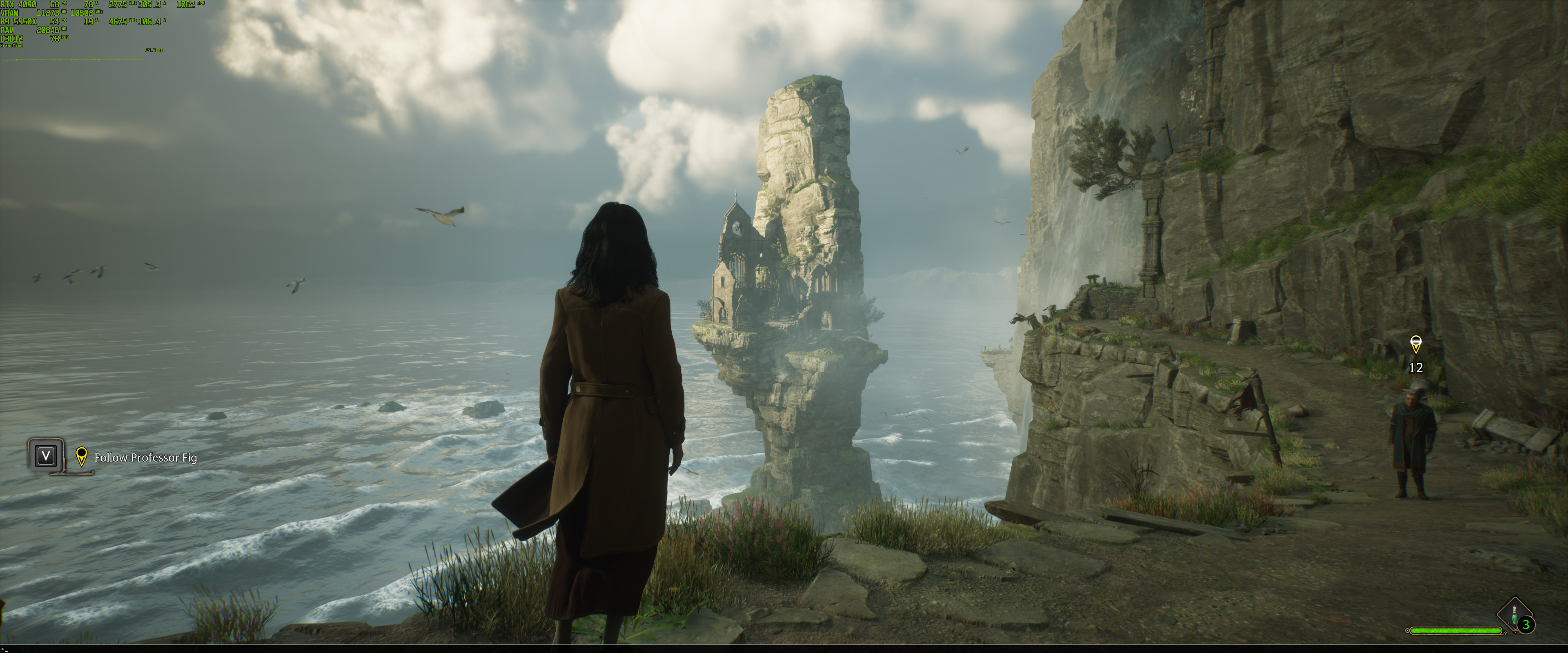
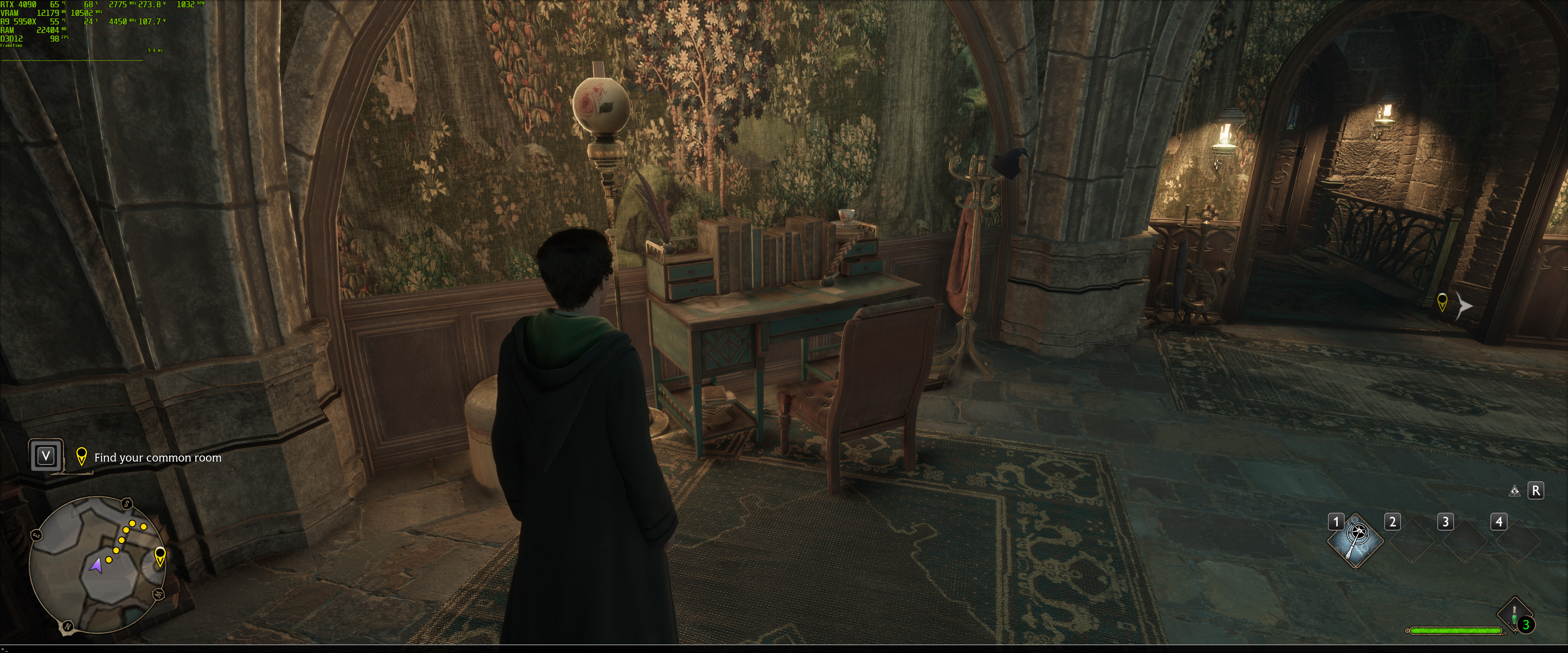
UPDATE:
After testing these tweaks, I can confirm that RTAO now looks significantly better. However, there are still noticeable pop-in issues when using RT Shadows. So, for the time being, I suggest using only RTAO and RT Reflections.
John is the founder and Editor in Chief at DSOGaming. He is a PC gaming fan and highly supports the modding and indie communities. Before creating DSOGaming, John worked on numerous gaming websites. While he is a die-hard PC gamer, his gaming roots can be found on consoles. John loved – and still does – the 16-bit consoles, and considers SNES to be one of the best consoles. Still, the PC platform won him over consoles. That was mainly due to 3DFX and its iconic dedicated 3D accelerator graphics card, Voodoo 2. John has also written a higher degree thesis on the “The Evolution of PC graphics cards.”
Contact: Email