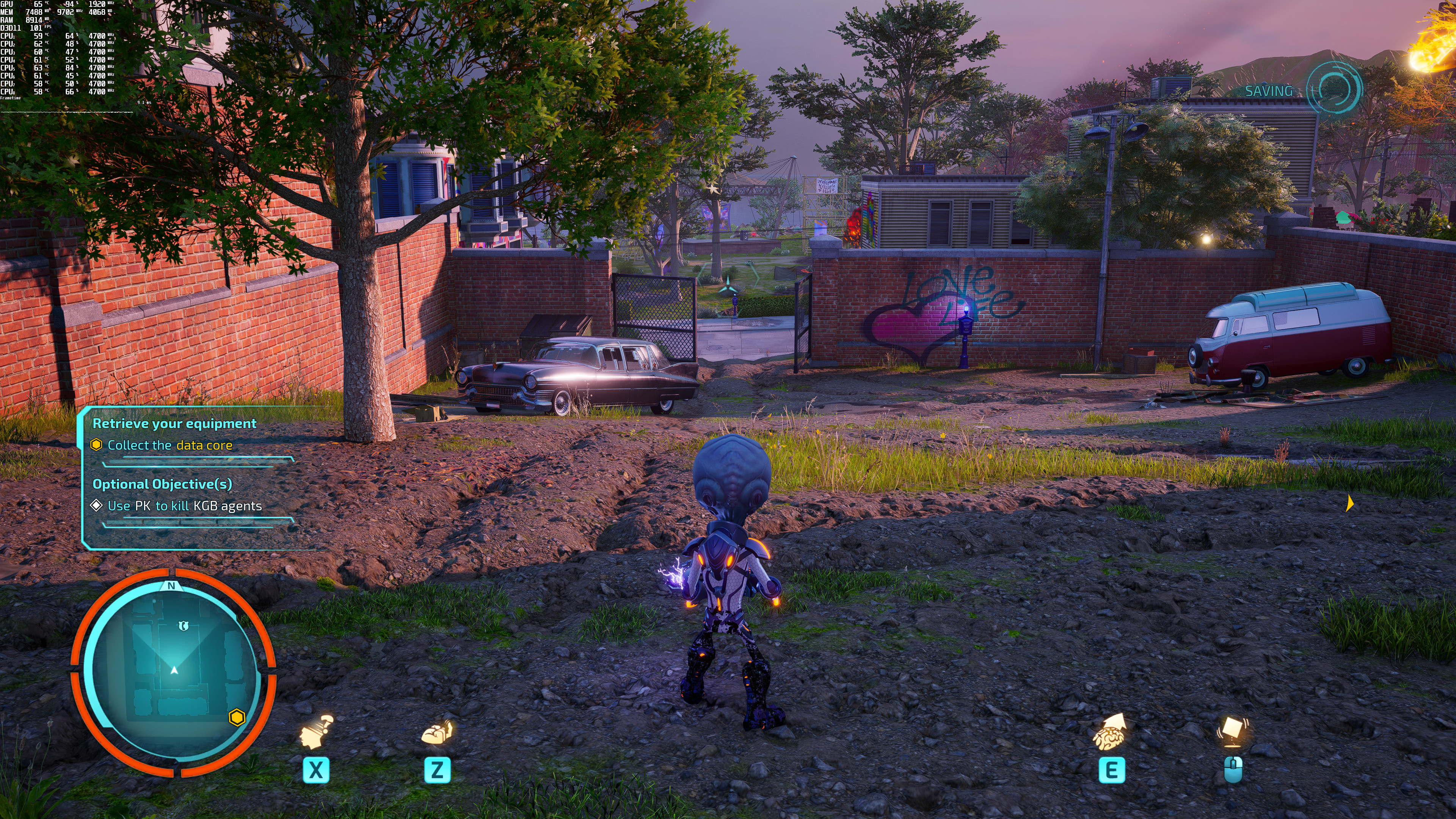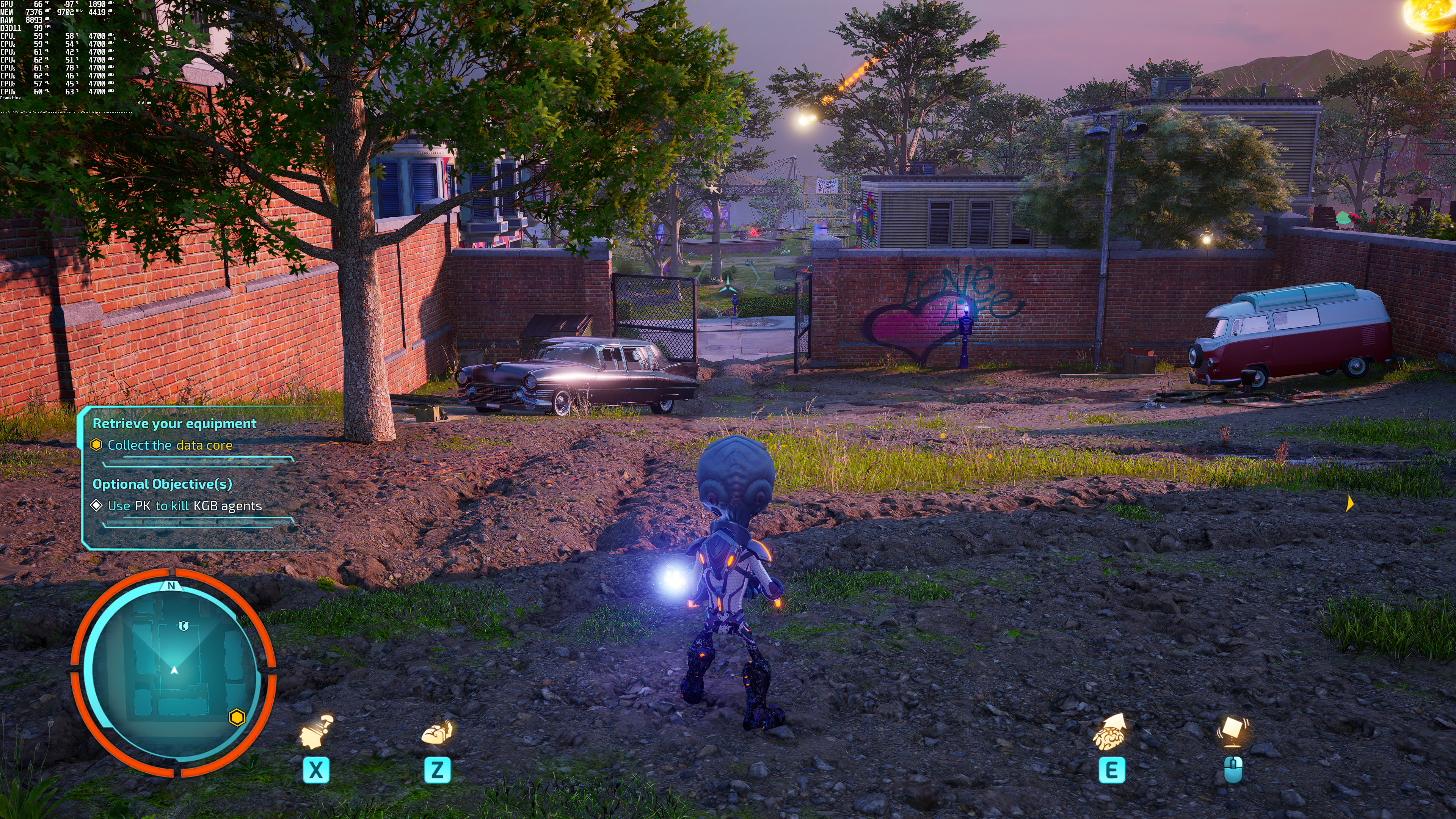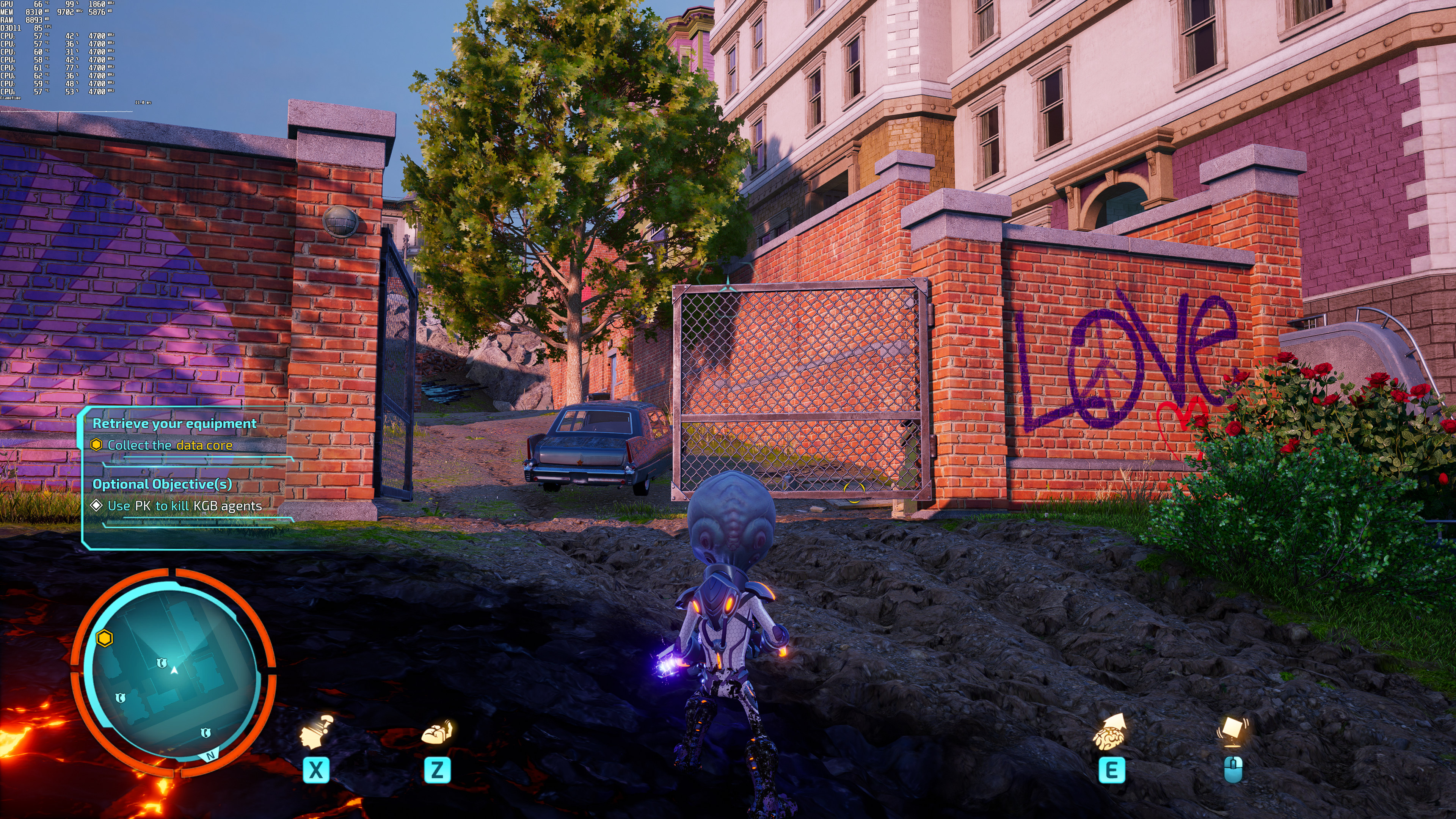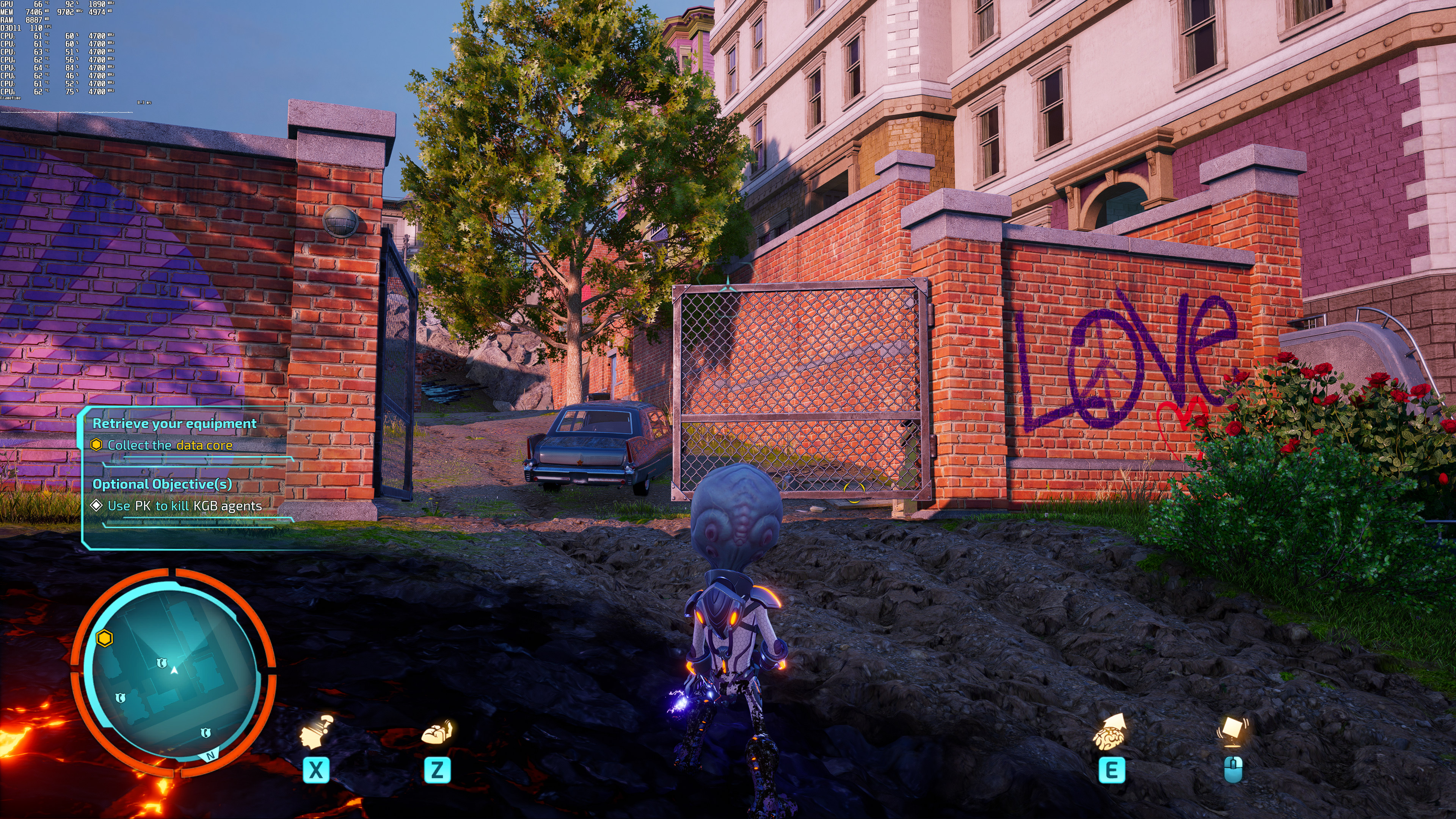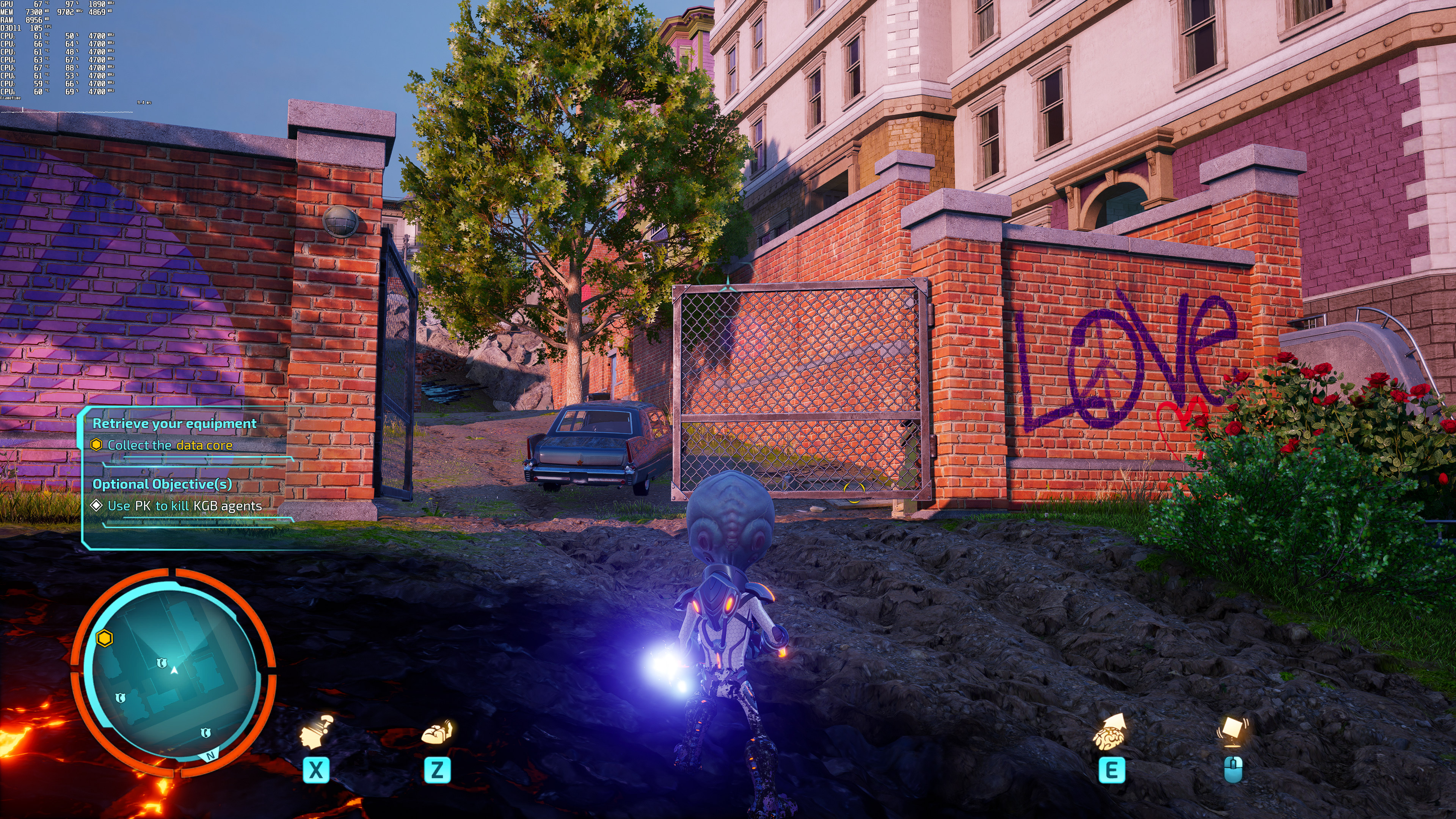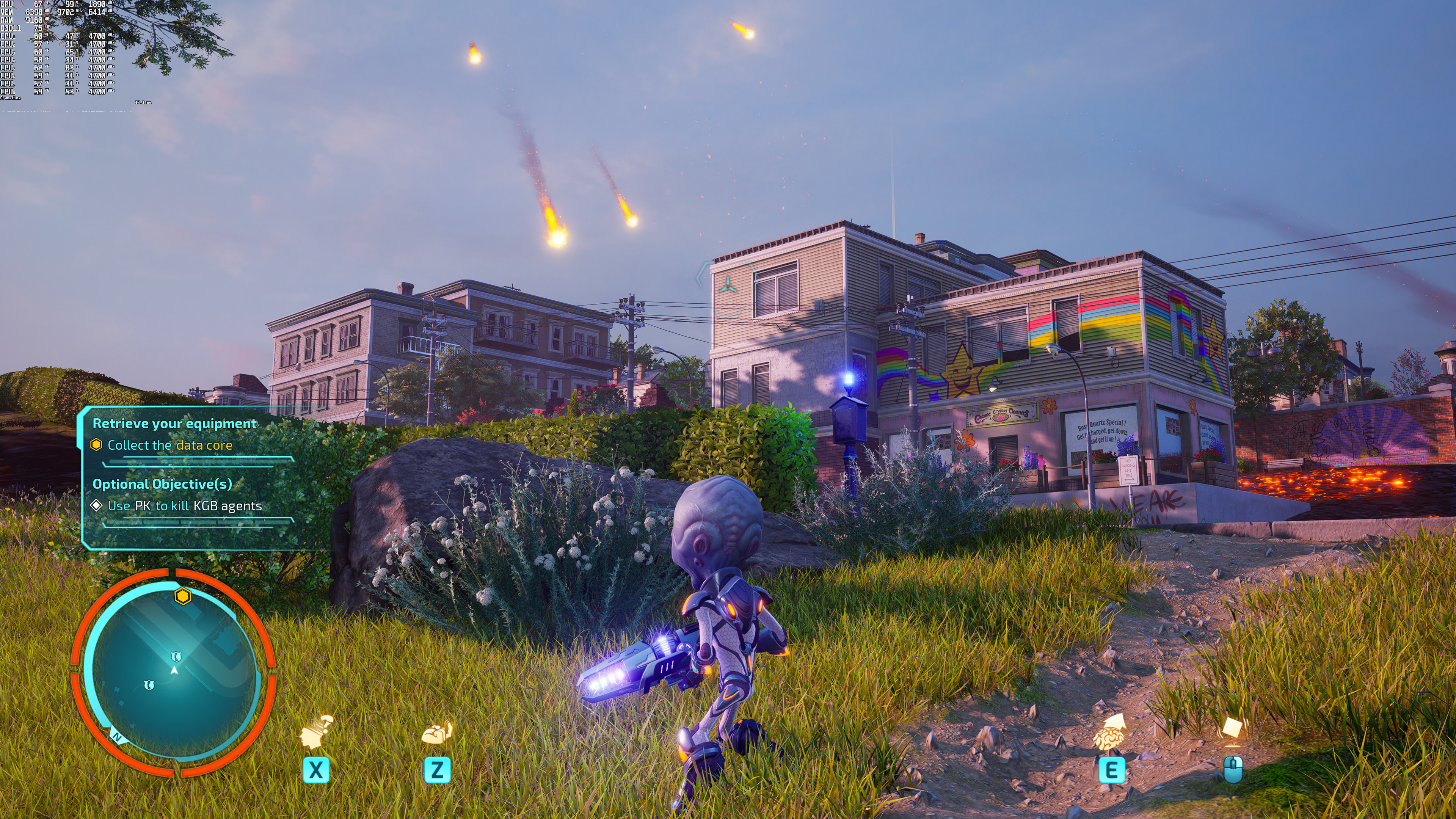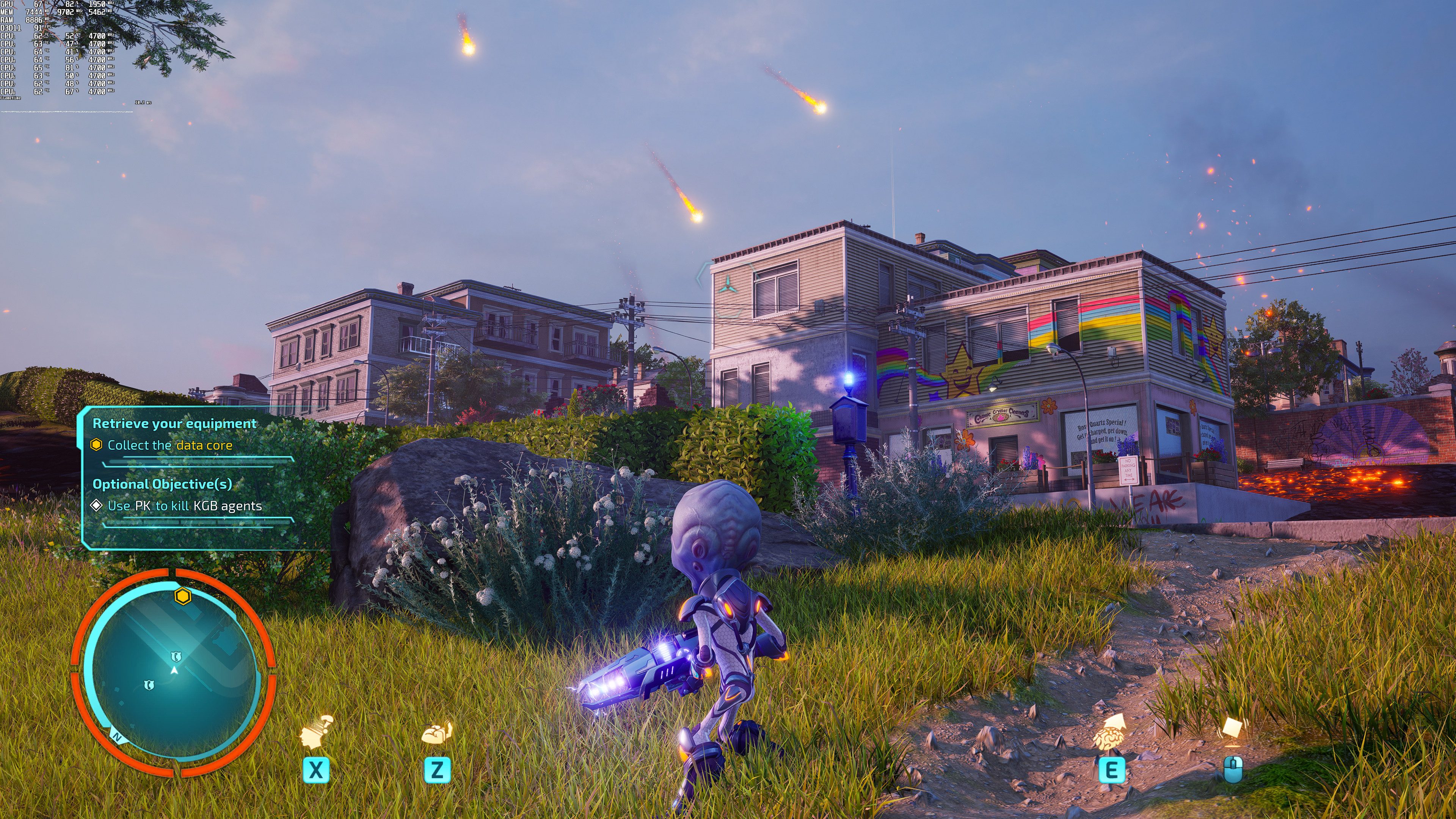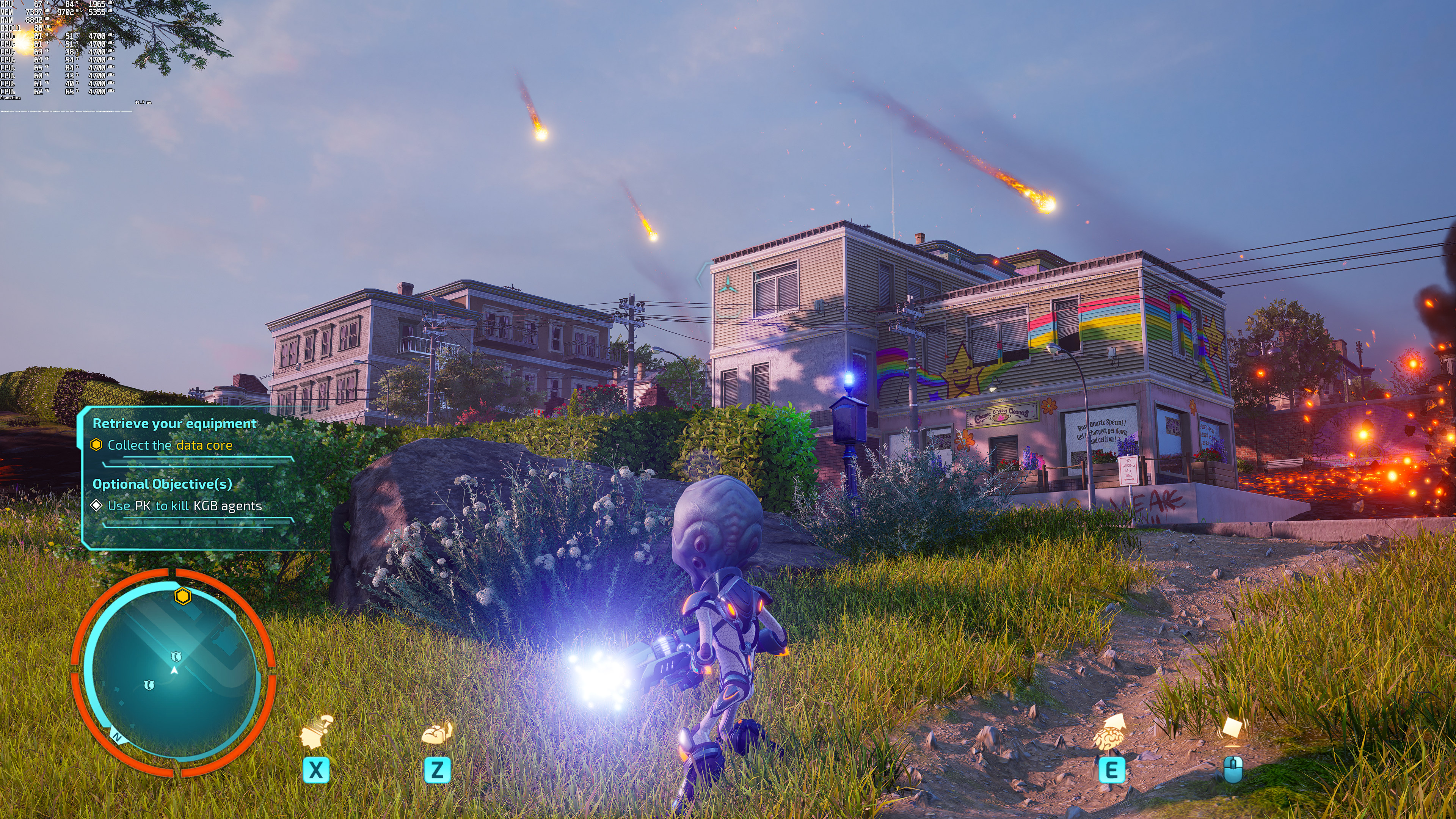
Last week, THQ Nordic released Destroy All Humans! 2 – Reprobed on PC. The game uses Unreal Engine 4 and supports both NVIDIA’s DLSS and AMD’s FSR 2.0 AI upscaling techniques. As such, and prior to our PC Performance Analysis, we’ve decided to benchmark and compare them.
For these benchmarks and comparison screenshots, we used an Intel i9 9900K with 16GB of DDR4 at 3800Mhz and NVIDIA’s RTX 3080. We also used Windows 10 64-bit, and the GeForce 516.94 driver.
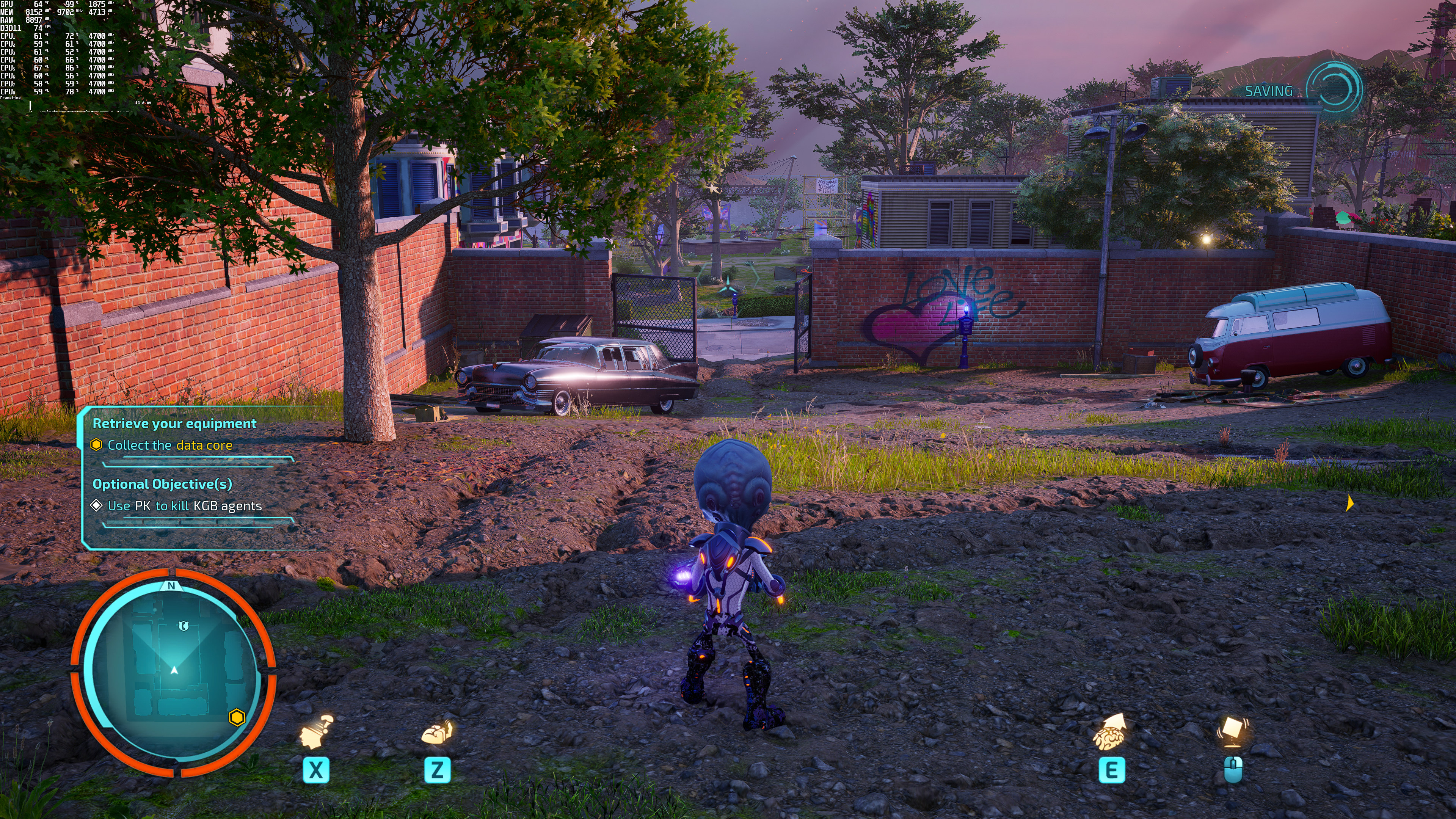
Destroy All Humans! 2 – Reprobed does not feature any built-in benchmark tool. Thus, we’ve decided to benchmark the first mission which has numerous explosions and a respectable number of NPCs.
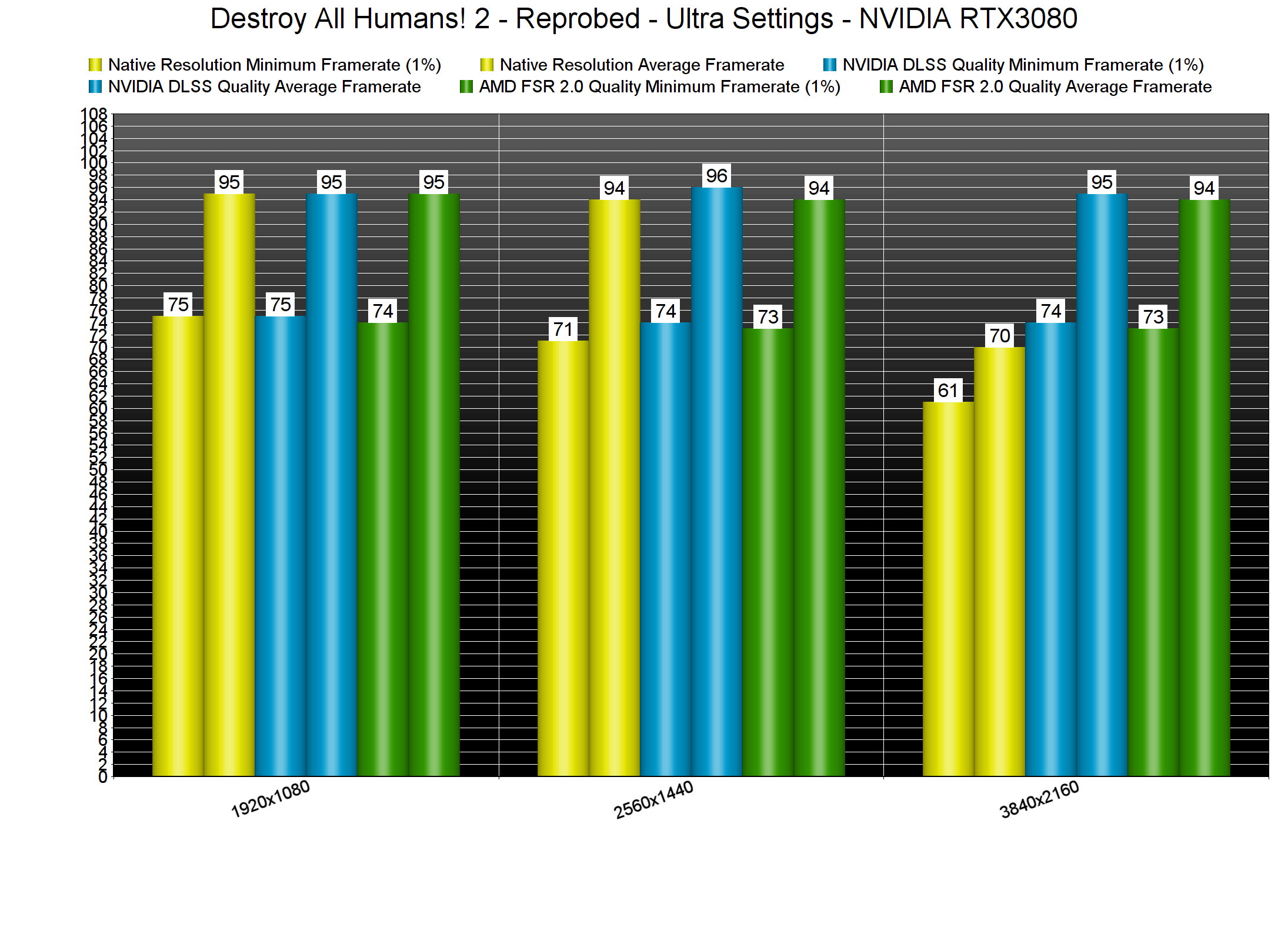
Our benchmark scene put a lot of pressure on our CPU and as such, we were CPU bottlenecked at both 1080p and 1440p.
To be honest, I was kind of surprised by these CPU requirements. After all, we’ve seen other Unreal Engine 4-powered games that run significantly better than Destroy All Humans! 2 – Reprobed.
Now the good news here is that the Intel i9 9900K had no trouble at all maintaining a constant 70fps experience. Truth be told, there were scenes in which our framerates skyrocketed at 130fps. However, our demanding benchmark scenario can give us a better idea of how later stages may run. So, if you target framerates higher than 120fps at all times, you’ll need a high-end modern-day CPU.
Since we were CPU-bottlenecked, DLSS and FSR made no difference at all at 1080p and 1440p. So the most interesting results are those of 4K/Ultra. At native 4K, our RTX3080 could drop at 61fps at times. By enabling DLSS or FSR, though, we were able to get a respectable performance boost.
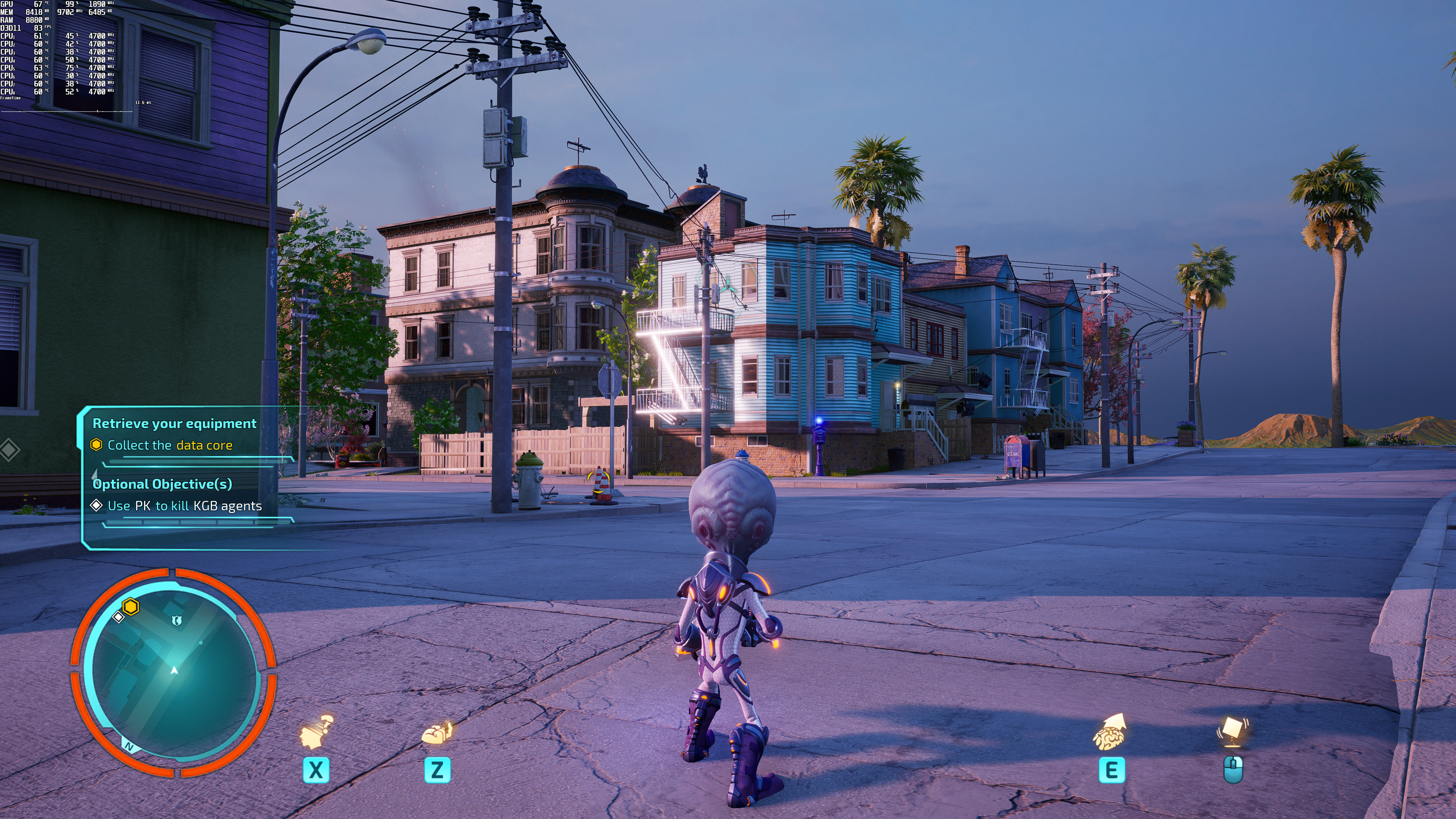
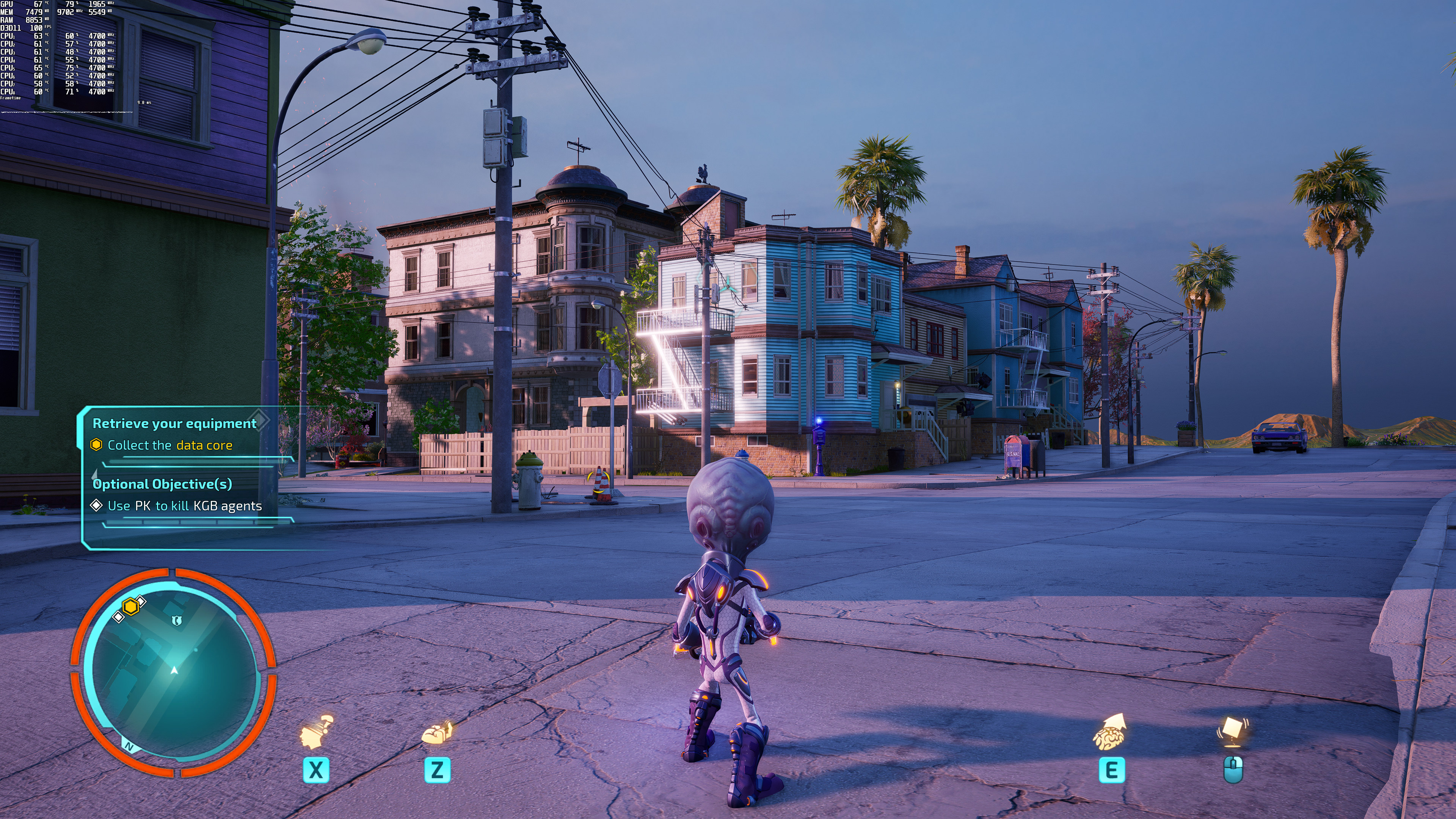
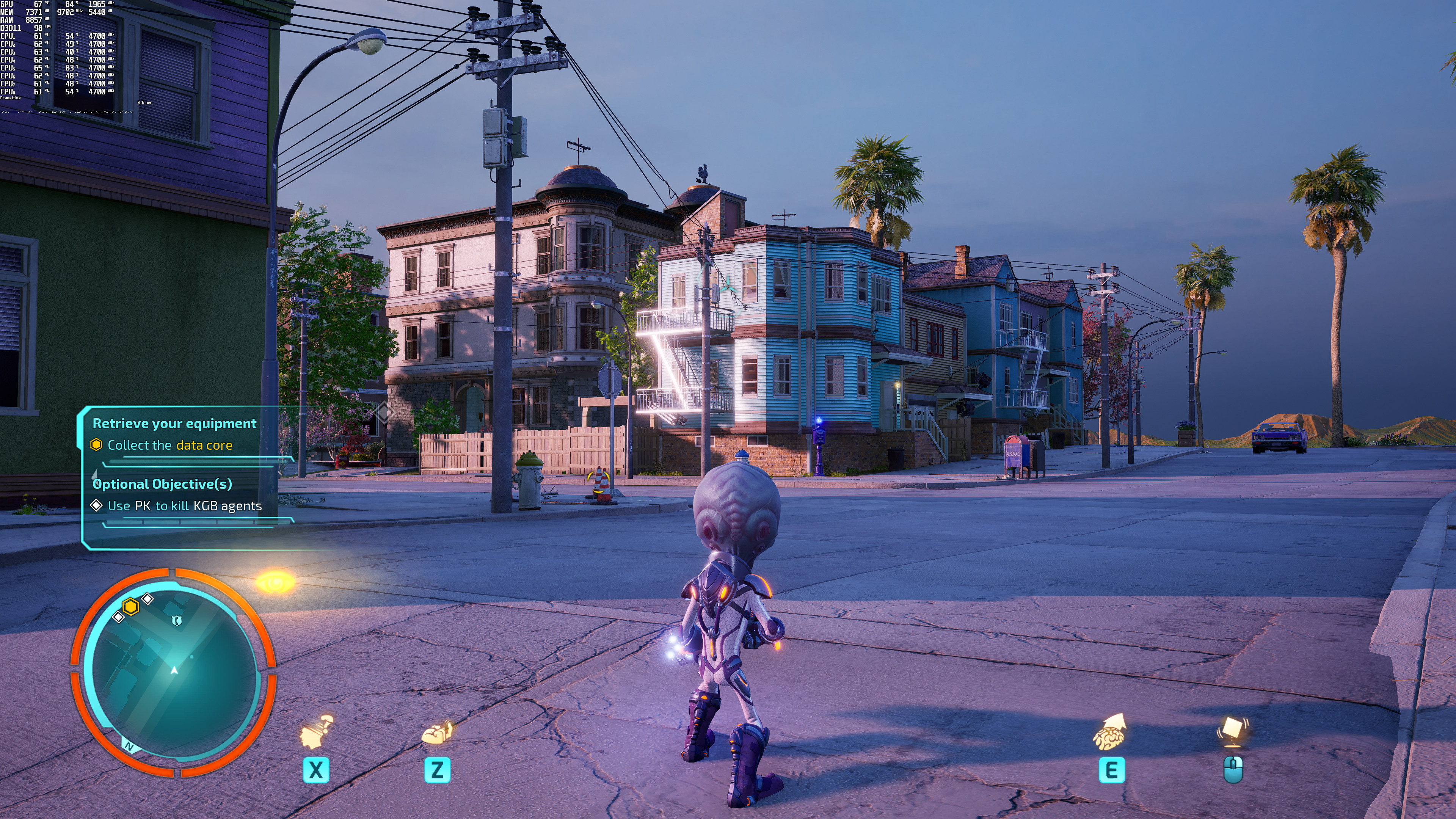
Below you can also find some comparison screenshots between native 4K (left), NVIDIA DLSS Quality (middle) and AMD FSR 2.0 Quality (right). NVIDIA’s DLSS tech does wonders in this game as it can provide a better image than native 4K. Take for instance the distant cables in the first comparison, which appear more defined in the DLSS image. If you have an RTX GPU, you must enable DLSS (as it retains the quality of a 4K image and improves overall performance). The only downside is the additional specular aliasing, from which both DLSS and FSR suffer. For example, take a look at the metallic parts of the car in the first comparison. You’ll see that there is more aliasing in these areas when using DLSS and FSR. Overall, though, DLSS offers the best image/performance ratio, followed by FSR and then native 4K.
Stay tuned for our PC Performance Analysis which will most likely go live later this week!

John is the founder and Editor in Chief at DSOGaming. He is a PC gaming fan and highly supports the modding and indie communities. Before creating DSOGaming, John worked on numerous gaming websites. While he is a die-hard PC gamer, his gaming roots can be found on consoles. John loved – and still does – the 16-bit consoles, and considers SNES to be one of the best consoles. Still, the PC platform won him over consoles. That was mainly due to 3DFX and its iconic dedicated 3D accelerator graphics card, Voodoo 2. John has also written a higher degree thesis on the “The Evolution of PC graphics cards.”
Contact: Email


Performance is abismal in this one
You ain’t kidding. So much stuttering on both DX 11 and 12 for me. It was unplayable.
Runs smoothly here on my low-latency optimized Linux system with the DX11 calls translated to Vulkan via DXVK (latest git master version requiring Vulkan 1.3).
I envy you lol.
It runs without stuttering on my system, however I have done a ton of tweaks to my system, driver configs, and even some to the game config (disabling graphical features I don’t like).
Hmm, any chance you can shed some light on what you did? Any help would be appreciated. 🙂
I wish I could remember most of the things I’ve done…
Anyway, assuming you have an NVIDIA graphics card, go into the NVIDIA Control Panel, go to “Manage 3D Settings” on the left, and change your “Shader Cache Size” to either 10 GB or 100 GB and that may help things smooth out once enough shaders are cached. Most of my other changes in there are to improve quality (texture filtering quality = high quality / texture filtering negative LOD bias = clamp) rather than performance.
For more than that, I might need to know what CPU, RAM, and GPU you have. I’ve tweaked my CPU and memory configuration in the BIOS considerably for more stability and better performance, but it’s an AMD Ryzen 7 3800X on an ASUS ROG Crosshair VIII Hero, so I wouldn’t know how to tweak a modern Intel CPU for better performance (beyond enabling MCE in the BIOS, which you need very good cooling and a good power supply to do).
For Windows settings, there’s tons of guides out there, but I only followed them because I was experiencing some system instability at the time. It came from running 4 sticks of RAM with a CPU that didn’t like that, and I found that tweaking various voltages and the resistance of the memory controller in the BIOS could resolve that.
I forgot about the Engine.ini edits I made for the game. Here’s what I currently have:
[System.Settings]r.DepthOfFieldQuality=0
r.DepthOfField=0
bEnableDOF=False
r.MaxAnisotropy=16
r.SceneColorFringeQuality=0
r.Tonemapper.GrainQuantization=0
r.MotionBlurQuality=0
[/Script/Engine.Engine]
bSmoothFrameRate=0
[/Script/Engine.RendererSettings]
r.Tonemapper.Quality=0
“r.Tonemapper.Quality” can usually go under [System.Settings] in Unreal Engine 4 games, and I can’t remember why I added it to [/Script/Engine.RendererSettings] (sometimes I do that when adding it to [System.Settings] doesn’t override the setting in the game’s internal Engine.ini).
You can find the location of the config files on PC Gaming Wiki, as well as a list of common settings you can change in Unreal Engine 4 games (two of those DOF settings aren’t in the list, but I copied them from another game config without thinking too much about it).
https://www.pcgamingwiki.com/wiki/Destroy_All_Humans!_2_-_Reprobed
https://www.pcgamingwiki.com/wiki/Engine:Unreal_Engine_4
I also have Anti-Aliasing in game set to “Normal” which is FXAA, because I absolutely hate TAA. This can be configured in Unreal Engine 4’s Engine.ini file as well (at least in most games), however in this game it isn’t necessary because while they don’t actually tell you this in the options the Low and Normal settings for Anti-Aliasing are both FXAA, while the High and Ultra settings for Anti-Aliasing are TAA.
Thank you so much man! Much appreciated.
Out of curiosity, did any of that help? If not, then SpecialK may be able to help with stuttering as well. I use it to stabilize the FPS in Fallout 4 VR when I have ReShade installed.
Unfortunately none of them helped (even the Special K) but that’s OK, I appreciate your advice and help anyway! I’m just glad it works for you. 🙂
Have you added the game (or the Steam folder) as an exclusion in your Anti-Virus software? Sometimes things injecting into games causes stability issues, and with Anti-Virus software exclusions will usually prevent them from injecting code into another program if there’s a problem.
I tried this just now for the hell of it, still getting the same problem. Thanks anyway. 🙂
A link to the latest public downloads of SpecialK are at the top of the page:
https://discourse.differentk.fyi
The most recent release can be found on their Discord in the #installers channel:
https://discord.com/channels/778539700981071872/933778877996757033
Be careful using this in games that have Anti-Cheat. You might get banned (if they allow it to work at all).
FSR is broken, it makes the vegetation have holes in them and makes them shimmer like crazy.
With its woke censorship, it can eff right off.
Wait, what? I haven’t tried this game, but I read the exact opposite just yesterday.
The game supposedly didn’t get censored at all.?
Edit : My bad! I found this : “‘Destroy All Humans! 2: Reprobed’ Removes S*x Change Side Quest Despite Disclaimer Claiming Remake Is “Unaltered””
Look at the bright side, they added jiggle physics to Natalya’s gigantic jugs!?
Yeah, you’d think from the massive boobage inclusion they don’t give a damn but I guess they’re scared shitless of the woke mob.
My GTX 1080 Ti performs as well at 1440p as your RTX 3080 used in the test. That doesn’t make sense. I think there’s an issue with this game, especially considering your 1080p and 1440p tests all had essentially the same average FPS.
Someone doesn’t read the article…
“Our benchmark scene put a lot of pressure on our CPU and as such, we were CPU bottlenecked at both 1080p and 1440p.”
I’m not CPU bottlenecked. Granted I have a few things turned down to “medium” to increase FPS, but unless those options used a ton of CPU time then it shouldn’t have had much of an effect. My CPU is a Ryzen 7 3800X, which is fairly similar to the Core i9 9900K in performance (the 3800X may be slightly favored in raw benchmark performance, but it has latency issues that reduce FPS slightly and make the 9900K a slightly better gaming CPU).
DLSS is truly amazing tech! I finally got a RTX card (upgrading from GTX 1080) and DLSS Quality looks noticeably sharper than native res, and adding DL DSR on top just looks clean and crisp. Takes care of almost all jaggies as well completely eradicating the need for any AA! Not to forget the huge performance boost over native resolution…
I use a 1440P screen and use DL DSR 4K + DLSS Quality (when available) + GSync (158fps cap) @ 165Hz refresh